
PayPal
PayPal is a leading online payment platform that provides businesses and consumers with secure, convenient, and fast payment solutions.
Features
| Feature name | Supported | |
|---|---|---|
| Column Hashing | True | Field level |
| Blocking | False | |
| Incremental | True | Table level |
| Custom data | False | |
| History | True | Table level |
| ReSync | True | Table level |
| Templates | False |
Data Schema
Open full-page schema explorer
Setup Guide
Step 1 - Get Client ID and Secret
- Log in to your PayPal Developer dashboard.
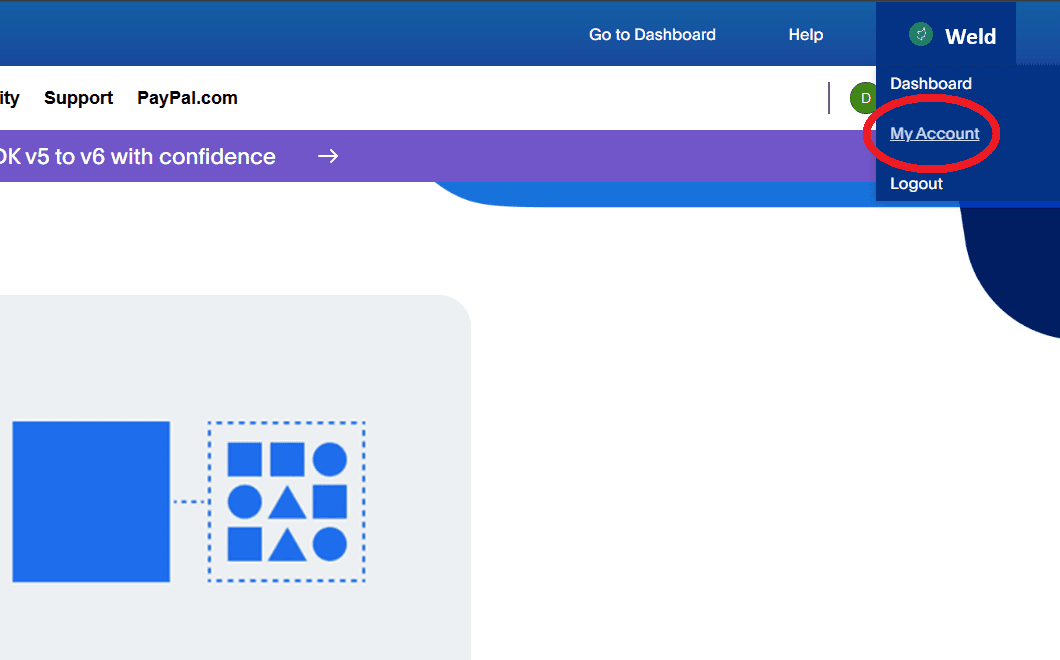
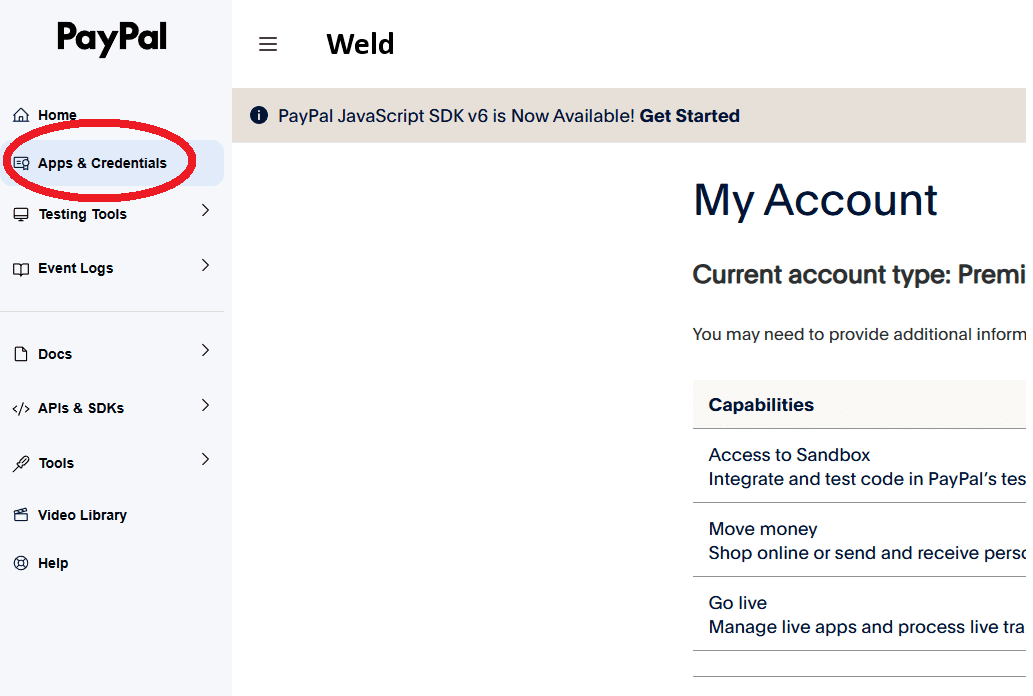
- Navigate to “My Apps & Credentials” in the dashboard.
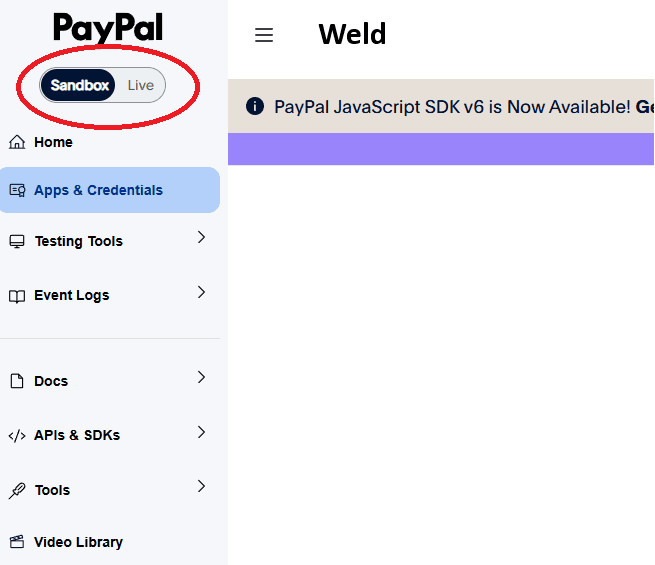
- Choose the appropriate environment (Sandbox for testing or Production/Live for real payments).
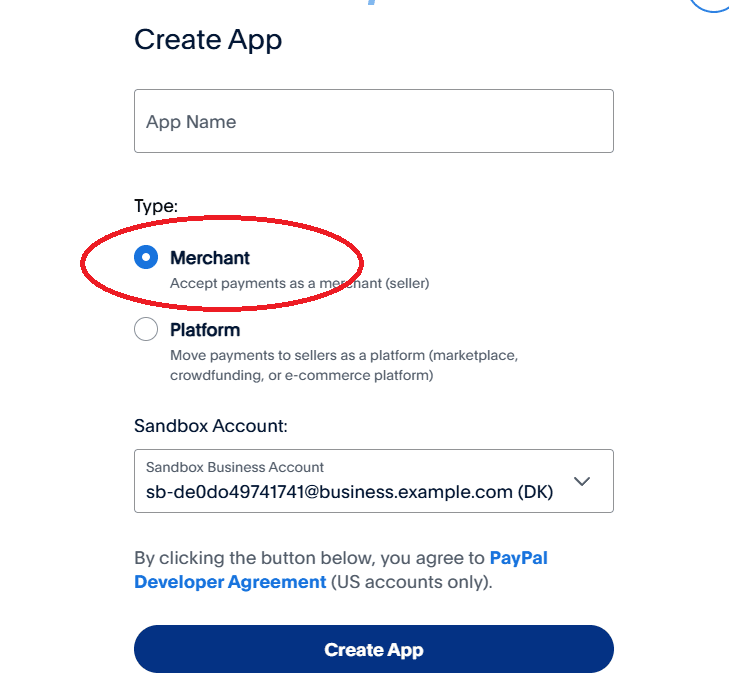
- Create the App.
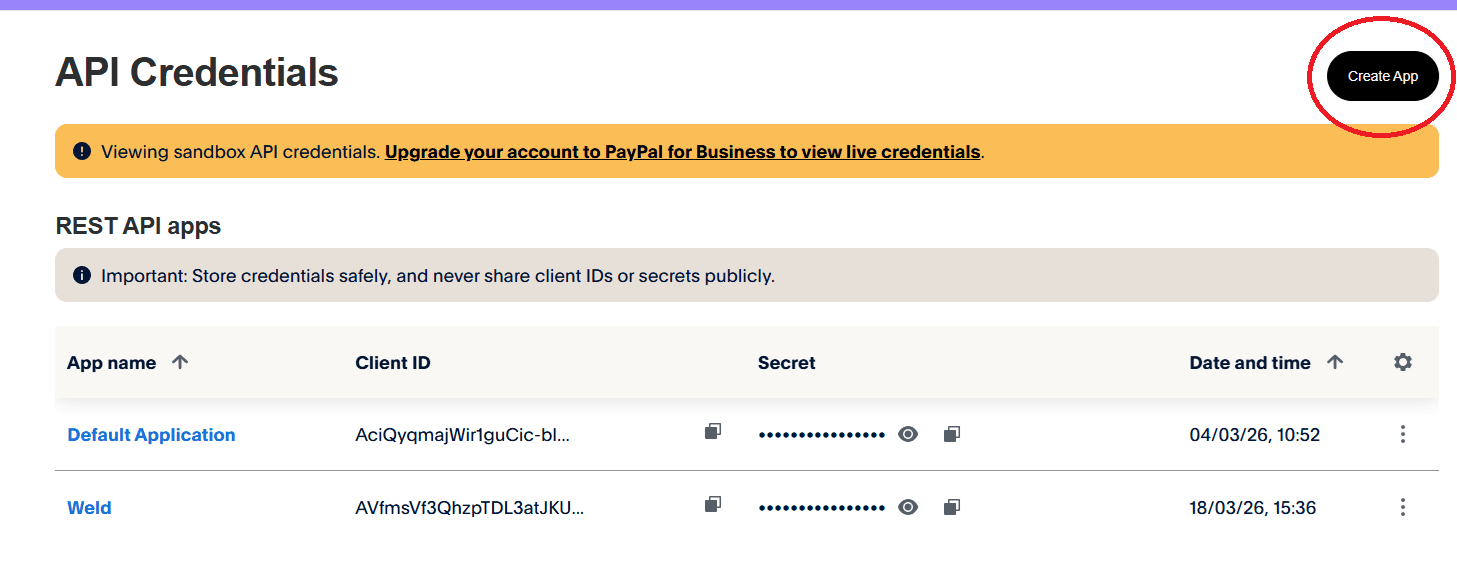
- Make sure that the type is "Merchant" and create.
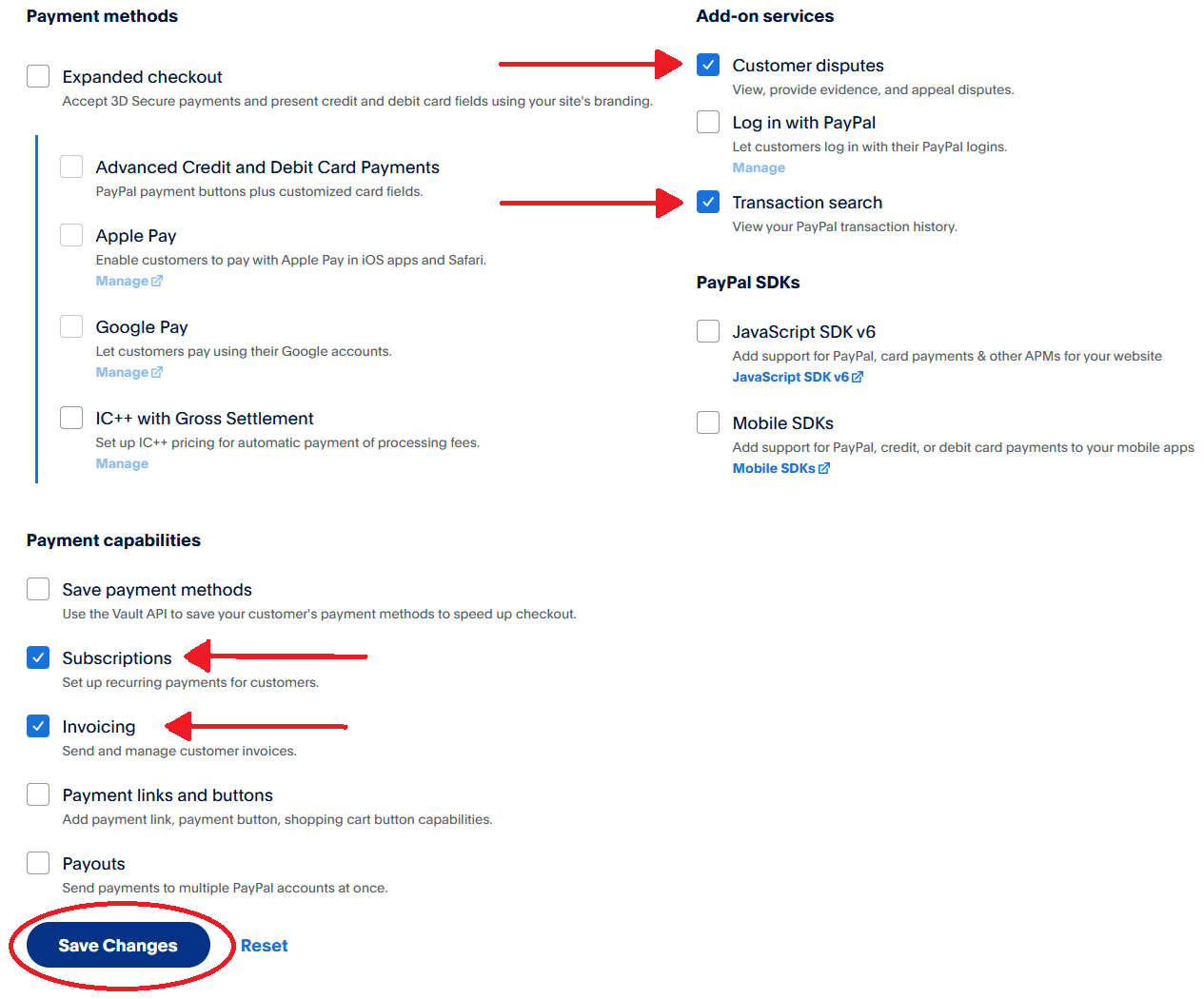
- Pick any number of the following settings: Customer disputes, Transaction search, Subscriptions, Invoicing.
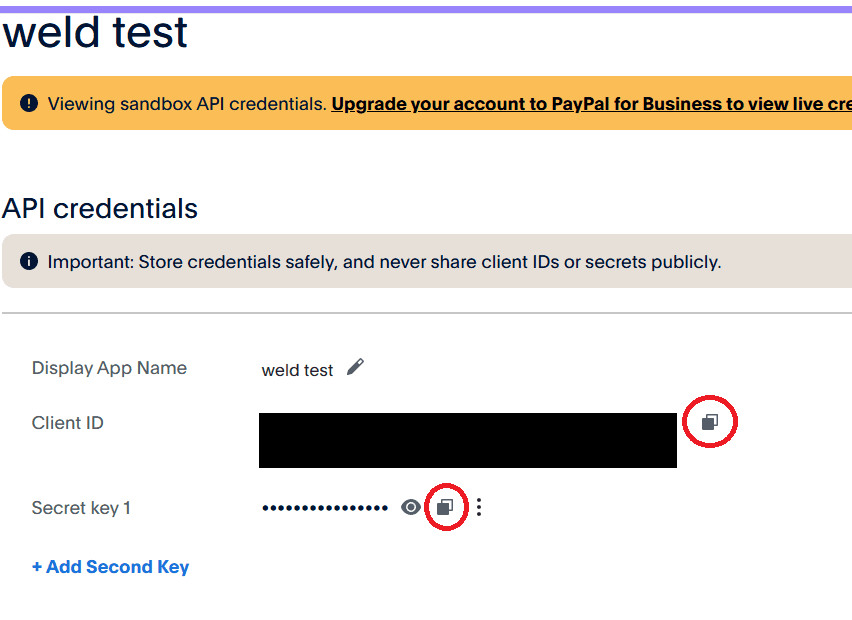
- Find and copy your Client ID and Secret.
Step 2 - Connection Settings
- Paste the Client ID and Secret into the appropriate fields, and choose the right environment.
- Choose if you want to include history tables and if so how far back you want to sync data from.
- In the next step, you can select which historical tables you want to sync.
Step 3 - Data to sync
- Select which data tables you want to sync from PayPal.
- You can view the schema, remove columns or hash sensitive information.
- Choose history tables if needed.
- Set up available tables for incremental or full sync.
- Press Next to continue.
Step 4 - Configure sync
- Select how often you would like the data to sync.
- You can limit the data to sync by selecting a specific start date in the “Will sync now and update data:” section via the three-dot menu. If left blank, the connector will sync all available data.
Weld will take over from here and commence syncing data from your PayPal account.