
Workspace Settings
Connections
Manage your data connections from Settings → Connectors.
- Create new connections — Add data sources by selecting from supported platforms, providing credentials, and testing the connection before saving.
- Update existing connections — Modify credentials, host information, or access permissions without interrupting data workflows.
- Connection status — Monitor the health of each connection and receive alerts for failed or expired connections.
Users & Roles
Manage team access from Account Settings → Members. Invite new members by email, remove users who no longer need access, and assign roles to control what each person can do.
Assigning Roles
To change a member's role, click the role dropdown next to the user you want to update.
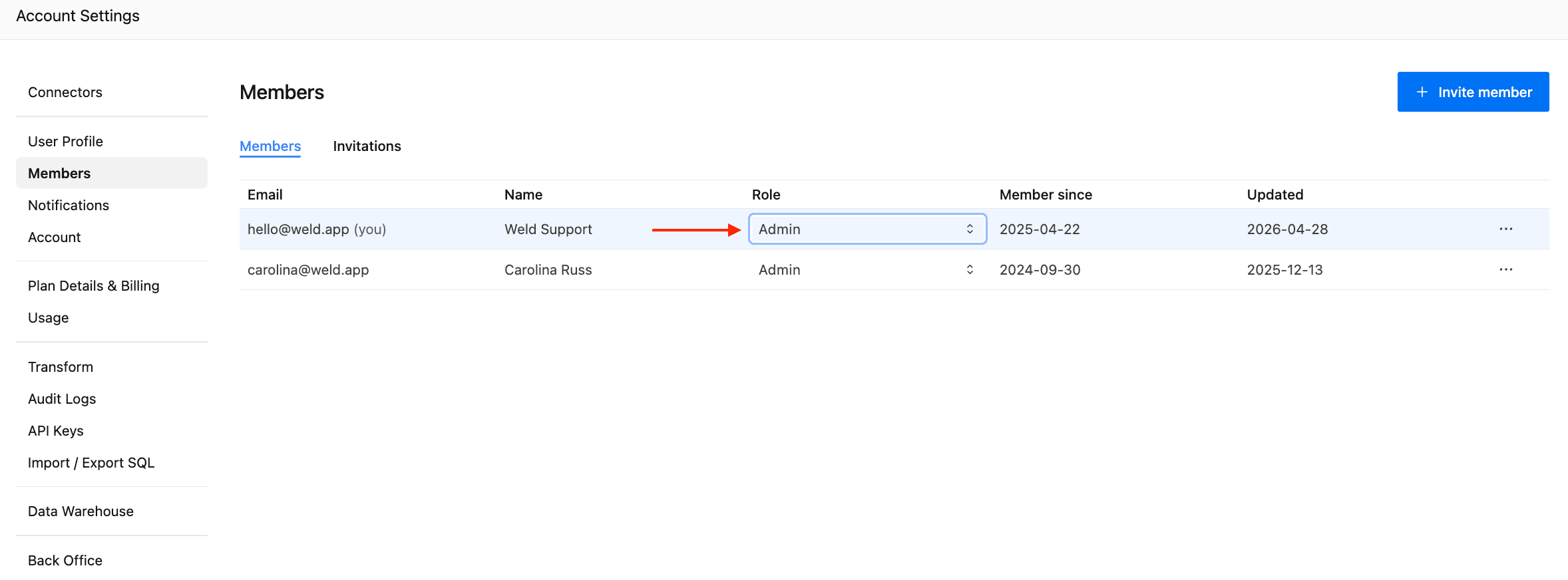
Selecting the dropdown opens the role picker where you can choose between Admin, Editor, or Viewer. For the Editor role, you can toggle which areas the user has write access to — Data Sources, Reverse ETL, and Transform. Any area left unchecked becomes read-only for that user. If no areas are selected, the Editor has full access.
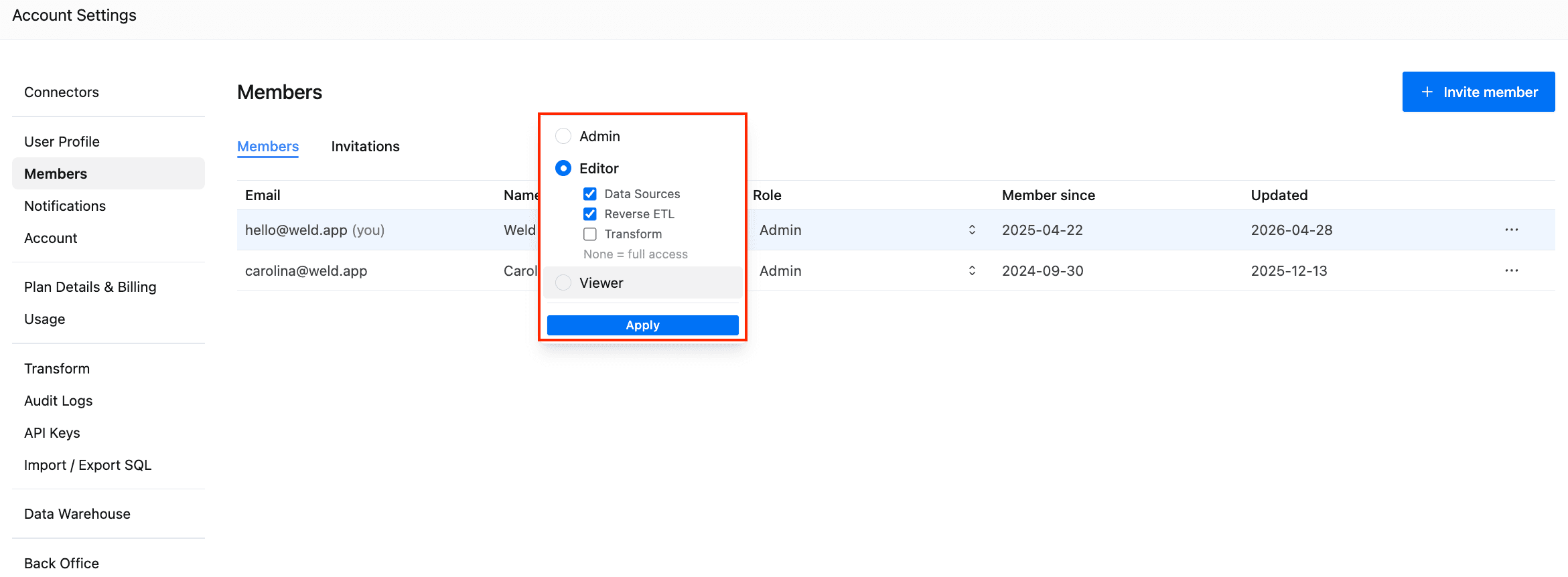
Click Apply to save the new role assignment.
Role Definitions
| Role | Description |
|---|---|
| Admin | Full access to the entire workspace, including billing, user management, and all configuration. |
| Editor | Write access scoped to specific areas. Admins can restrict Editors to ELT syncs, Reverse ETL, Transformations, or any combination — while keeping the rest of the workspace read-only. |
| Viewer | Read-only access across the workspace. Viewers can monitor dashboards, view configurations, and check sync statuses but cannot modify anything. |
Billing
Manage your subscription and payment details from Settings → Plan & Billing.
- Payment information — Edit credit card or billing contact details securely.
- Invoices — Access a detailed history of past invoices including date, amount, and status.
- Subscription plans — View your current plan features and upgrade or downgrade as needed.
Audit Logs (Business Plan)
Audit Logs provide detailed activity records for your workspace, enhancing security and accountability. They track user actions, changes, and other events, helping you maintain a secure and transparent environment. Users with the Admin role can access and download audit logs in CSV format from the workspace settings.
You can access audit logs starting from April 15, 2024 9:00 GMT. They are downloadable for up to 30 days prior on the Settings page. If you need older audit logs, please contact our Support team via chat.