
Version history
Every model keeps a history of its SQL. Each time a model is published, Weld stores that version with the time and the member who made it, so you can see how a model changed and go back to an earlier version.
Open the history
- Open the model in Transform.
- Click the clock icon in the bar under the editor, next to Run (1).

The History panel opens beside the editor and lists the model's versions, newest first. Each entry shows when it was published, the start of its SQL, and the initials of the member who published it.
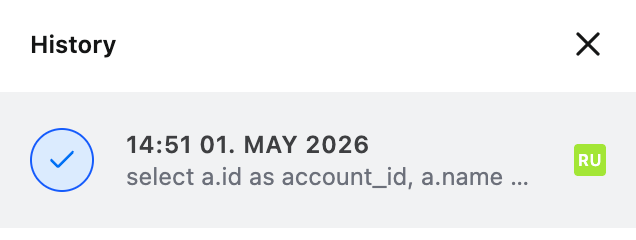
The version that's live in your warehouse is marked Published model, and if you have changes that aren't published yet, they show at the top as Current edited version.
Compare and restore a version
Click a version in the panel. The editor shows it side by side with your current SQL, with the differences highlighted.
From there you can:
- Click Run to preview what that version returns, without changing anything.
- Click Reset draft to this version to load its SQL into the editor as your draft.
Resetting only changes your draft. Your warehouse keeps the published version until you click Publish Changes, so you can check the result before it goes live. See Data models for drafts and publishing.
Click the version at the top of the list to go back to your current SQL.
Related
- Data models
- GitHub sync: keep your models in a GitHub repository, with its full commit history.