
Data sources (ELT)
A data source is a sync that copies tables from one of your tools or databases into your data warehouse on a schedule. Weld extracts the data, loads it into the warehouse, and keeps it up to date, so you can transform it there.
This page covers setting up a data source, how syncs work, and the options you have for each table. For what a specific tool needs, see its page in the connector docs.
Set up a data source
- Click Data Sources in the sidebar (1), then click Add Data Source (2).

- Search for the tool and click it. Choose Use existing connection if it's already connected, or Create new connection and sign in to the tool. The tool's setup guide opens beside the form.
- On Connection Settings, fill in what the tool asks for, such as which accounts to sync. Limit historical data skips data from before a date you choose. Click Next.
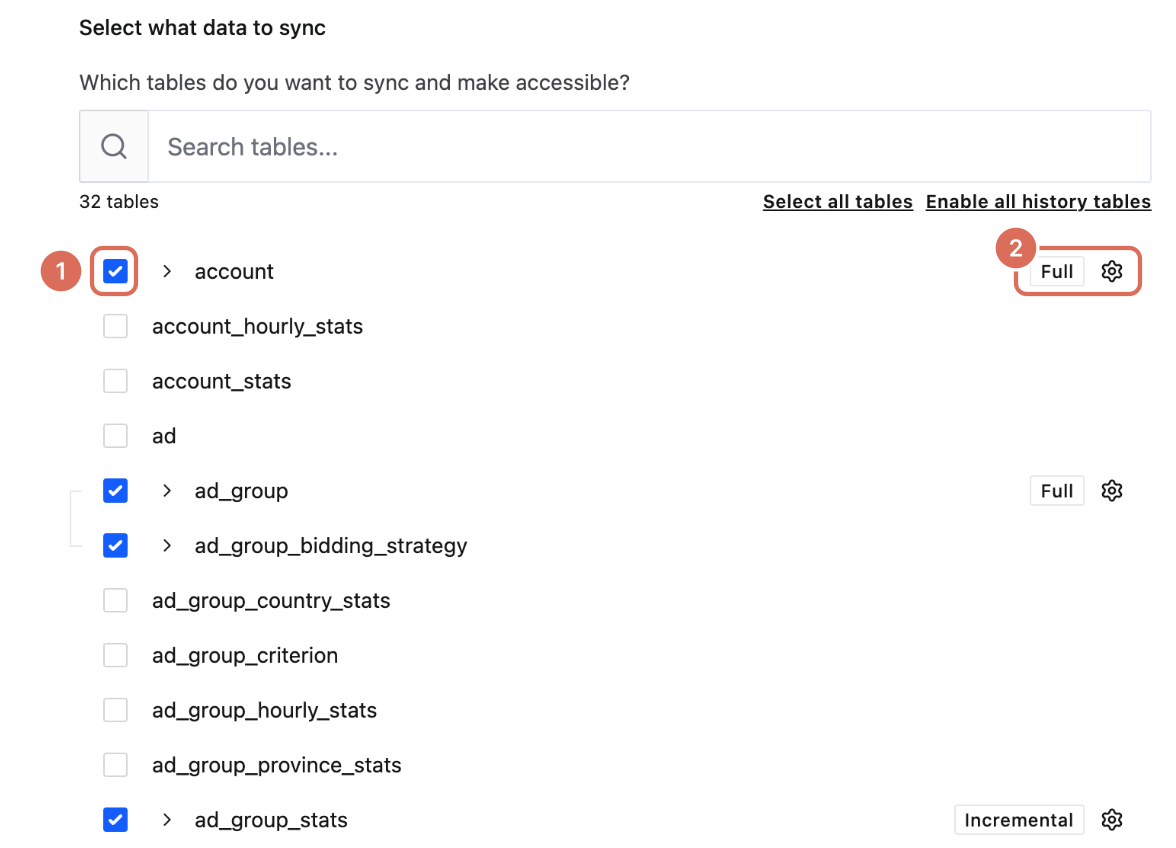
- On Data to sync, tick the tables you want (1). Each table shows whether it syncs in full or incrementally, and its cogwheel opens the table options (2). Expand a table to see its columns. Click Next.
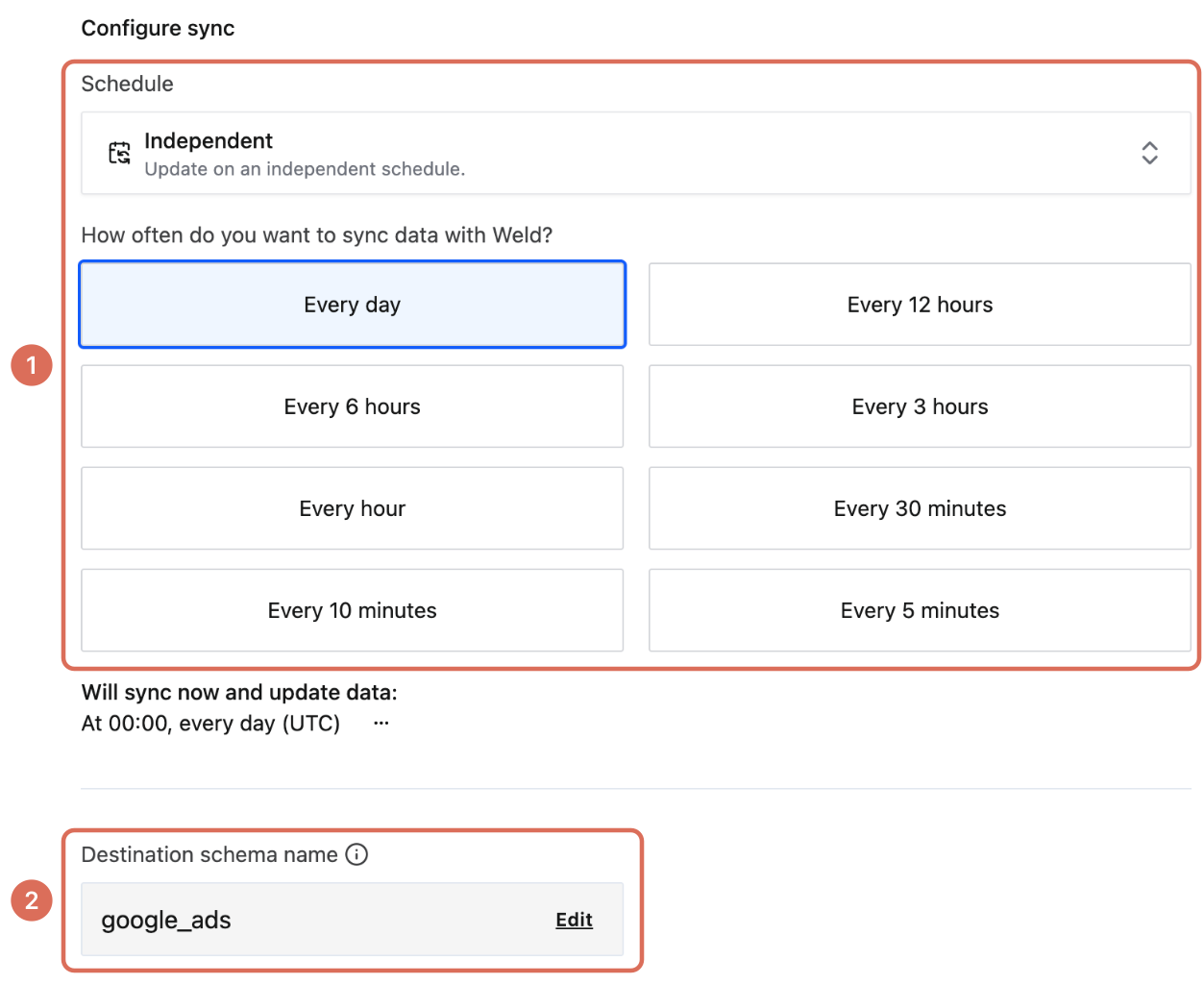
- On Configure sync, choose how often the sync runs (1) and check the Destination schema name (2): the schema, or dataset in BigQuery, where the tables land.
- Click Start Initial Sync.
You can add and remove tables and columns later from the sync's settings. To run the sync as part of a chain with your models and reverse ETL syncs, add it to an orchestration instead of giving it its own schedule.
How syncs work
The initial sync
The first sync of a table copies all the historical data the source makes available, or everything from the date you set with Limit historical data. It can take from minutes to many hours, depending on:
- How much data there is. A table with millions of rows takes much longer than one with a few hundred.
- The source's rate limits. Many APIs only allow a set number of requests per minute, which caps how fast Weld can read.
A table can be queried once its initial sync has finished.
Incremental syncs
After the initial sync, most tables sync incrementally: each run only fetches rows that are new or changed since the last run. Weld keeps track of where the last successful run stopped, so nothing is skipped and nothing is fetched twice. Incremental syncs are faster and count fewer active rows than reloading the whole table.
An incremental table uses one of two modes:
| Mode | What happens |
|---|---|
| MERGE (default) | New rows are added and changed rows are updated in place, matched on the primary key. The table holds one row per record. |
| APPEND | New rows are added to the end of the table. Existing rows are never updated, so a record that changes appears once for each version. |
Some tables can't be synced incrementally by default because the source gives no reliable way to find changes. These tables show Set up Incremental sync: click it, pick the mode, the Primary key and the Cursor, the column that tells Weld which rows are new, such as an updated-at timestamp.
Incremental syncs don't see rows that were deleted at the source. To keep track of deletes, use Capture deletes for full syncs, or Change Data Capture for databases.
Full syncs
A full sync re-reads the whole table from the source and replaces the table in your warehouse. Tables whose source has no way to fetch only changes always sync in full.
You can also request a full sync of an incremental table, for example to pick up rows deleted at the source or to repair a table after a data issue at the source. Full syncs of large tables take time and count every row, so use them with care.
Schema changes
Some schema changes at the source need the whole table reloaded. When an incremental sync finds one, Weld runs a full sync automatically, unless the table is protected. If the source no longer keeps all its history, that full sync can lose rows the warehouse had, so protect tables whose history you can't get back.
Table options
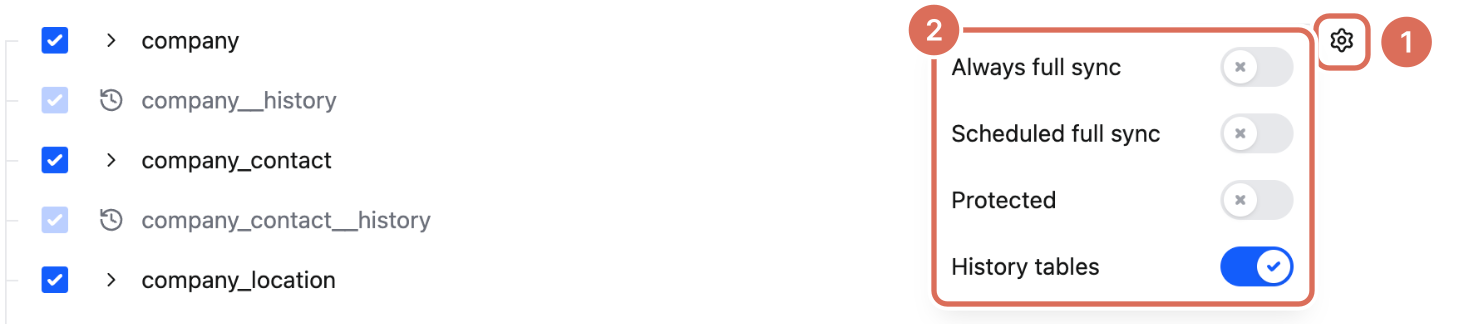
Click the cogwheel next to a table (1) to set its options (2): on Data to sync while you create the sync, or later from the data source's Configure page, where you save with Update Sync.
| Option | What it does |
|---|---|
| Always full sync | Every run is a full sync. Useful for small tables, or when the source changes old rows without a reliable timestamp. |
| Scheduled full sync | Runs a full sync periodically instead of an incremental one. When the schedule comes due, the table's next regular sync runs as a full sync, so it can't run more often than the table syncs. |
| Protected | When a schema change needs a full reload, the table pauses and you're notified instead. You then decide when to run the full sync. Use it for tables whose history the source doesn't keep. |
| Change Data Capture | For databases set up for CDC: reads inserts, updates and deletes from the database's change log. See Change Data Capture. |
| Capture deletes | Beta. Full syncs keep rows the source stopped returning and mark them with _weld_deleted_at. See Capture deletes. |
| History table | Keeps a second table with every previous version of each row. See History tables. |
The options a table shows depend on the connector, the table's sync mode and your plan.
Hash or remove columns
Expand a table to see its columns. Untick a column to leave it out of the sync, or set it to Hashed to sync a hashed value instead of the original, for example for email addresses or other personal data.
Columns Weld adds
Every synced table gets a few extra columns, such as _weld_synced, the time the row was last written by a sync. See Weld-managed fields.
Active rows and billing
Syncs are billed on monthly active rows: rows inserted or updated in your warehouse during the month. On incremental syncs, every new or changed row counts, and rows that haven't changed don't. On a full sync, every row in the table counts once per month, however many times the table is reloaded.
These don't count toward your active rows:
- The first 14 days after you first set up a type of connector. A second connection of the same type doesn't start a new 14 days; custom connectors get 14 days per connection.
- The first sync of a new table.
- Resyncs Weld runs itself, for example after a schema change.
- Reloading historical data for a table you already sync, when you ask us to run it from the support chat.
See Monitor and optimize usage to see where your rows come from, and Billing for plan limits.
Next steps
If you get stuck, contact support.