
Data models
A data model is a SQL query you write in Weld and publish to your warehouse. Published models become views or tables there, so your BI tools, reverse ETL syncs and other models can use them.
A model is always in one of three states:
- Draft: only in Weld. Nothing is created in your warehouse.
- Published as a view: computed from the latest data each time it's queried.
- Published as a table: stored in your warehouse and rebuilt on a schedule. See Transformation scheduling.
The editor
Click Transform in the sidebar to open the editor.
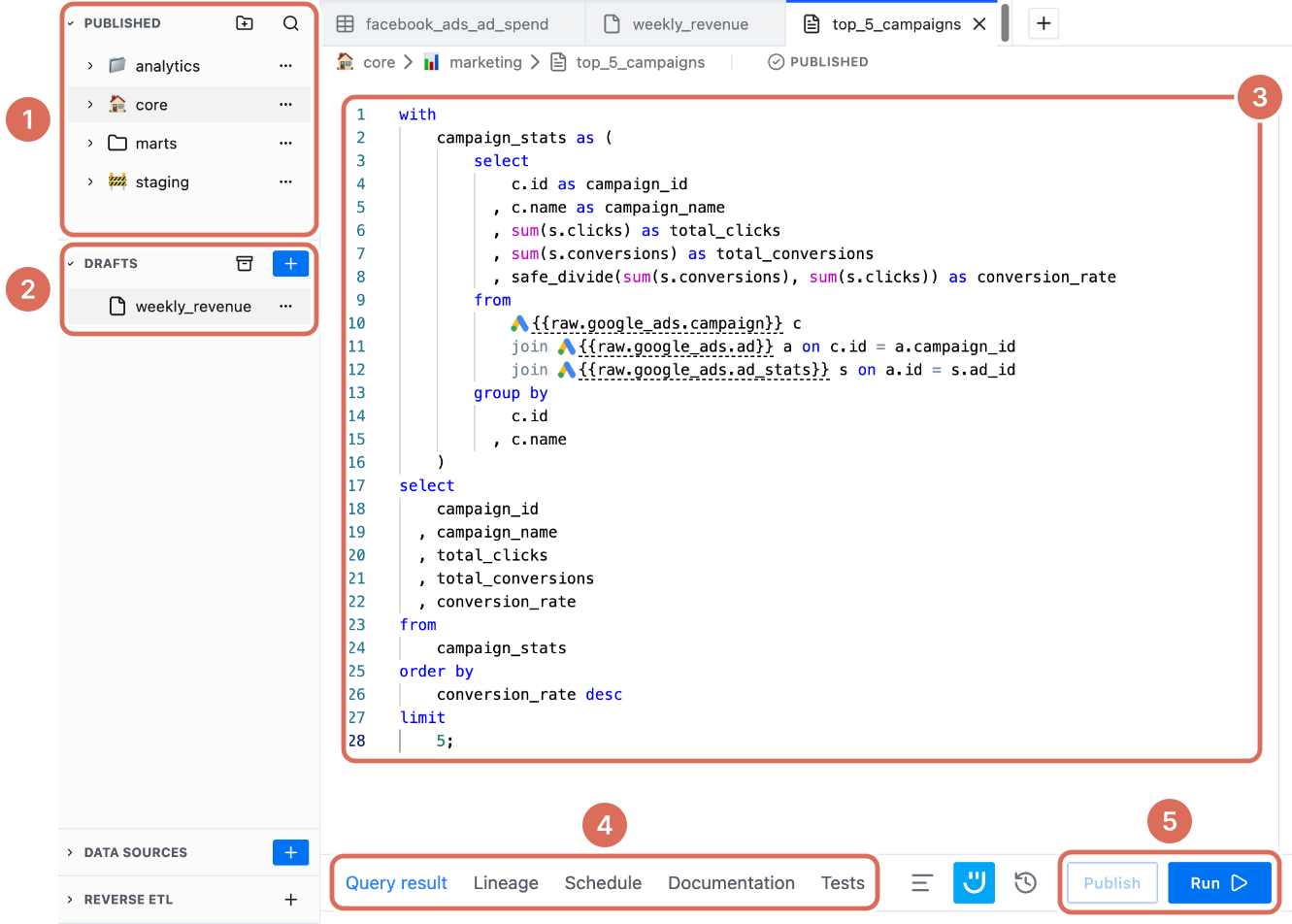
- Published: your published models, in folders.
- Drafts: models you're still working on. The archive icon opens archived drafts and models.
- The SQL of the open model. References to other tables are underlined.
- Tabs for the open model: Query result, Lineage, Schedule, Documentation and Tests. Schedule, Documentation and Tests appear once a model is published.
- Run previews the result. Publish saves the model to your warehouse.
Write a draft
- Open a new tab with +, then click Blank SQL model, or describe what you need and click Ask Ed. See Ed.
- Write your SQL and click Run to check the result.
- To keep the draft under a name, click Save Draft and enter a Model name.
Unsaved drafts are kept in your browser, so they don't follow you to another browser or computer. After 24 hours without changes they move to the archive, where you can restore them for 30 days.
Reference other tables
Reference synced tables and other models with double curly brackets, not their warehouse names:
select *
from {{raw.facebook_ads.campaign}}
{{raw.<source>.<table>}}is a table synced by a data source.{{<folder>.<model>}}is another model, and{{<folder>.<subfolder>.<model>}}one in a subfolder.
References are what let Weld build lineage and run models in the right order in an orchestration. A reference to a table that doesn't exist is underlined in red, and the model can't be published until it's fixed.
Publish a model
Click Publish. The first time you publish a draft, the Save Model dialog opens:
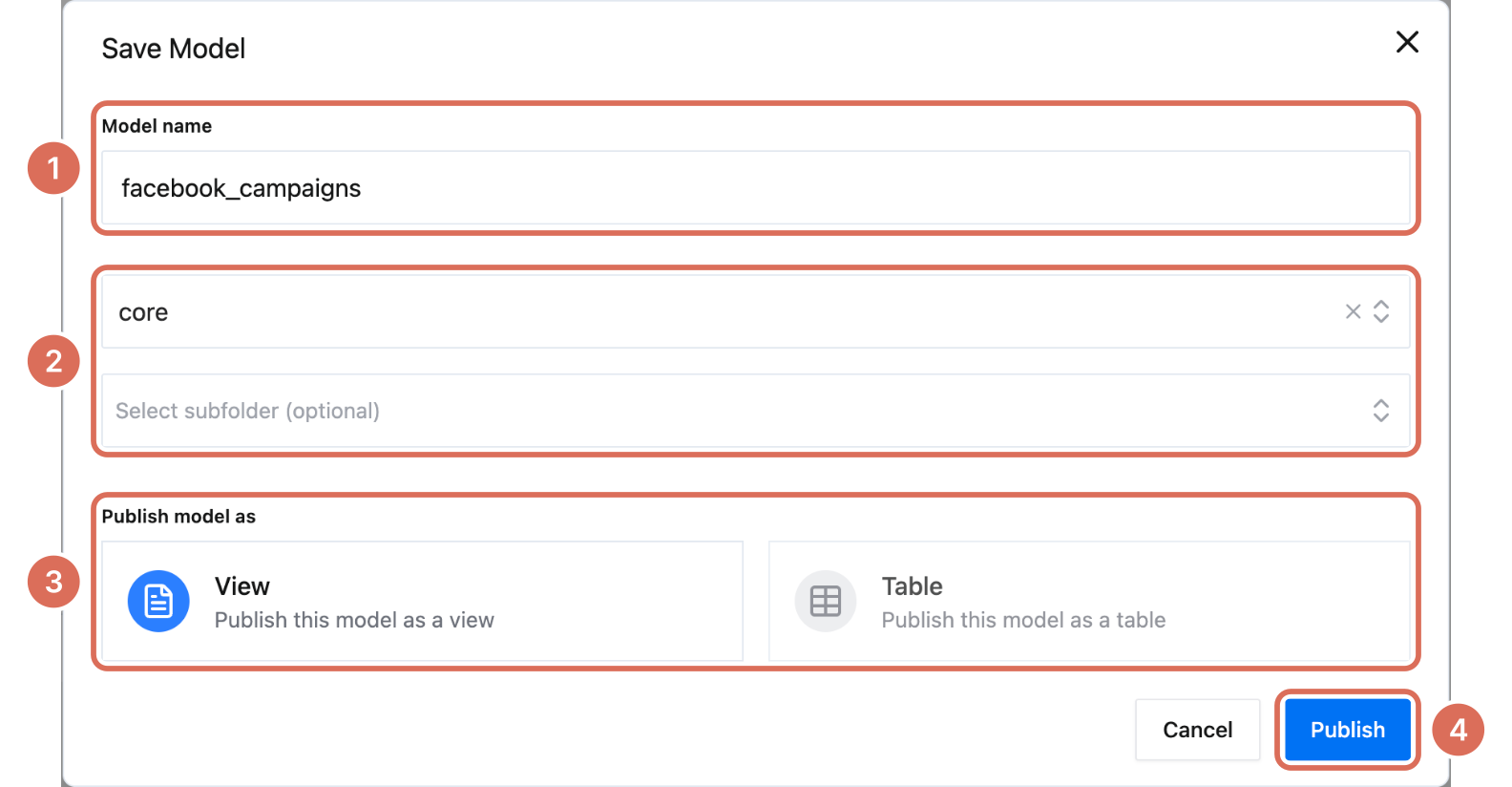
- Model name. It can't contain a double underscore (
__). - A folder, and optionally a subfolder. Publishing needs at least one folder: create one with the new-folder icon in the Published pane.
- Publish model as a View or a Table. A table needs a schedule, see Transformation scheduling.
- Publish.
The model moves to the Published pane and is created in your warehouse.
Change a published model
Edit the SQL of a published model and Weld saves your changes as you type. The badge next to the model name changes from Published to Edited, and your warehouse keeps the published version until you click Publish Changes.
To see earlier versions or go back to one, click the clock icon under the editor. See Version history.
Close, delete and restore
- Close an unsaved draft with the x next to it in the Drafts pane. It moves to the archive.
- Delete a saved draft or a model from its ··· menu.
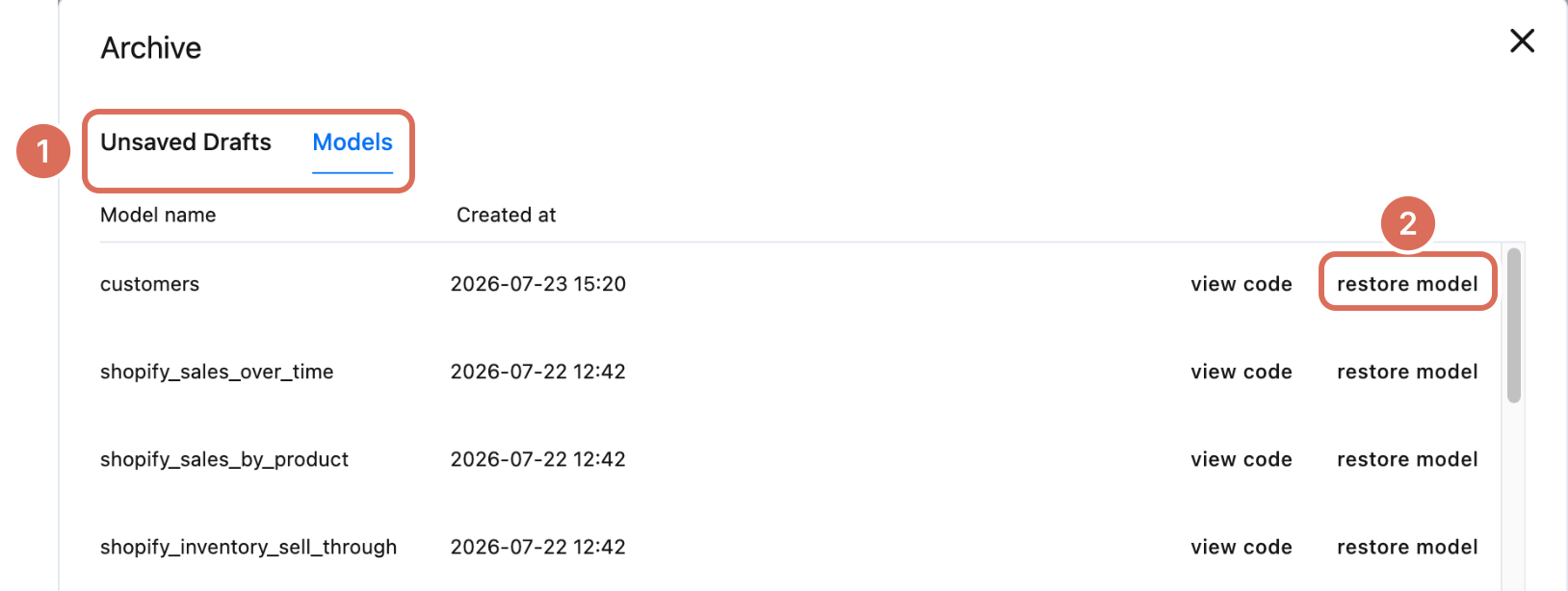
- To bring something back, click the archive icon in the Drafts pane header and choose the Unsaved Drafts or Models tab (1). Archived models have view code and restore model (2).
Format SQL
Press ⌘ + ⇧ + F (Ctrl + ⇧ + F on Windows), or click the format icon under the editor, to format the open model.
Troubleshooting
"Unable to publish with invalid reference". A {{...}} reference points to a table or model that doesn't exist. Fix the underlined reference, or sync the table first.
Publish asks for a folder but the list is empty. Create a folder in the Published pane first.
My draft is gone. Unsaved drafts move to the archive after 24 hours without changes. Restore it from the archive within 30 days, and save drafts you want to keep.