
Reverse ETL
A reverse ETL sync sends data from your warehouse to a business tool on a schedule. For example, it can keep lead scores in Salesforce, customer segments in HubSpot or a report in Google Sheets up to date from a model you maintain in Weld.
Each sync reads one source and writes to one object in the destination, such as Salesforce Lead or a HubSpot contact.
Before you start
You need something to send. A sync can read from:
- a published model in Transform,
- a table synced by one of your data sources, or
- a table or view that already exists in your warehouse, which you bring in with Import view from your warehouse during setup.
You can connect the destination tool while you set up the sync, so it doesn't need to be connected beforehand.
Step 1: Start a new sync
Click Reverse ETL in the sidebar (1), then click Add Reverse ETL Sync (2). If the workspace has no reverse ETL syncs yet, setup starts straight away.
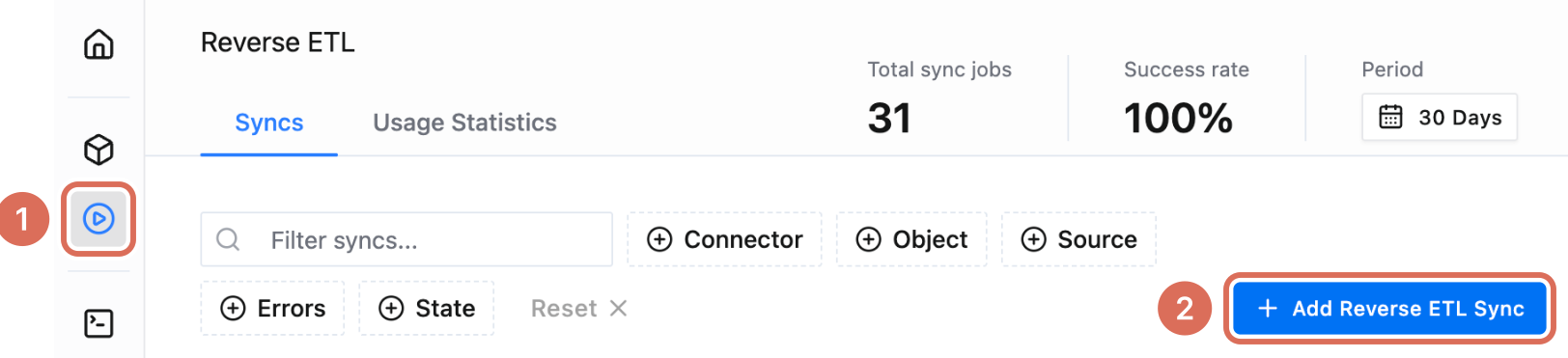
Setup has four steps: Destination, Target Details, Map Data and Schedule Sync. Nothing is created until you click Start Sync at the end, so you can go Back or Cancel at any point.
Step 2: Choose a destination
Search for the tool you want to send data to, or pick it from All Destinations.
Cards marked Connected or with a number of connections already have a connection in your workspace. Hover over the card and choose:
- Use existing connection (1) to pick one of them, or
- Create new connection (2) to connect another account.
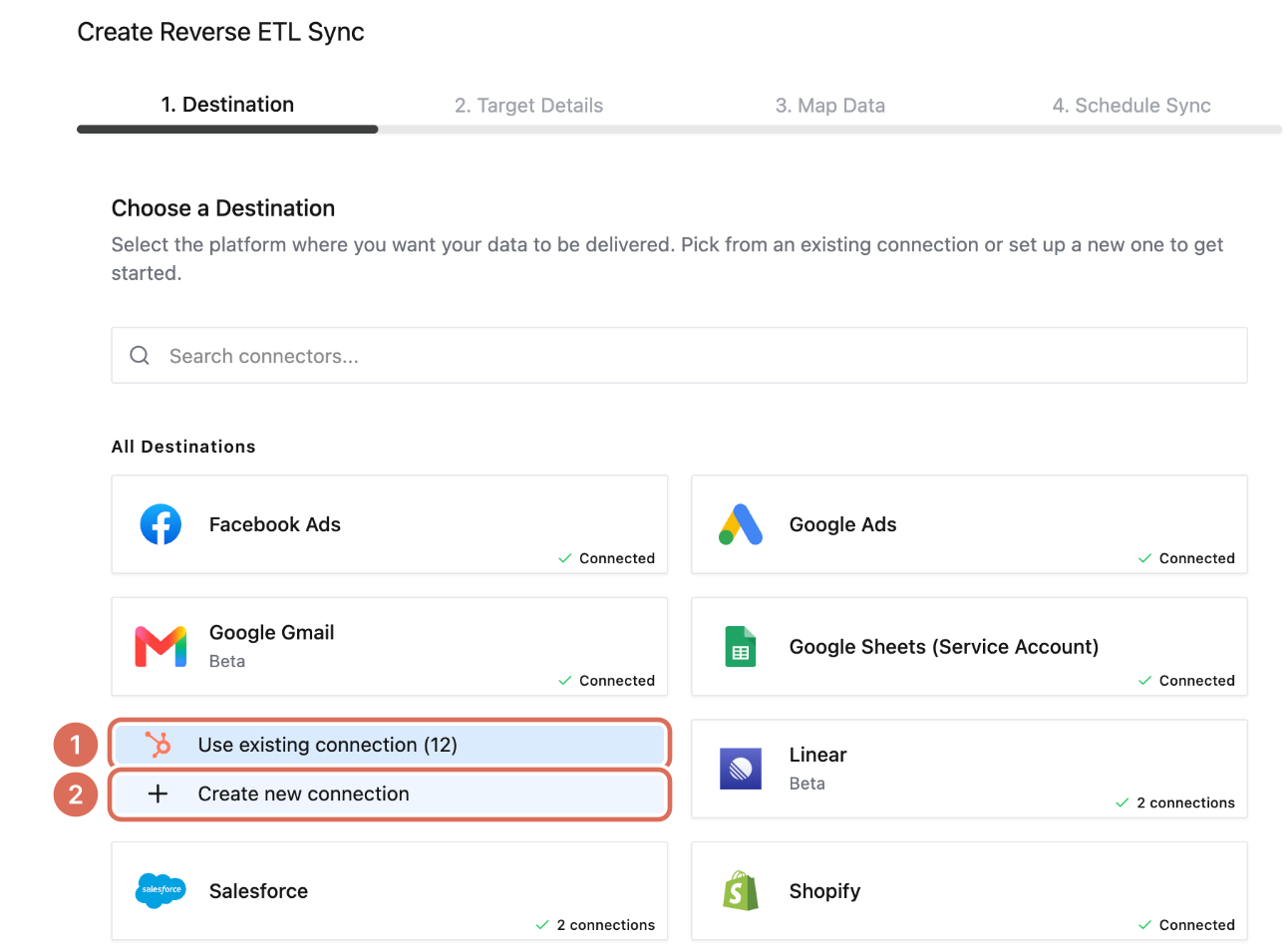
A new connection asks for a name and then takes you through the tool's own sign-in or credentials. The destination's page in the connector docs lists what it needs.
Step 3: Target details
Some destinations need extra settings before you can map data. Fill them in and click Next.
If the destination has no extra settings, this step is skipped.
Step 4: Map your data
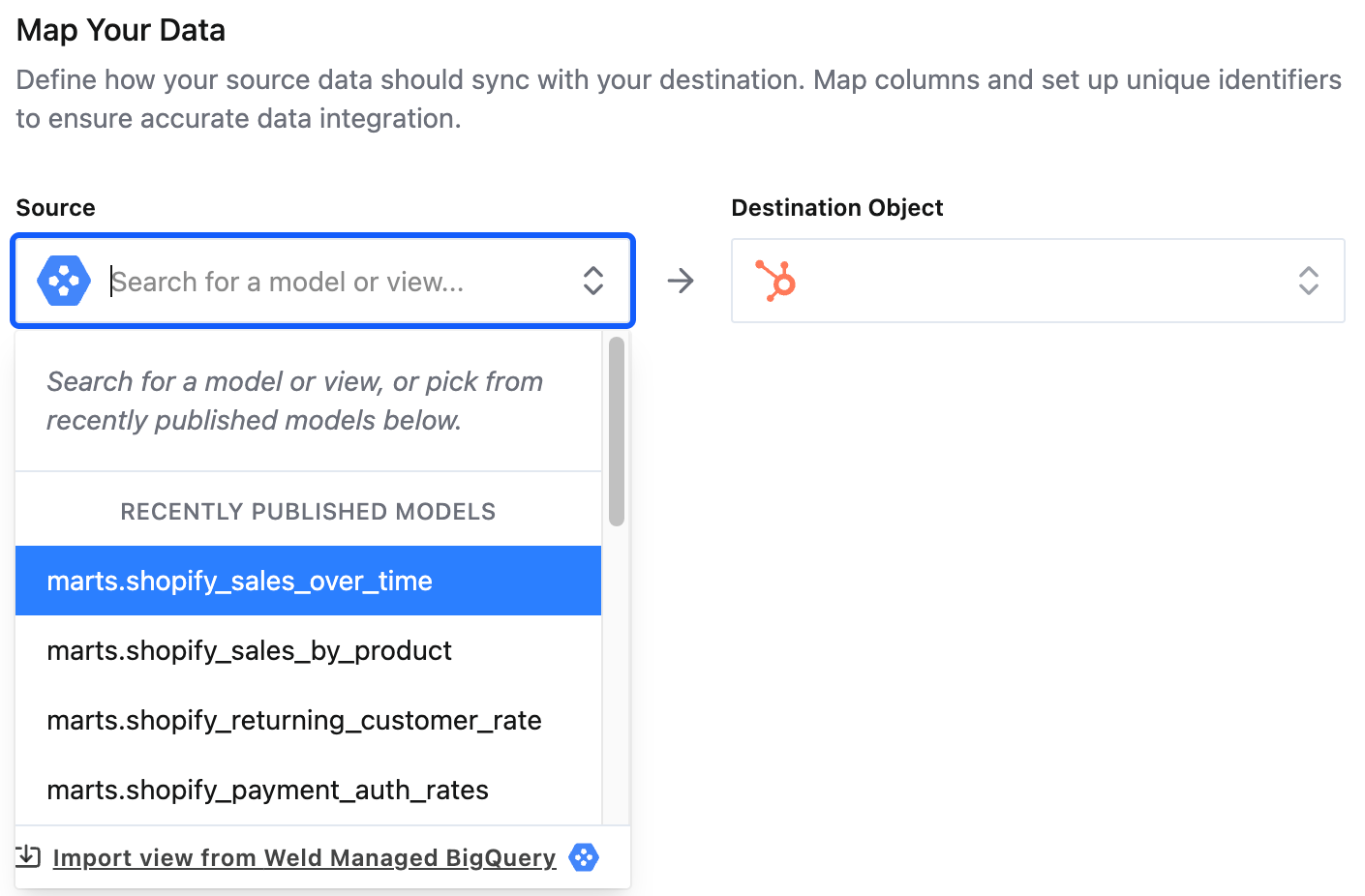
Source and destination object
- Under Source, search for a model or view, or pick one of the recently published models. Search results are labelled MODEL or VIEW. If the table you need isn't in Weld yet, click Import view from your warehouse at the bottom of the list.
- Under Destination Object, choose what to write to, such as contacts in HubSpot or Lead in Salesforce. Some objects have extra options under Edit Settings.
Sync mode and identifier
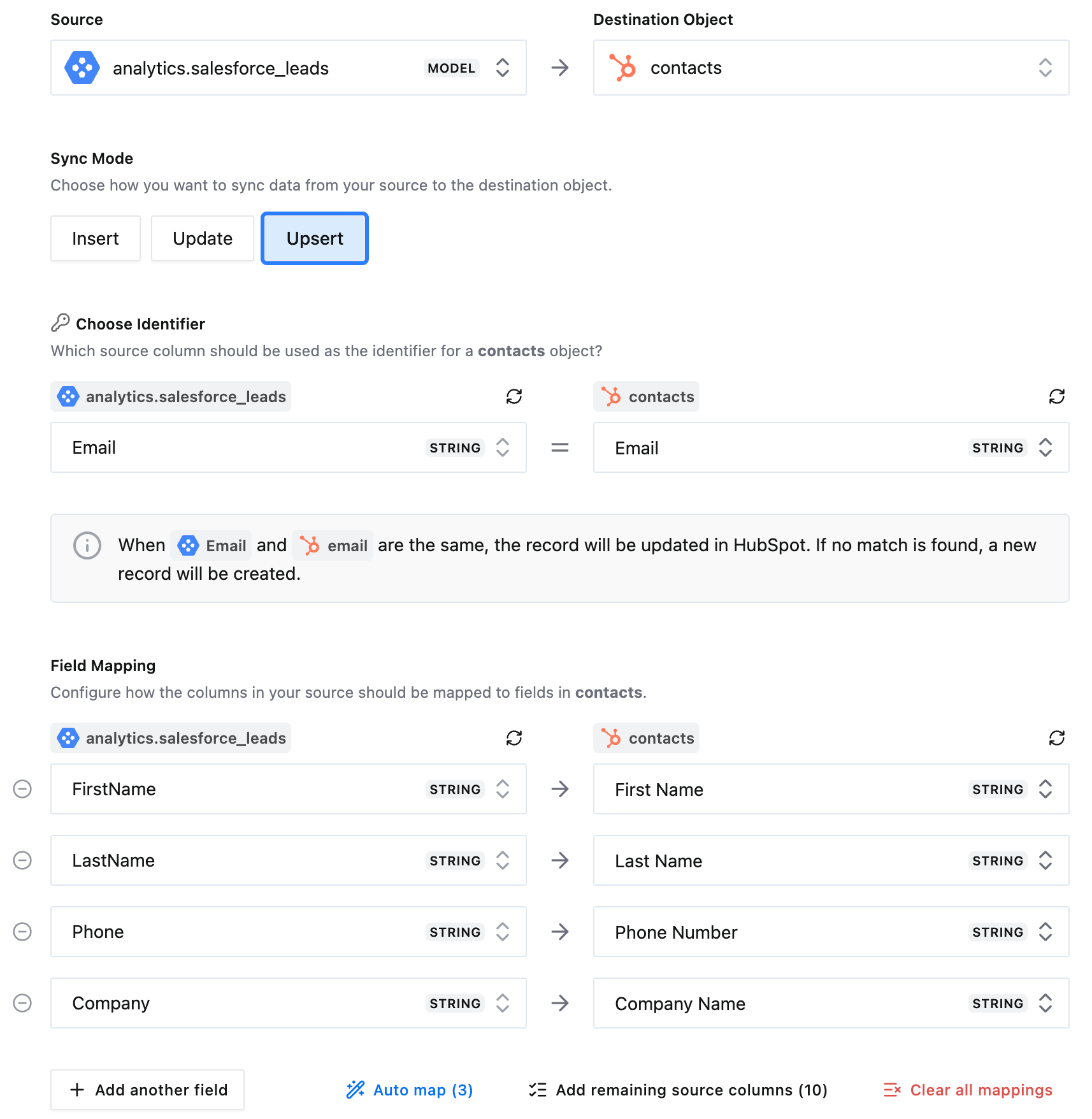
Under Sync Mode, choose how records are written. The options depend on the destination, and the box under Choose Identifier explains what the selected mode will do:
- Insert creates a new record for every row in the source.
- Update updates the destination records that match a source row.
- Upsert updates records that already exist and creates the rest.
- Some destinations also offer Mirror.
Under Choose Identifier, pick the source column and the destination property that identify the same record, for example an email column and the email property. It appears when the sync mode needs to match existing records, and for destination objects that always need an identifier.
Field mapping
Under Field Mapping, choose which source column goes into each destination field. Fields the destination requires, such as a lead's last name and company in Salesforce, are listed first. Map all of them.
- Add another field adds one mapping row.
- Auto map fills in the mappings Weld can suggest. Check them before you continue, as a suggestion isn't always the field you mean.
- Add remaining source columns adds a row for every column that isn't mapped yet.
- Clear all mappings starts over.
A column can be the identifier or a mapped field, not both.
Click Next.
Step 5: Schedule and start the sync
- Under Schedule, keep Independent to give the sync its own schedule, or choose an orchestration so it runs after the models it reads from have been rebuilt. The Schedule menu appears on the Premium, Business and Enterprise plans, which include orchestration.
- With Independent, choose how often the sync runs. The default is Every day at 00:00 UTC. Advanced Options sets a start time or a custom schedule.
- Click Start Sync.
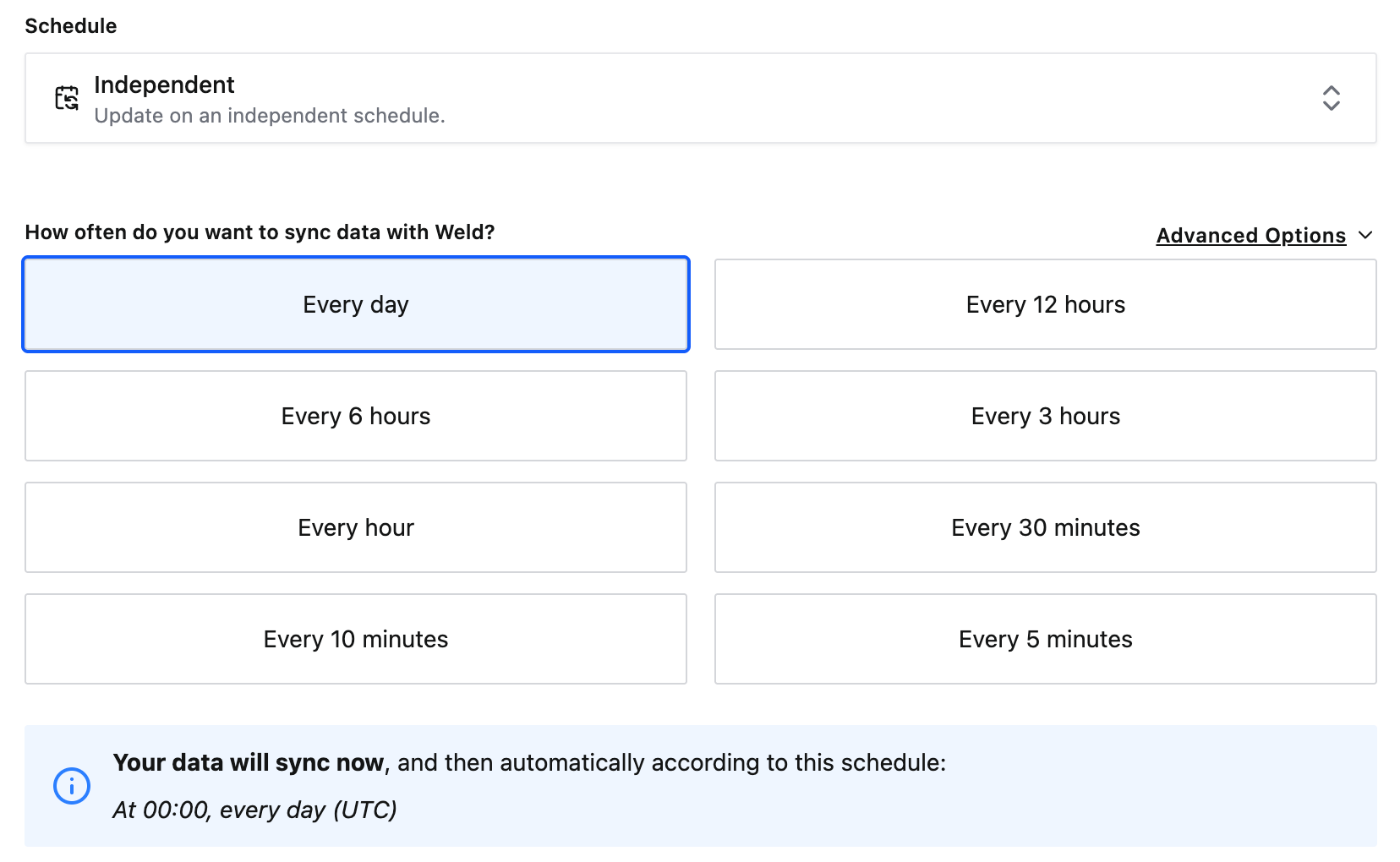
The first sync starts straight away. After that the sync runs on its schedule.
Managing a sync
Click a sync in the Reverse ETL list to open it.
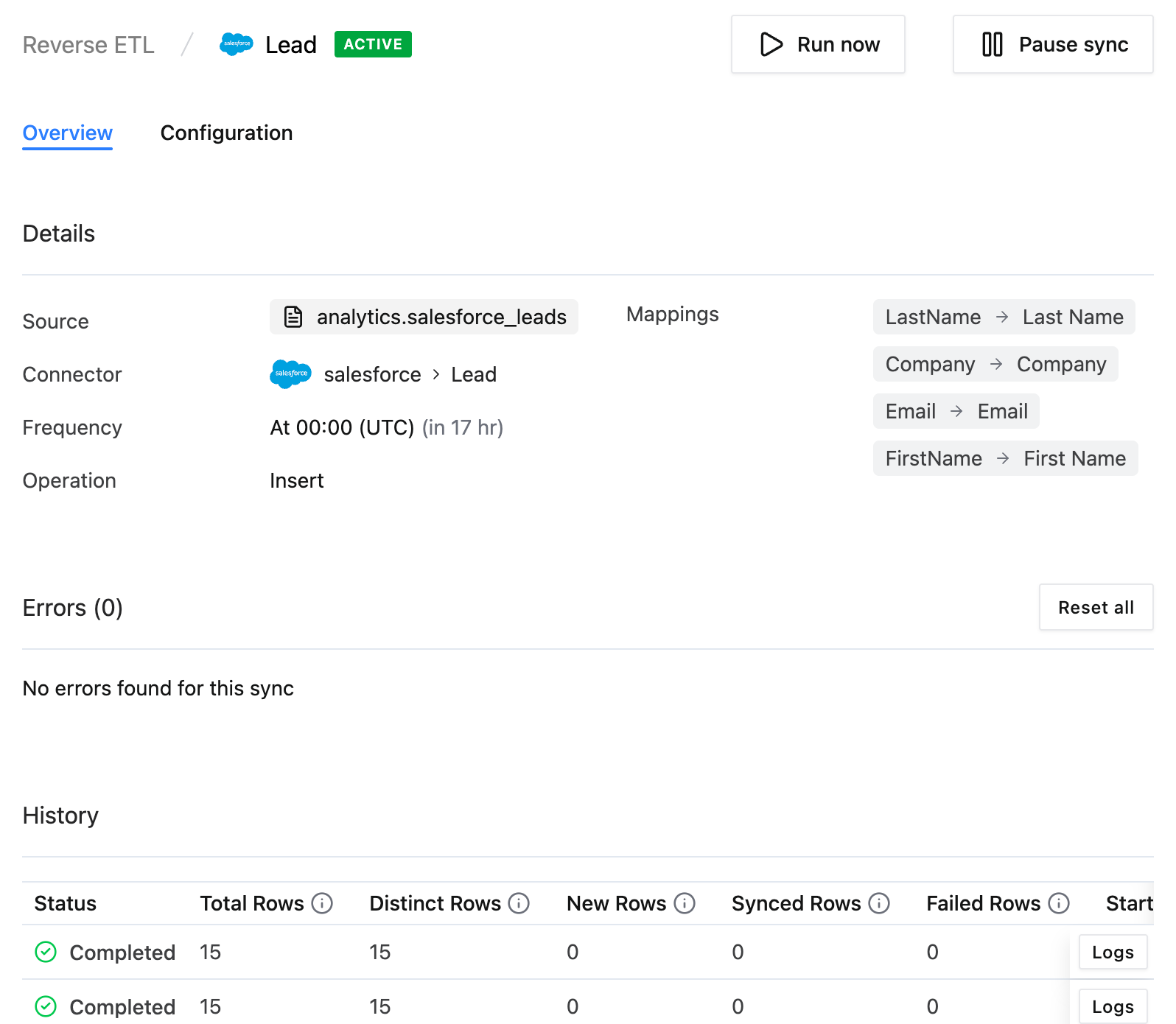
- The Overview tab shows the sync's details and mappings, any errors and the history of runs, with how many rows were synced and how many failed.
- Run now starts a sync outside the schedule. It is available on the Premium plan and above.
- Pause sync stops scheduled runs until you click Resume sync.
- To change a sync, pause it first. Then open the Configuration tab, change the destination settings, sync mode, schedule or mappings, and click Update sync. The source and the destination object can't be changed. To send a different source or write to a different object, create a new sync.
The Usage Statistics tab of the Reverse ETL page shows how many rows your syncs send.
Troubleshooting
Map Data shows an error when you click Next. With Update or Upsert, choose both sides of the identifier under Choose Identifier. Some destination objects also need their settings filled in under Edit Settings.
A column is missing from Choose Identifier. It's already used under Field Mapping. Remove that mapping row, then choose the column as the identifier.
My model isn't in the Source list. Only published models are listed. Publish the model in Transform, or use Import view from your warehouse for a table that exists outside Weld.
Update sync doesn't appear. The sync is still active. Click Pause sync, make the change, then click Update sync.
Rows failed. The History section on the Overview tab shows failed rows for each run, and the Errors section lists the errors the destination returned.