
Orchestration
An orchestration runs a set of jobs together on one schedule: data source syncs, models published as tables, model tests and reverse ETL syncs. Weld runs the jobs in the order defined by your data lineage, so a model only rebuilds after the data it reads from has synced, and a reverse ETL sync only sends data after the model it reads from is up to date.
Without an orchestration, every job runs on its own Independent schedule.
Before you start
- Orchestration is included in the Premium, Business and Enterprise plans. On other plans the Orchestration page shows an upgrade prompt instead.
- Create the orchestration first. The scheduler menus for data sources, models and reverse ETL syncs only list orchestrations that already exist.
- Only models published as a table can join an orchestration. Views are always computed from the latest data, so they have no schedule.
Step 1: Create the orchestration
- Click Orchestration in the sidebar.
- Click Add Orchestration.
- In the New Orchestration dialog, enter a Name and, optionally, a Description.
- Under Schedule, choose how often the orchestration runs. The default is Every day at 00:00 UTC. Click ··· next to the schedule description to set a start time or a custom cron expression.
- Click Create Orchestration.
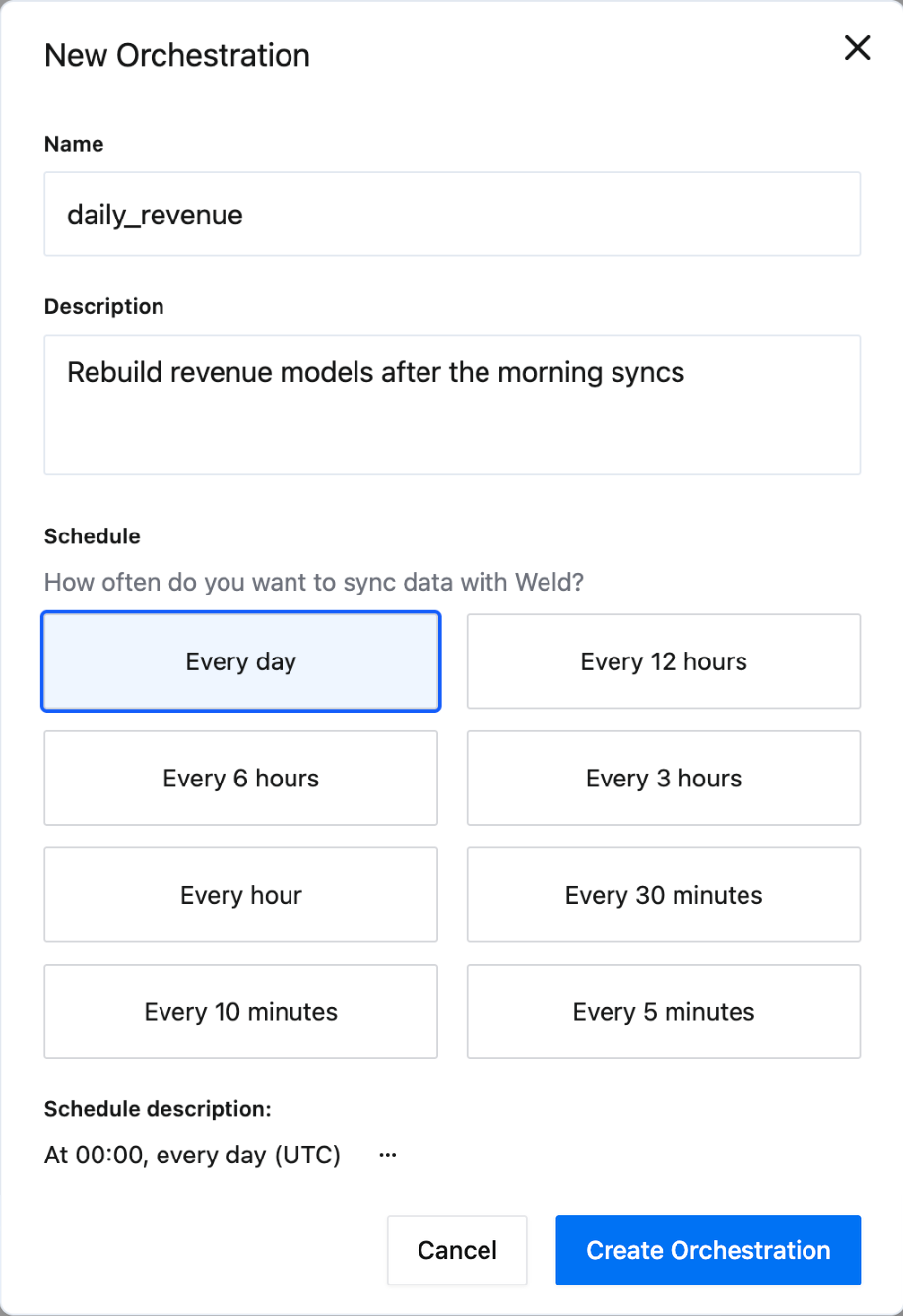
The schedule is in UTC. Frequencies faster than your plan allows are not available.
Step 2: Add data sources
A data source joins an orchestration as a whole sync, with all of its tables.
- Click Data Sources in the sidebar and click the data source.
- In the panel that opens, click Configure.
- In the Schedule box at the top of the configuration page, open the menu and choose the orchestration. Independent keeps the sync on its own schedule.
- Click Update Sync.
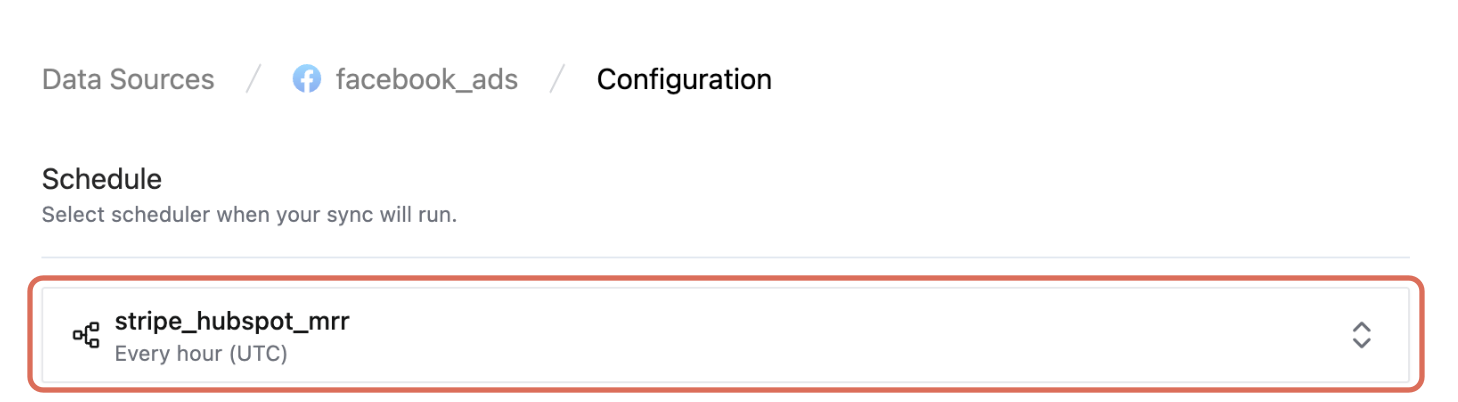
You can also choose the orchestration while setting up a new data source, in the Schedule menu on the Configure sync step.
Step 3: Add models
- Click Transform in the sidebar and open a published model.
- Click the Schedule tab under the editor. It shows how the model is published and what currently rebuilds it.
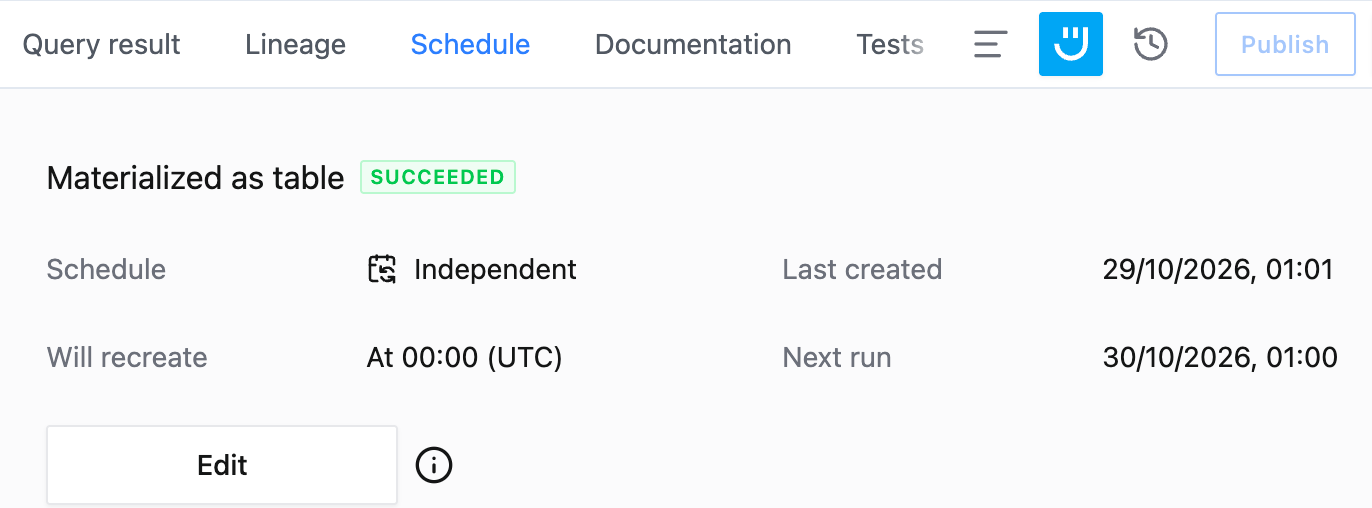
- Click Edit to open Edit scheduled updates.
- Under Publish model as, choose Table.
- In Select scheduler, choose the orchestration. The model's own schedule settings disappear, because the orchestration's schedule takes over.
- Click Update.
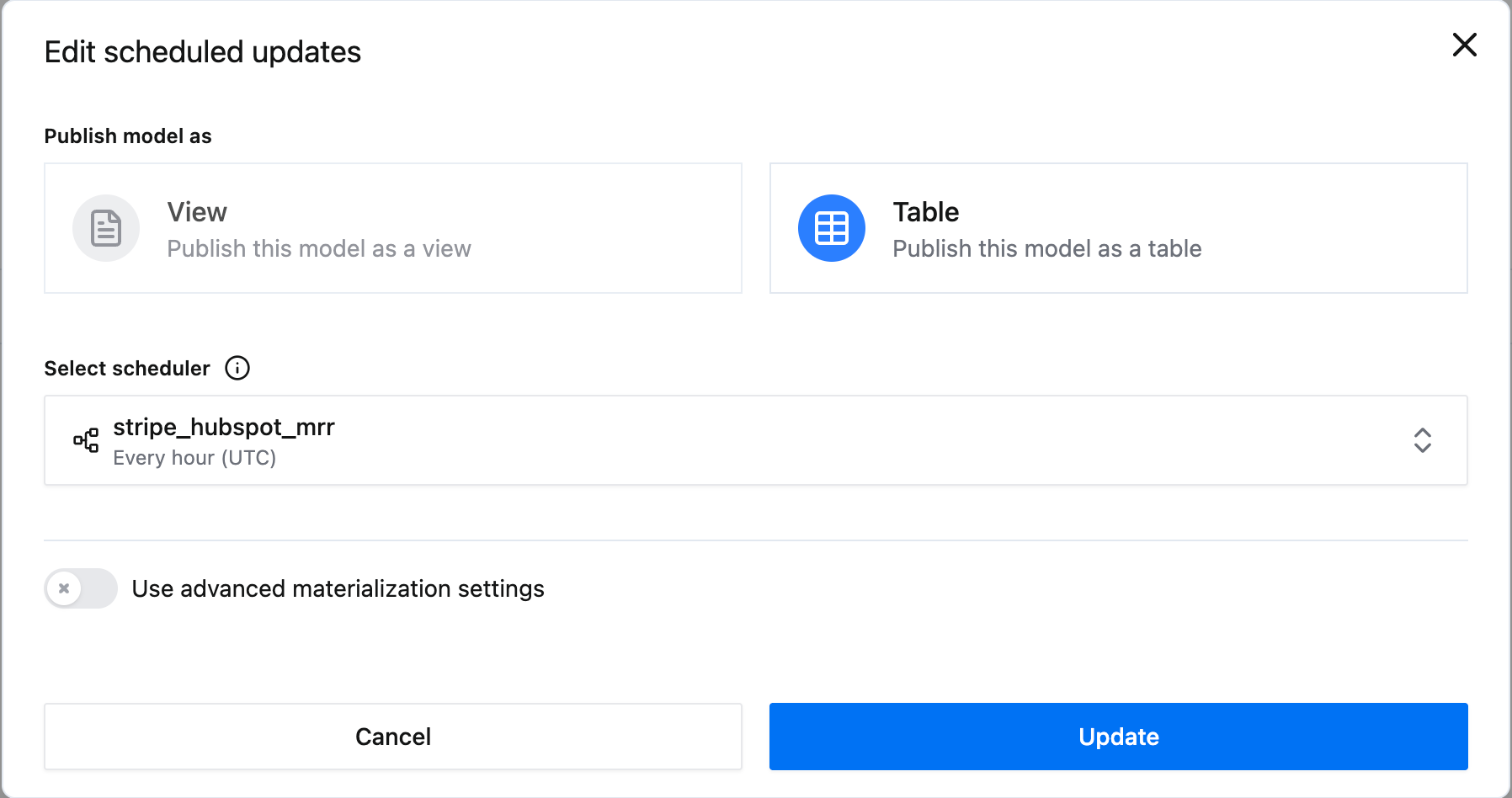
You can also choose the scheduler the first time you publish a model, in the Save Model dialog.
To run a model's tests as part of the orchestration, open the model's Tests tab, click Edit schedule and choose the orchestration.
Step 4: Add reverse ETL syncs
- New sync: on the Schedule Sync step, choose the orchestration in the Schedule menu. See Reverse ETL.
- Existing sync: open the sync and click Pause sync. On the Configuration tab, choose the orchestration under Schedule, click Update sync, then click Resume sync. A reverse ETL sync can only be edited while it is paused.
Step 5: Run and monitor it
Open the orchestration from the Orchestration page. The Overview tab shows its schedule, when it runs next and the result of the last run (3), counted by tables, data sources, exports and tests.
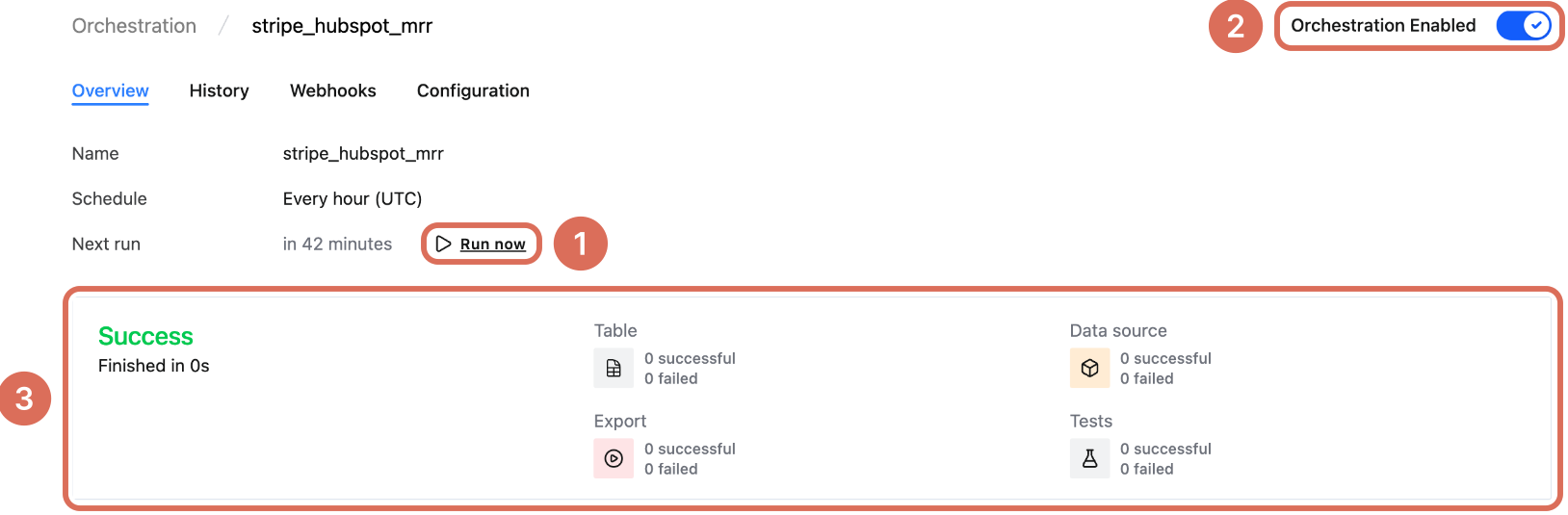
- Run now (1) starts a run straight away, outside the schedule.
- The Orchestration Enabled toggle (2) pauses the orchestration. While it is off, scheduled runs are skipped. Disabled orchestrations are hidden from the list until you turn on Show disabled.
- Below the summary, every job in the orchestration is listed with its job status and test status. Switch between Table view and Graph view to see the jobs as a list or as the lineage they run in.
- The History tab lists past runs.
- The Configuration tab changes the name, description and schedule (Save changes) and has Delete orchestration.
- The Webhooks tab triggers a dbt Cloud job when chosen jobs in the orchestration finish. See dbt Cloud.
Jobs that are not in any orchestration are listed under Independent jobs on the Orchestration page.
Troubleshooting
The orchestration is missing from a Schedule menu. The menus only list orchestrations that exist. Create it first on the Orchestration page.
A model has no Schedule tab. The tab appears for published models only. Publish the model first.
A model can't be added. Only tables are scheduled. In Edit scheduled updates, set Publish model as to Table.
Update sync doesn't appear on a reverse ETL sync. Pause the sync first, then make the change.
The orchestration didn't run. Check that Orchestration Enabled is on. On the Overview tab, the job list shows which job failed, and the History tab shows earlier runs.