
Lineage
Lineage shows where a model's data comes from and what uses it. Weld builds it from the {{...}} references in your SQL, so it's always up to date and needs no setup.
Open the lineage of a model
- Click Transform in the sidebar and open a model.
- Click the Lineage tab under the editor.
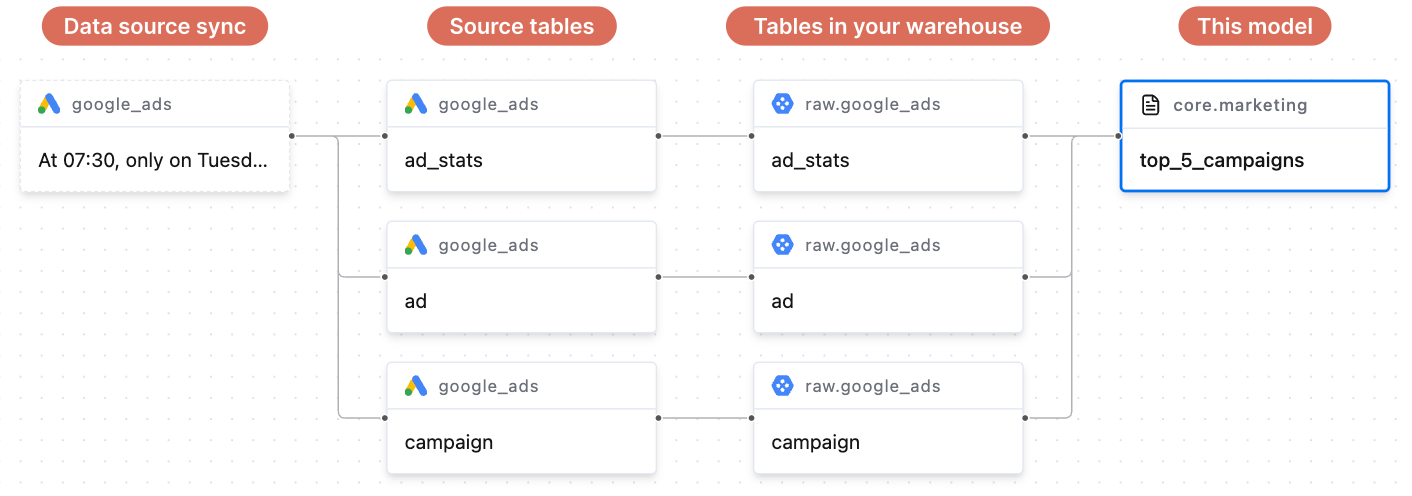
The graph reads from left to right:
- Data source sync: the sync that loads the data, with its schedule.
- Source tables: the tables that sync loads.
- Tables in your warehouse: where those tables land, as you reference them in SQL (
raw.google_ads.ad_stats). - This model, outlined in blue, and further right anything that reads from it: other models, reverse ETL syncs and webhooks.
Hover over a node to highlight its path and see its full name. Use re-center in the bottom-left corner if you lose your place.
Jump to a related table or model
Hover over a model node and click ··· at the right of its header. The node's menu opens (1):
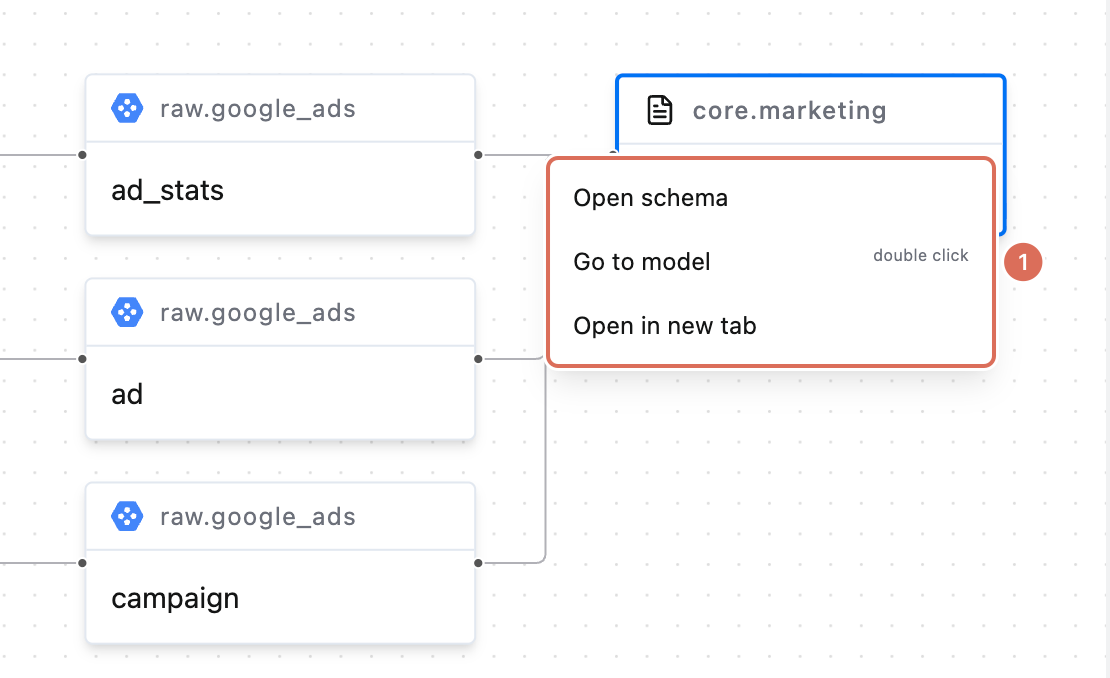
- Open schema shows the columns.
- Go to model opens it in this tab. Double-clicking the node does the same.
- Open in new tab opens it next to the current one.
What lineage tells you
- Before changing a model, check what's to the right of it. Those models and syncs read from it and can break if a column disappears.
- When numbers look wrong, follow the graph to the left to find which sync or model feeds the data.
- Warnings on a node, such as a paused sync or a failed table build, point to why a model is stale.