
Transformation scheduling
Every published model is either a view or a table in your warehouse:
- A view stores no data. It runs your SQL each time it's queried, so it's always up to date but can be slow and costly on large data.
- A table stores the result. It's fast to query, and Weld rebuilds it on the schedule you choose.
Use a view for small or fast queries, and a table when the query is heavy or other tools read the result often.
Choose when you publish
The first time you publish a model, the Save Model dialog asks how to publish it: View or Table. See Data models.
Change how a model is published or scheduled
- Open the published model in Transform and click the Schedule tab under the editor.
- Click Edit to open Edit scheduled updates.
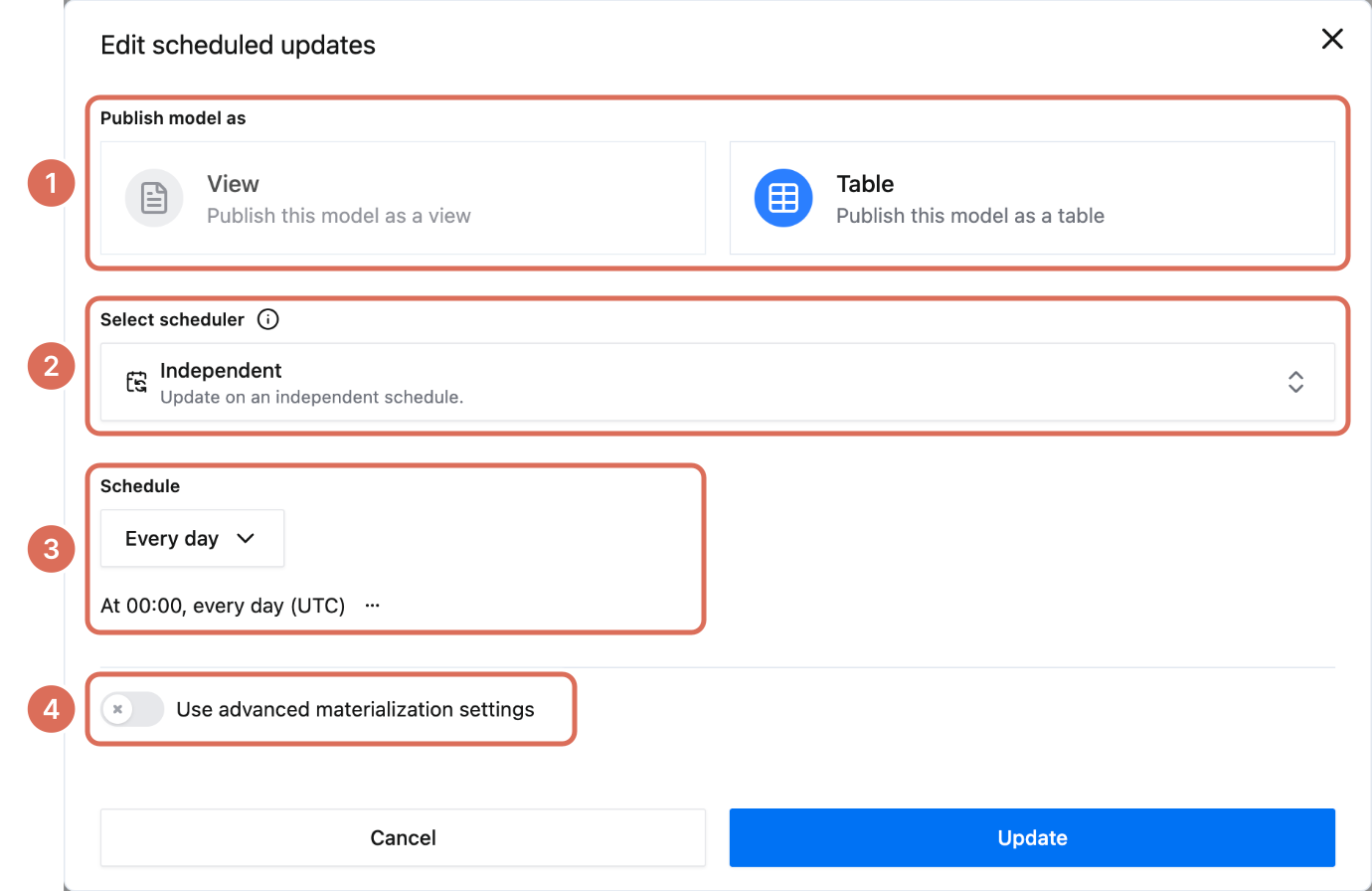
- Under Publish model as, choose View or Table (1).
- For a table, choose what rebuilds it under Select scheduler (2):
- Independent: the table has its own schedule. Pick a frequency (3). Click ··· next to the schedule description to set a start time or a custom cron expression.
- An orchestration: the table rebuilds as part of it, after the data it reads from has synced. The schedule settings disappear because the orchestration's schedule applies. See Orchestration.
- No scheduler: the table is created once and not rebuilt.
- On BigQuery, Use advanced materialization settings (4) adds clustering columns and a partition expression.
- Click Update.
On plans without orchestration, the scheduler choice is Scheduled or Not scheduled.
The Schedule tab of a table
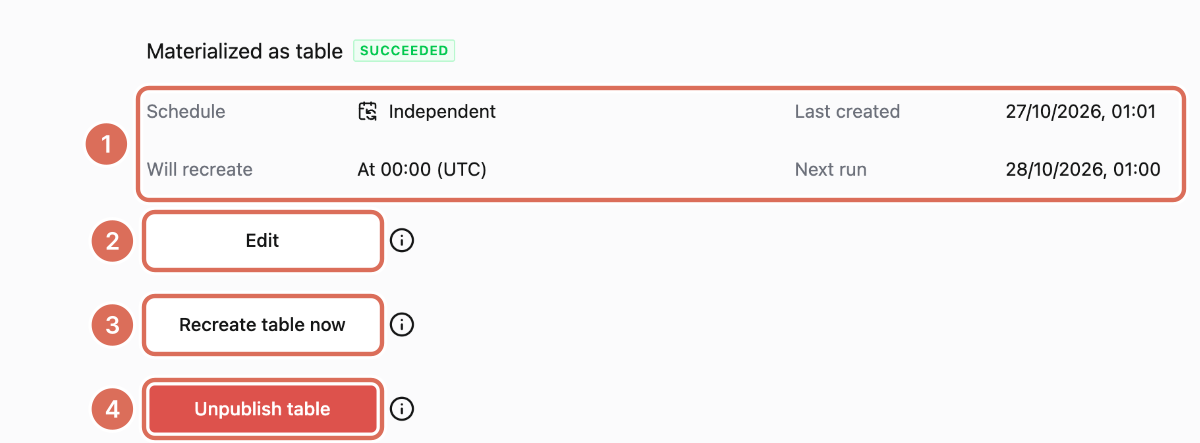
- What rebuilds the table, when it was last created and when it runs next.
- Edit changes how the model is published and scheduled.
- Recreate table now rebuilds the table straight away, without waiting for the schedule. Useful while you're developing a model.
- Unpublish table removes the table from your warehouse. The model stays in Weld.
Find a model in your warehouse
Weld creates each model as <folder>.<model> in your warehouse, for example analytics.customer_growth. On warehouses with a single schema level, such as BigQuery and Snowflake, a model in a subfolder becomes <folder>.<subfolder>__<model>, for example core.marketing__top_5_campaigns.
For a view, the Schedule tab shows the exact name as Warehouse reference:
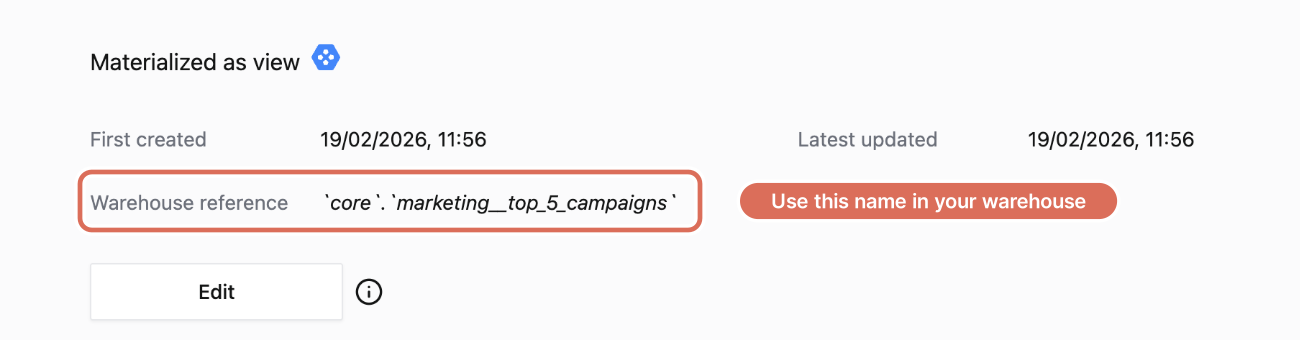
Query it directly in your warehouse like any other table:
select *
from `core`.`marketing__top_5_campaigns`
Inside Weld, reference it as {{core.marketing.top_5_campaigns}} instead, so lineage and orchestration keep working.
Troubleshooting
"Nothing will rebuild this table". The table's scheduler is No scheduler. Choose Independent or an orchestration under Edit.
"Its Orchestration no longer exists". The orchestration the table belonged to was deleted. Choose a new scheduler under Edit.
The table is out of date. Check Next run on the Schedule tab, or click Recreate table now.