Linear
Linear is a project management tool built for modern software teams, offering issue tracking, sprint planning, and project workflows. Weld syncs your Linear data — issues, comments, teams, and users — into your data warehouse for reporting and analytics. Weld also supports Reverse ETL to write comments back to Linear.
Supported Features
| Feature name | Supported | |
|---|---|---|
| Column Hashing | False | |
| Blocking | False | |
| Incremental | True | |
| Custom data | False | |
| History | False | |
| ReSync | True | Table level |
| Templates | False |
Data Schema
Setup Guide - ELT
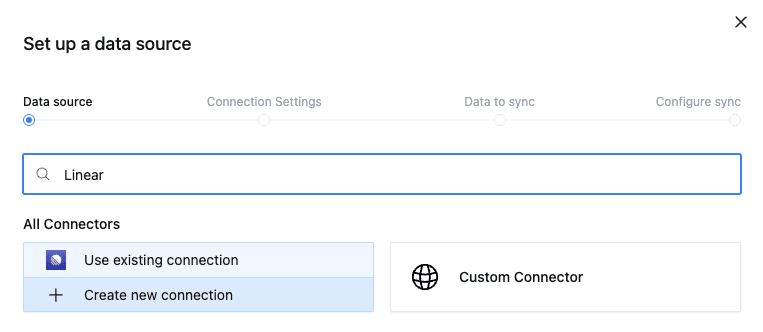
Step 1 — Select Data Source
- In Weld, navigate to Connectors → Add Connector.
- Search for Linear and select it.
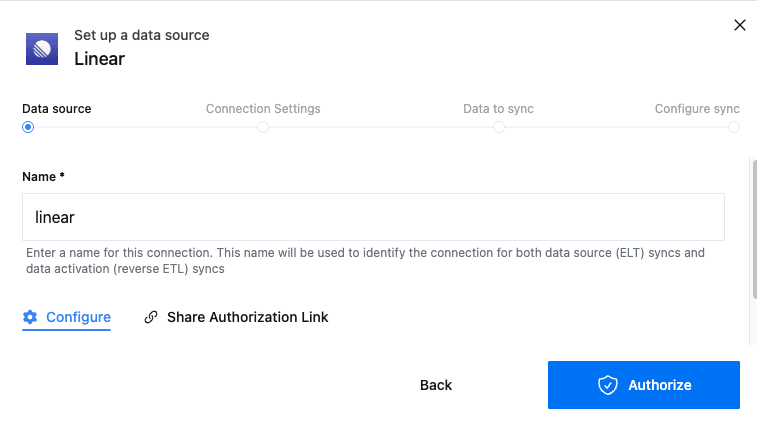
Step 2 — Authorize Linear
- Enter a name for your connection (e.g.
linear). - Click Authorize to connect your Linear account using OAuth.
- Approve the requested permissions in the Linear authorization screen.
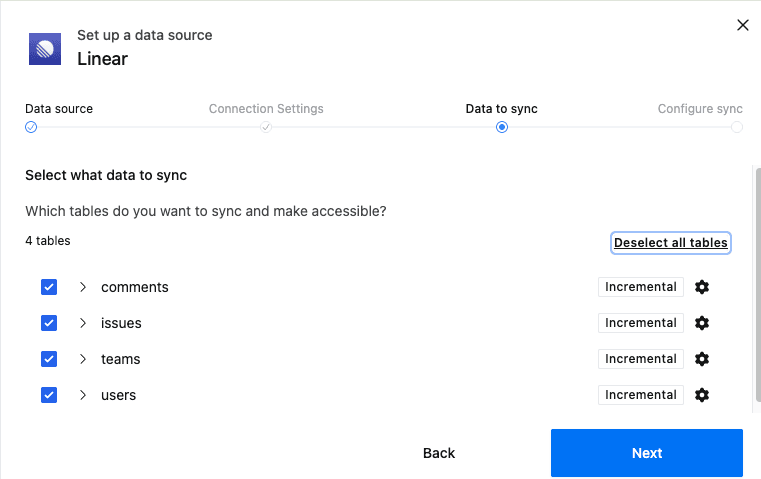
Step 3 — Select Tables
- Choose the tables you want to sync:
comments,issues,teams,users. All tables support incremental sync. - Click Next to continue.
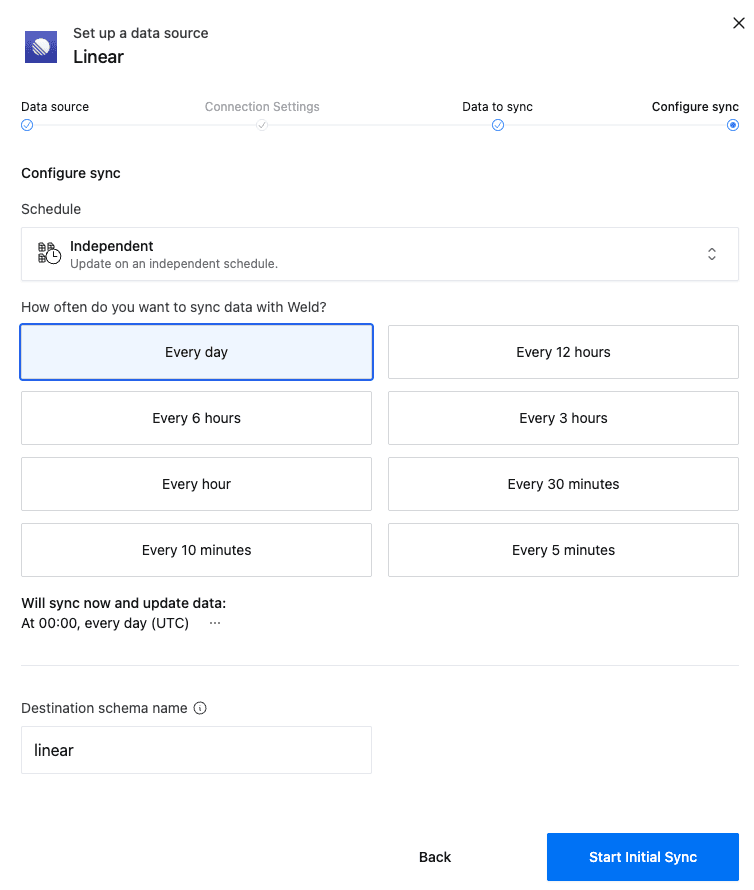
Step 4 — Configure Sync
- Select how often you would like the data to sync.
- Provide a destination schema name (e.g.
linear). - Click Start Initial Sync to begin syncing.
Setup Guide - Reverse ETL
Linear reverse ETL allows you to sync data on a schedule from your Weld App automatically into Linear. You can sync data from your SQL models, dbt models, or raw warehouse tables to the following Linear objects:
comment4 fields| Field | Type |
|---|---|
IDreadonly | STRING |
Body | STRING |
Issue ID | STRING |
Parent Comment ID | STRING |
issue12 fields · 2 required| Field | Type |
|---|---|
Titlerequired | STRING |
Team IDrequired | STRING |
Description | STRING |
Assignee ID | STRING |
State ID | STRING |
Priority | NUMBER |
Estimate | NUMBER |
Due Date | STRING |
Parent Issue ID | STRING |
Project ID | STRING |
Cycle ID | STRING |
Label IDs (JSON array) | STRING |
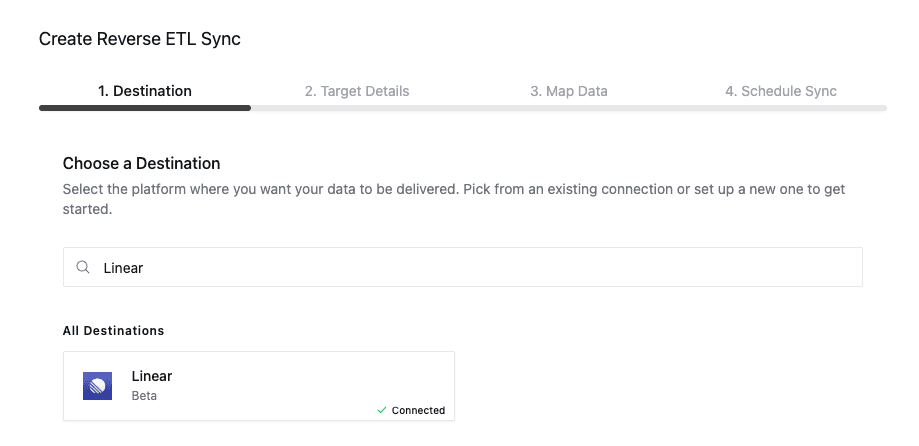
Step 1 - Choose Destination
- Click on the Reverse ETL button in the side bar and click + New on the top right.
- Search for Linear and select your connected Linear account.
Step 2 - Map Data
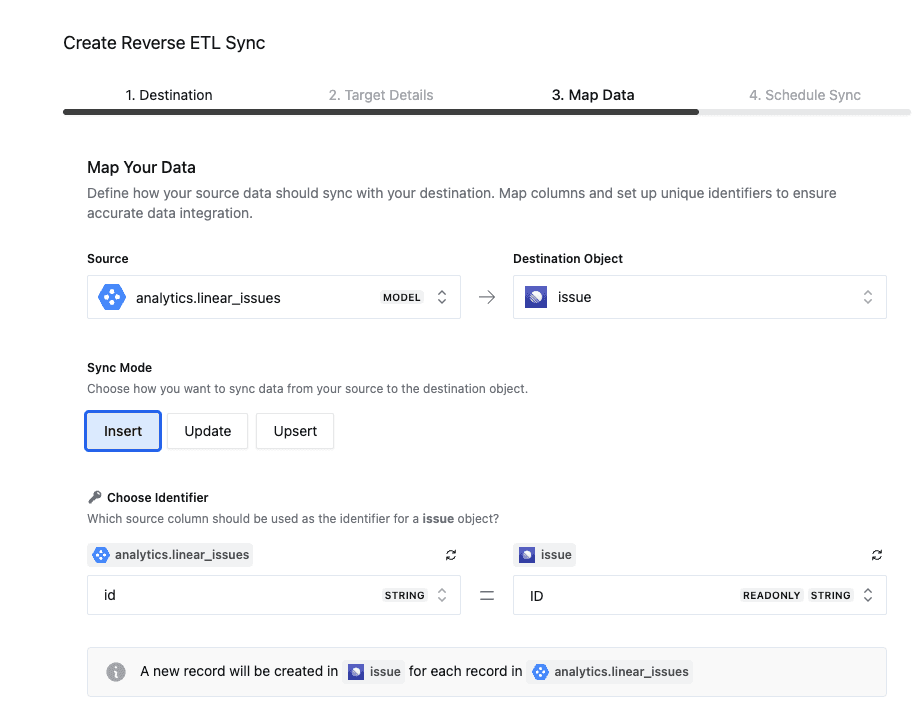
- Select your source — a SQL model, dbt model, or raw table/view from your warehouse.
- Select your destination object (
commentorissue). - Choose a sync mode: Insert, Update, or Upsert.
- Set up the identifier — the source column that uniquely matches records in Linear (e.g.
id).
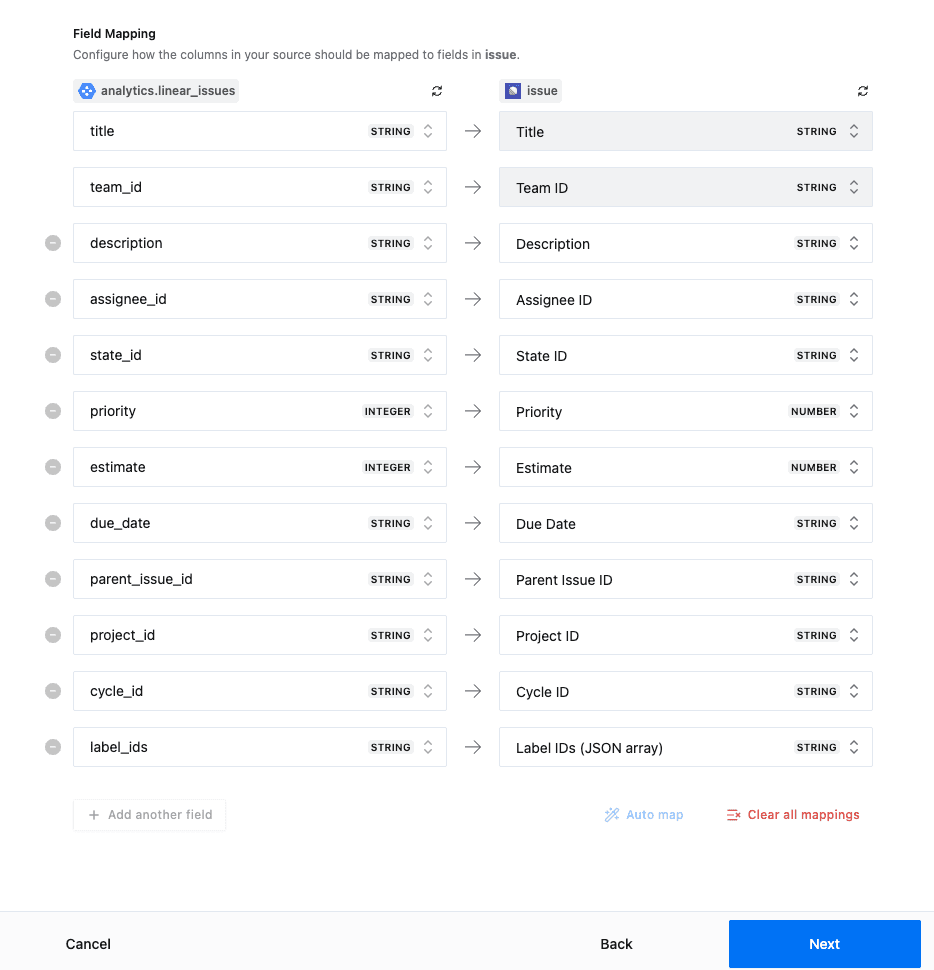
Step 3 - Field Mapping
Map the columns from your source to the corresponding fields in Linear. Required fields (e.g. Title and Team ID for issues) must be mapped.
Your source should have one row per object for Reverse ETL.
For example if you are performing a reverse ETL to the issue object then you should have one row per unique issue.
Requires Primary key.
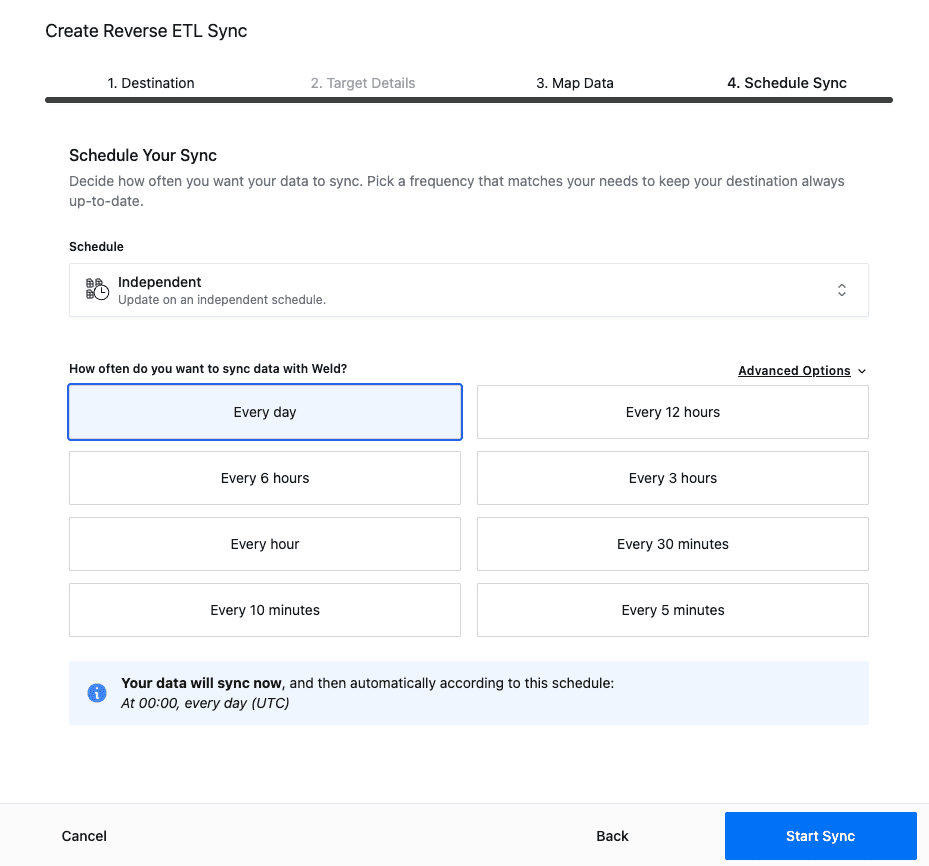
Step 4 - Schedule Sync
- Choose Independent or Orchestration schedule.
- Select the sync frequency.
- Click Start Sync to begin.