Shopify Plus
Shopify is a commerce platform that allows anyone to set up an online store and sell their products. This connector includes the tables only available in Shopify Plus (such as Users) as well as the standard tables. Weld syncs your Shopify data into your data warehouse and supports Reverse ETL to push customers and metafields back to Shopify.
Features
| Feature name | Supported | |
|---|---|---|
| Column Hashing | True | Field level |
| Blocking | True | Field level |
| Incremental | True | |
| Custom data | False | |
| History | True | |
| ReSync | True | Table level |
| Templates | False |
Data Schema
Shopify Plus connectors support history tables, which can be enabled in the connector configuration settings. For more see history tables.
Setup Guide - ELT
Setup guide for our Shopify Plus connector, including support for the Users Shopify Plus table.
Attention! If you do not need to sync the Users table, or you don't have a Shopify Plus subscription, please use our standard Shopify connector.
Prerequisites
To connect your Shopify account to Weld, you need:
- Access to a Shopify Plus store account.
Step 1 — Create a Shopify Custom App
In order to be able to sync the Users table, you will need to contact the
Shopify Plus Support and ask them to enable the read_users access scope for
your app. They will assist you in this process. Once you have that granted,
you can configure the app and select that access scope as well.
- Log in to your Shopify developer account
- On the top right corner click Create app
- Using the "Start from Dev Dashboard" option, name your app and click Create
- On the next screen set the scopes in the "Access" section. The tables that Weld syncs are all accessed through the "Admin API", so only scopes from that API are needed.
- After this, click Release. Optionally give a name and description to the version.
- Once the version is released, click on the Home tab on the left.
- Here, on the right side you will find an Install app button. Click it and follow the instructions.
- Once the app is installed, you are ready to connect it to Weld.
Step 2 — Connect to Weld
- In Weld, select the Shopify Plus connector
- In the connector form add your Client ID, Secret and Store ID.
You can find the Client ID and Secret in the app's settings page on the dev dashboard.
The store ID must be for the store where you installed the app in the previous step. You can find it in the URL of the store admin page. It looks like the following:
https://admin.shopify.com/store/your_store_id/... - Click Connect
Step 3 — Data to Sync
- Select the tables you want to sync. All available tables are listed with their sync mode (incremental where supported).
- You can view the schema, remove columns, or hash sensitive information.
- Click Next to continue.
Step 4 — Configure Sync
- Choose a schedule type (Independent or Orchestration).
- Select how often you would like the data to sync.
- Click Start Initial Sync to begin syncing.
Custom Reports (ShopifyQL)
Custom reports let you define your own queries using ShopifyQL — Shopify's commerce-specific query language — and sync the results as a table in your data warehouse. This is similar to Shopify's built-in Reports module but gives you full control over the query, letting you pull exactly the metrics and dimensions you need into your warehouse.
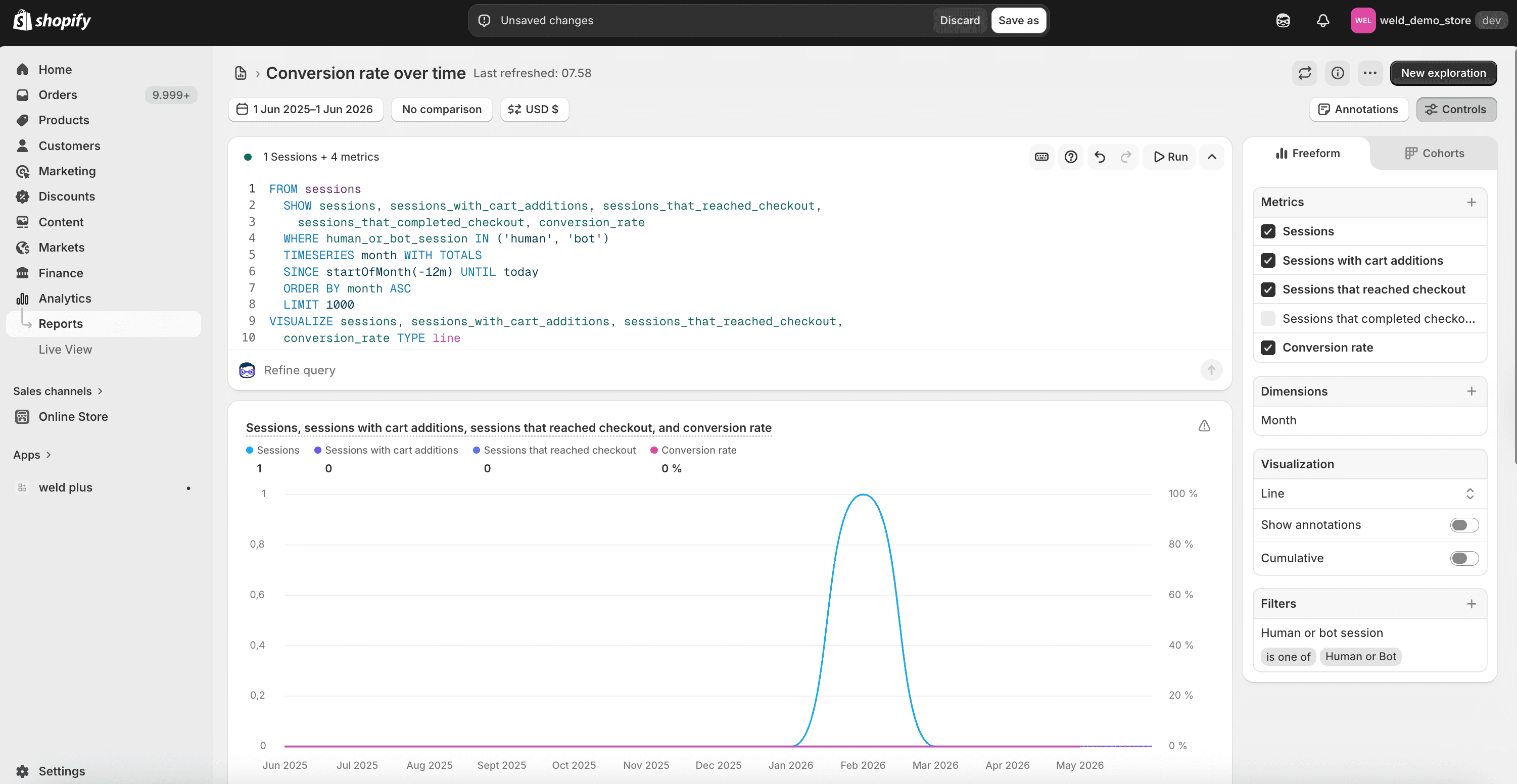
The screenshot above shows Shopify's native Reports editor — the same ShopifyQL syntax you write there works directly in Weld's custom report setup. The difference is that Weld syncs the query results into your data warehouse on a schedule, so you can join Shopify report data with the rest of your analytics stack.
You can create up to 20 custom reports per Shopify connection. Each report becomes its own table with incremental sync support.
Step 1 — Add a Custom Report
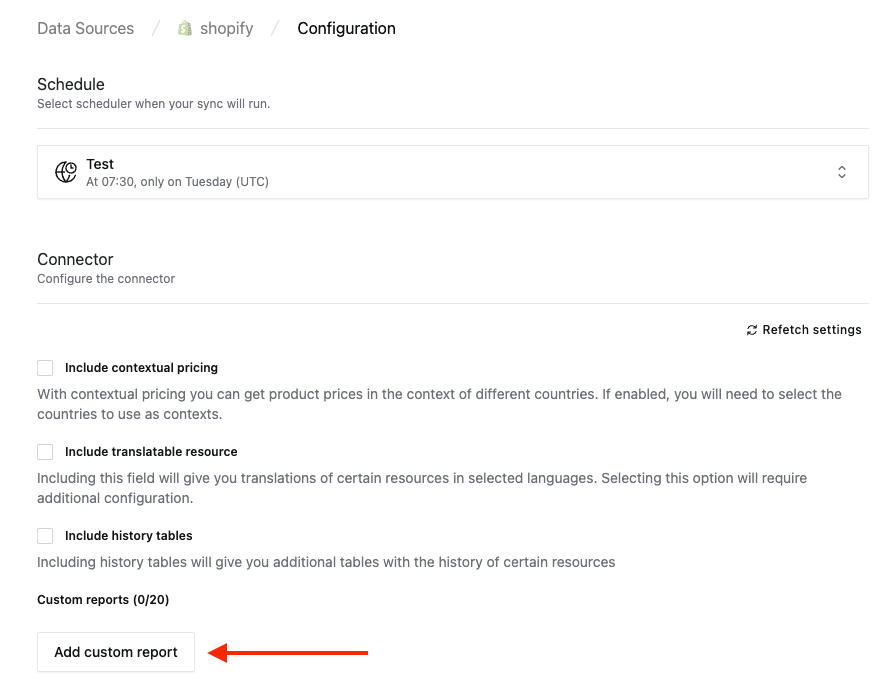
- Navigate to your Shopify connector's Configuration page.
- Scroll down to Custom reports and click Add custom report.
Step 2 — Write Your ShopifyQL Query
- Give your report a Name — this becomes the table name in your warehouse.
- Write a ShopifyQL Query. ShopifyQL uses a SQL-like syntax with Shopify-specific extensions like
TIMESERIES,WITH TOTALS, and commerce-aware functions. - Click Validate report to verify the query and preview the output columns.
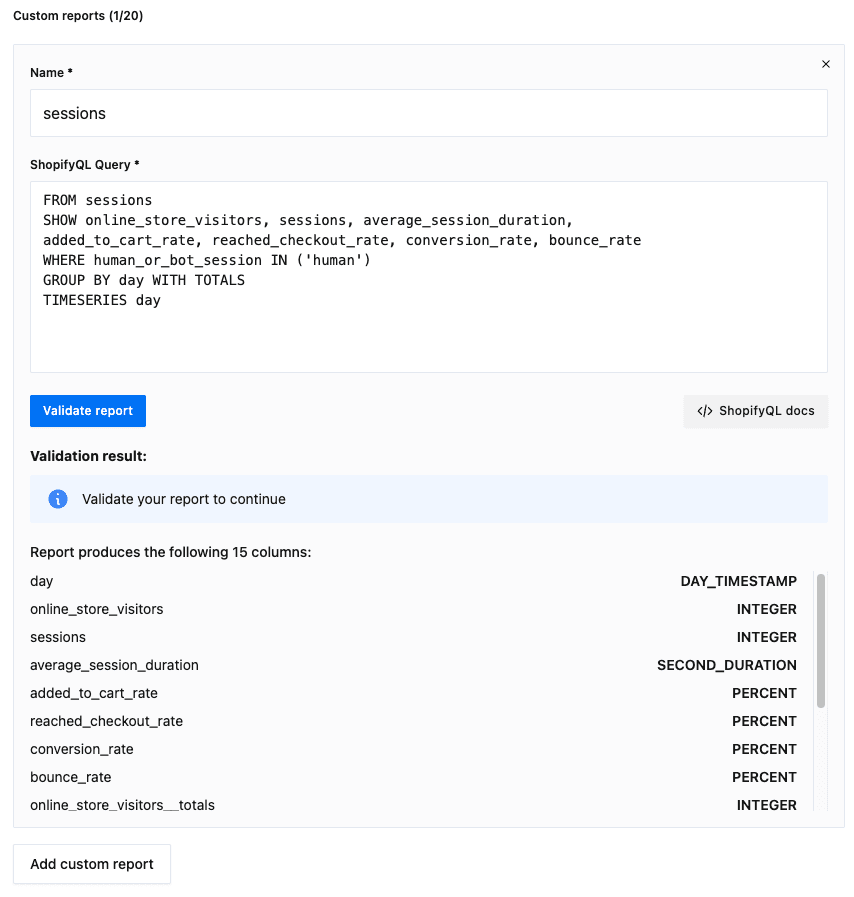
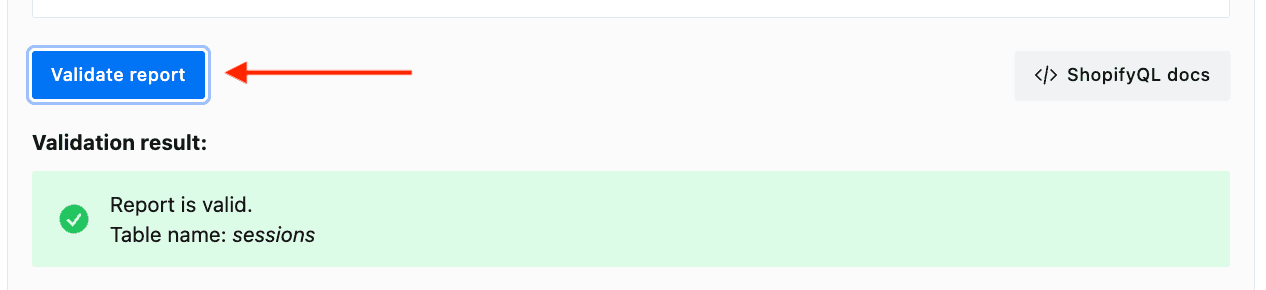
The validation result shows all columns that will be synced, including their data types. If you use WITH TOTALS, Weld also syncs the totals columns (suffixed with _totals).
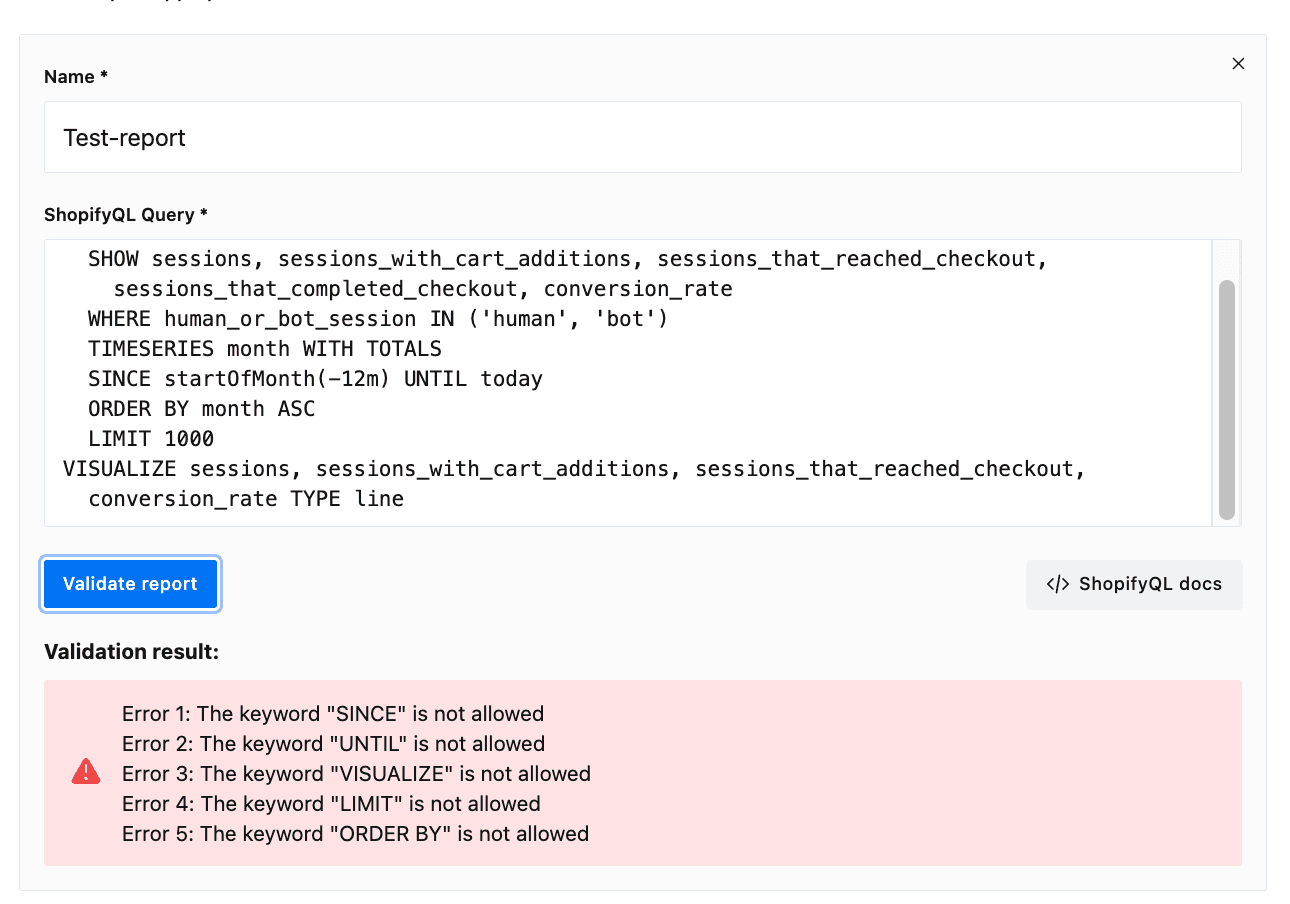
Unsupported keywords: Weld always syncs the last 5 years of data automatically and manages date ranges, ordering, and limits internally. The following ShopifyQL keywords are not supported and will cause validation errors:
SINCE/UNTIL— Weld handles the date rangeORDER BY— row ordering is managed by the warehouseLIMIT— Weld fetches all available dataVISUALIZE— visualization is a Shopify Admin feature, not relevant for data syncing
If you copy a query from Shopify's Reports editor, remove these keywords before validating.
- Once validation passes and you see the green Report is valid confirmation, the report is ready to save.
Example: Sessions Report
FROM sessions
SHOW online_store_visitors, sessions, average_session_duration,
added_to_cart_rate, reached_checkout_rate, conversion_rate, bounce_rate
WHERE human_or_bot_session IN ('human')
GROUP BY day WITH TOTALS
TIMESERIES day
This query pulls daily session metrics filtered to human traffic only, grouped by day with running totals — equivalent to the "Sessions over time" report in Shopify's Analytics section.
For the full ShopifyQL syntax reference, see Shopify's ShopifyQL documentation. Common patterns include FROM sales, FROM products, FROM sessions, and FROM inventory.
Step 3 — Select Columns
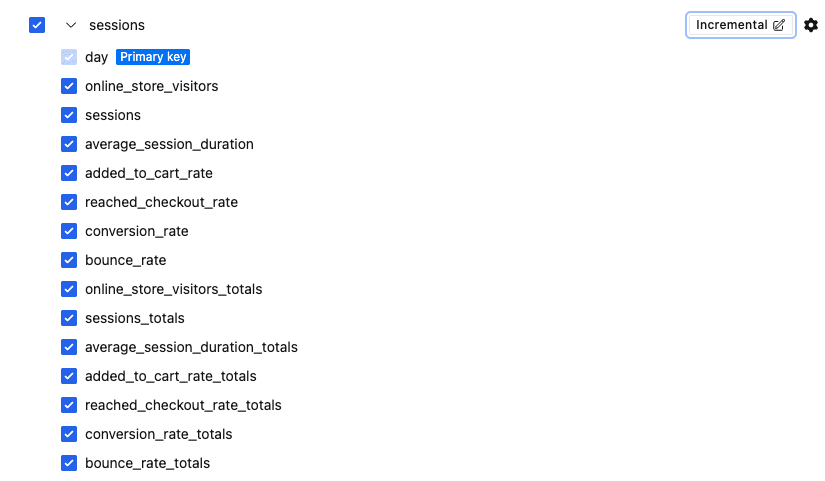
Once saved, the custom report appears as a new table in your connector's data selection. You can select or deselect individual columns, just like any other table.
Step 4 — Configure Incremental Sync
Custom reports support incremental sync. Click the sync mode badge to configure:
- Mode: MERGE (recommended) — only changed and new rows are updated on subsequent syncs.
- Primary key: The time dimension from your
TIMESERIESclause (e.g.day). - Cursor: Set to
since— Weld uses this to track the last synced timestamp.
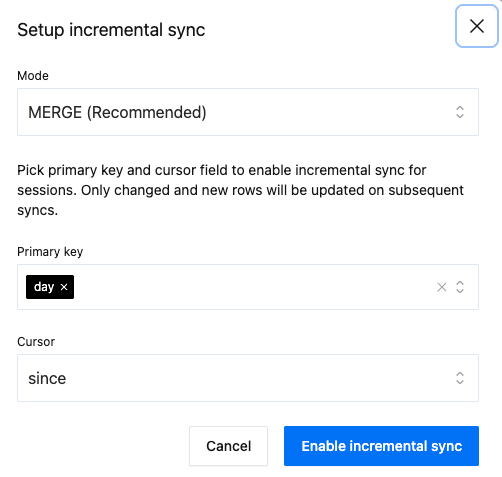
With incremental sync enabled, only new or updated rows are fetched on each sync run, keeping sync times fast even as your data grows.
Setup Guide - Reverse ETL
Shopify Reverse ETL allows you to sync data on a schedule from your warehouse into Shopify. You can sync data from your SQL models, dbt models, or raw warehouse tables to the following Shopify objects:
Required scopes
Depending on the destination object you create or update, your Shopify connection must include the corresponding write scope:
customer—write_customersproduct_variant—write_productsmetafield— depends on the resource being updated (for example,write_customersfor customer metafields orwrite_productsfor product metafields)
Grant these scopes when configuring your Shopify custom app. If a scope is missing, Reverse ETL syncs for that object will fail.
customer19 fields · 1 required| Field | Type |
|---|---|
Emailrequired | STRING |
Phone | STRING |
First Name | STRING |
Last Name | STRING |
Address 1 | STRING |
Address 2 | STRING |
Address First Name | STRING |
Address Last Name | STRING |
Address Phone | STRING |
City | STRING |
Company | STRING |
Country Code | STRING |
Province Code | STRING |
Zip | STRING |
Tags | STRING[] |
Note | STRING |
Tax Exempt | BOOLEAN |
Tax Exemptions | STRING[] |
Locale | STRING |
metafield5 fields · 5 required| Field | Type |
|---|---|
Owner IDrequired | STRING |
Namespacerequired | STRING |
Keyrequired | STRING |
Typerequired | STRING |
Valuerequired | STRING |
product_variant14 fields · 2 required| Field | Type |
|---|---|
Product Variant IDrequired | STRING |
Product IDrequired | STRING |
Price | STRING |
Compare At Price | STRING |
Barcode | STRING |
SKU | STRING |
Inventory Policy | STRING |
Taxable | BOOLEAN |
Tax Code | STRING |
Inventory Quantity | STRING |
Location ID | STRING |
Option ID | STRING |
Option Name | STRING |
Option Value | STRING |
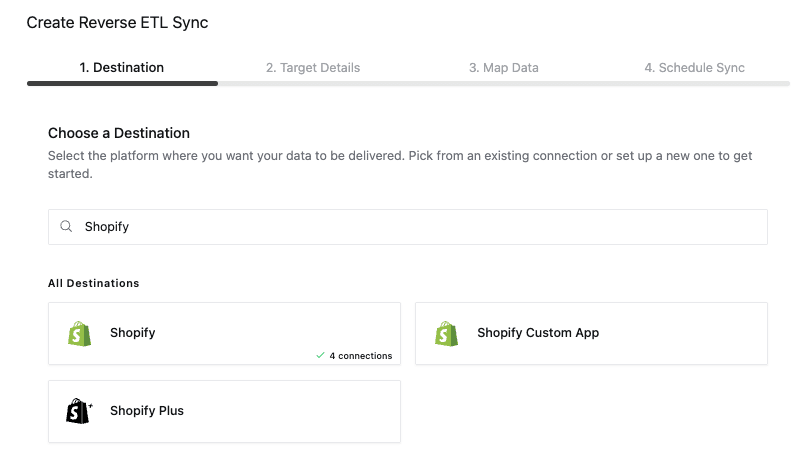
Step 1 — Choose Destination
- Navigate to Reverse ETL in the sidebar and click + New.
- Search for Shopify and select your connected Shopify Plus account.
Step 2 — Map Data
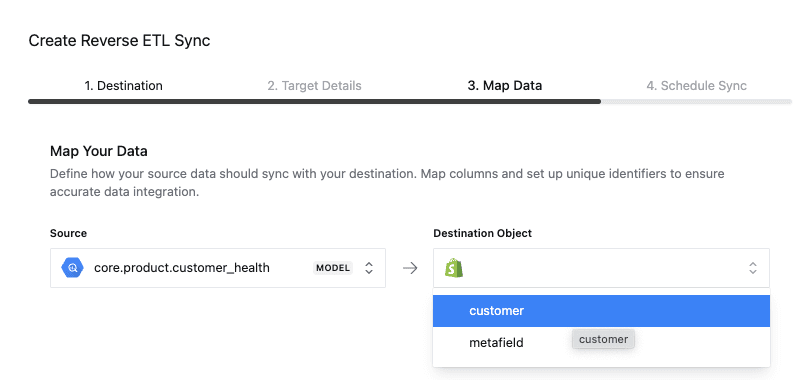
- Select your source — a SQL model, dbt model, or raw table/view from your warehouse.
- Select your destination object (
customer,metafield, orproduct_variant).
- Sync mode is set to Upsert — if a matching record is found in Shopify it will be updated, otherwise a new record will be created.
- Set up the identifier — choose which source column matches the Shopify
idfield. - Map the columns from your source to the corresponding fields in Shopify.
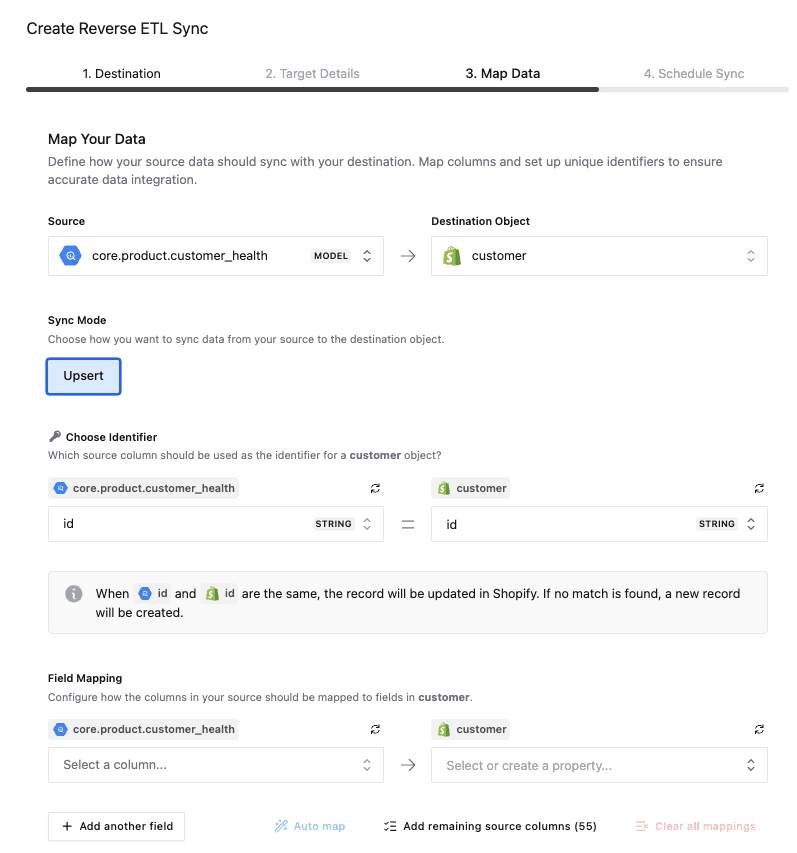
Your source should have one row per object for Reverse ETL.
For example if you are performing a reverse ETL to the customer object then you should have one row per unique customer.
Requires Primary key.
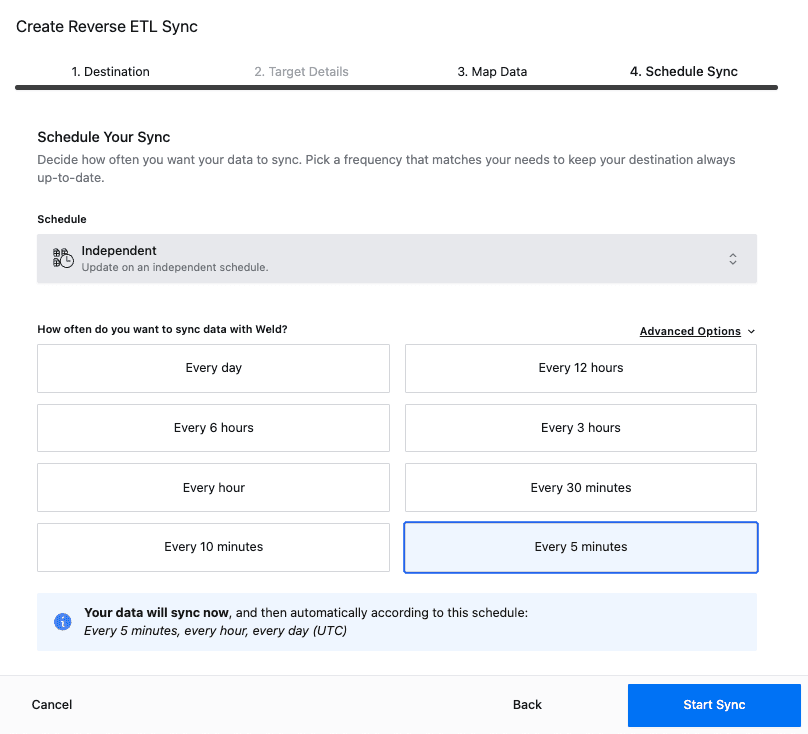
Step 3 — Schedule Sync
- Choose a schedule type (Independent or Orchestration).
- Select the sync frequency.
- Click Start Sync to begin.