
Microsoft Teams
Microsoft Teams is a collaboration platform that combines chat, meetings, and file sharing for teams of all sizes. Weld integrates with Microsoft Teams so your team gets alerted directly in a Teams channel when something needs attention in your Weld workspace.
MICROSOFT TEAMS IS AVAILABLE FOR NOTIFICATIONS AND ALERTS
Notifications can be set up in the Settings → Notifications tab by workspace admins. Weld will post a message to your chosen Teams channel when, for example, a sync or a SQL model materialization fails.
How it works
Weld sends notifications to Microsoft Teams through an incoming webhook — a Teams workflow that posts a message card to a channel whenever Weld calls it. You create the workflow in Microsoft Teams, paste its webhook URL into Weld, and Weld takes care of the rest. No Microsoft account authorization is required.
Set up Microsoft Teams notifications
Step 1 - Create a webhook in Microsoft Teams
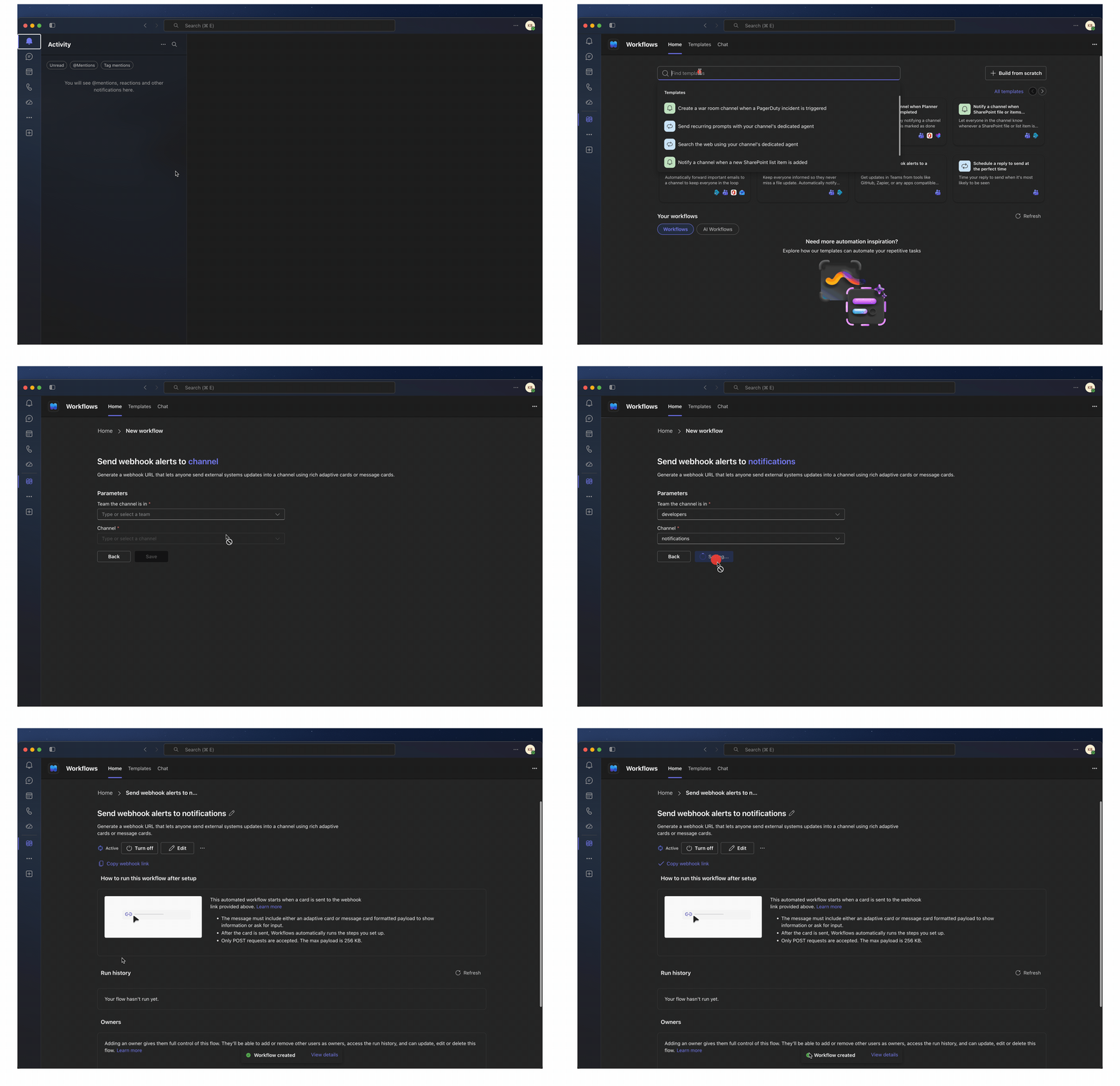
- In Microsoft Teams, open the Workflows app and choose the template "Send webhook alerts to a channel". Alternatively, right-click the channel that should receive notifications and select Workflows to start from there.
- Select the team and channel that should receive Weld notifications.
- Complete the workflow setup and copy the webhook URL it generates.
Step 2 - Connect the webhook in Weld
- In the Weld app, go to Settings → Notifications.
- Under Microsoft Teams notifications, click Connect to Microsoft Teams.
- Paste the webhook URL from Step 1.
- Enter the channel name so the connection is easy to recognize.
- Click Save.
Weld immediately sends a greeting card to the channel to verify the webhook works. If the message cannot be delivered, the setup is rejected — double-check the webhook URL and try again.
What you will receive
Once connected, Weld posts a card to your Teams channel whenever a notification is issued for your workspace — for example when a sync fails, a connection loses access, or a SQL model materialization fails. Each card includes the notification details and links to the relevant documentation and to your notification settings.
Notifications are sent to Microsoft Teams in addition to your configured notification email addresses, and Slack if you have that connected too.
KEEP THE WEBHOOK URL SECRET
Anyone with the webhook URL can post messages to your channel. Treat it like a credential — Weld stores it securely and never exposes it in the app after setup.
Disconnect Microsoft Teams notifications
- In the Weld app, go to Settings → Notifications.
- Under Microsoft Teams notifications, click Disconnect Microsoft Teams channel and confirm.
Weld sends a final farewell message to the channel and stops posting notifications. You can also delete the workflow in Microsoft Teams at any time to revoke the webhook itself.