
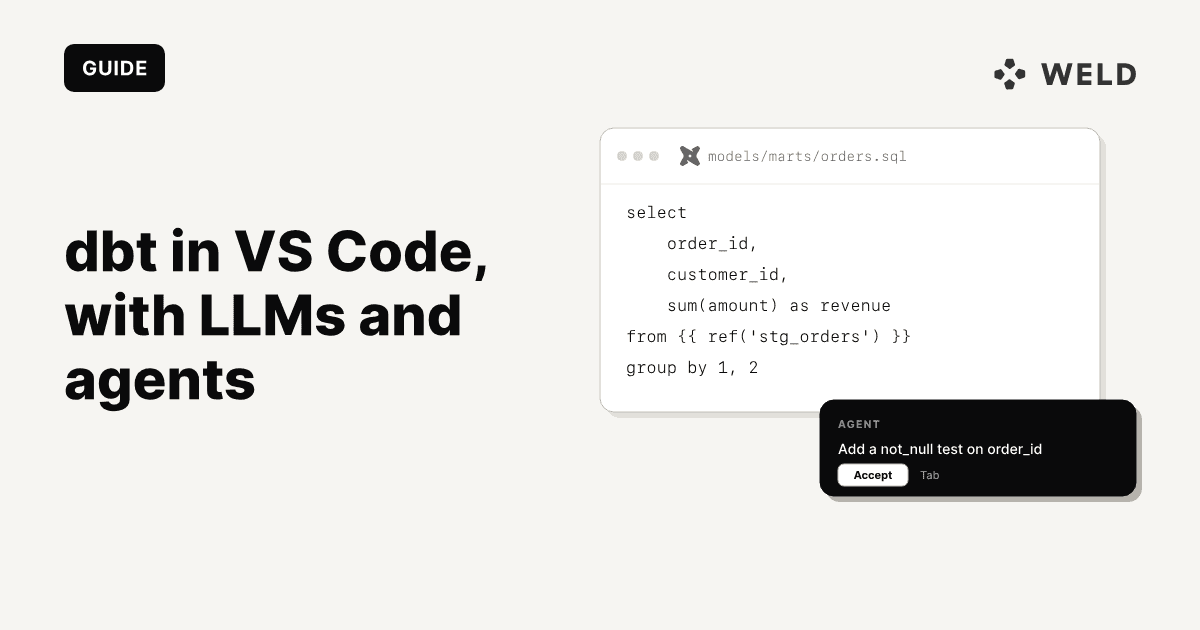
The official dbt VS Code extension powered by the dbt Fusion engine brings lineage, live previews, and fast feedback directly into your editor. Pair it with an LLM (GitHub Copilot, Claude Code, or another AI assistant) and you get a workflow where you can write models with autocomplete, generate tests from chat, and run agentic build-fix loops all in VS Code.
This guide covers the full setup:
- How to install and configure the official dbt VS Code extension (Fusion)
- The difference between dbt Fusion and dbt Core (and why it matters)
- How to write your first models and tests
- Using LLMs (Copilot, Claude Code) and the dbt MCP server to accelerate development
- How to connect Weld for automated data ingestion

What Is the Official dbt VS Code Extension?
The official dbt VS Code extension is now powered by the Fusion engine, a newer version of dbt that makes the extension faster and improves real-time feedback as you work in the editor.
Key things to know:
- The extension is only compatible with dbt Fusion engine, not dbt Core
- It is the only officially supported VS Code extension from dbt Labs (third-party extensions exist but are not tested or supported)
- Register the extension within 14 days of installing (or re-installing) it to link your editor to a dbt account
- The extension is free for up to 15 users
- It requires a
profiles.ymlfor warehouse connections
Important: If you're currently using dbt Core, the official extension will not work with your existing setup. You'll need to either migrate to dbt Fusion or continue using a third-party extension like dbt Power User (which dbt Labs does not officially support).
What you get in the editor:
- Live CTE previews: See query results while you’re still writing your SQL
- Lineage graph: View how data tables are connected and depend on each other
- Schema-aware autocomplete: Get smart suggestions for tables and columns based on your database
- In-editor error feedback: See errors directly in VS Code without running commands in a terminal
Step-by-Step: Setting Up dbt in VS Code
1. Install the Extension
Open VS Code → Extensions → search for dbt → install the extension from publisher dbtLabsInc.
When you see "dbt Extension" in the status bar, the extension is active.
2. Install dbt Fusion CLI (dbtf)
The extension uses the Fusion CLI under the hood, it is an actual dbt engine that runs your code. You can let the extension prompt you, or install manually as shown bellow:
macOS / Linux:
curl -fsSL https://public.cdn.getdbt.com/fs/install/install.sh | sh -s -- --update
exec $SHELL
dbtf --version
Windows (PowerShell):
1irm https://public.cdn.getdbt.com/fs/install/install.ps1 | iex
2Start-Process powershell
3dbtf --version
4
3. Initialize or Open Your dbt Project
- New project: Run
dbtf initin the terminal, or use the "Get started" flow in the extension - Existing project: Open your dbt project folder in VS Code. If upgrading from Core, run
dbt init --fusion-upgrade
Tip: Always open the project as a VS Code workspace (File → Add Folder to Workspace → Save Workspace As). The language server won't start if you just open a single file.
4. Configure profiles.yml
The profiles.yml file lives at ~/.dbt/profiles.yml and defines your warehouse connection. Use environment variables for credentials:
Snowflake:
1my_dbt_project:
2  target: dev
3  outputs:
4    dev:
5      type: snowflake
6      account: "{{ env_var('SNOWFLAKE_ACCOUNT') }}"
7      user: "{{ env_var('SNOWFLAKE_USER') }}"
8      password: "{{ env_var('SNOWFLAKE_PASSWORD') }}"
9      role: "{{ env_var('SNOWFLAKE_ROLE', 'TRANSFORMER') }}"
10      warehouse: "{{ env_var('SNOWFLAKE_WAREHOUSE') }}"
11      database: "{{ env_var('SNOWFLAKE_DATABASE') }}"
12      schema: "{{ env_var('SNOWFLAKE_SCHEMA', 'DEV_' ~ env_var('USER')) }}"
13      threads: 4
14
Note: Never hardcode credentials in
profiles.yml. Always useenv_var(), this works in both local development and CI environments.
BigQuery:
1my_dbt_project:
2  target: dev
3  outputs:
4    dev:
5      type: bigquery
6      method: oauth
7      project: "{{ env_var('GCP_PROJECT') }}"
8      dataset: "{{ env_var('BQ_DATASET', 'dev_' ~ env_var('USER')) }}"
9      threads: 4
10      location: EU
11
5. Set Up dbt_project.yml
1name: "my_dbt_project"
2version: "1.0.0"
3config-version: 2
4
5profile: "my_dbt_project"
6
7model-paths: ["models"]
8analysis-paths: ["analysis"]
9test-paths: ["tests"]
10seed-paths: ["seeds"]
11macro-paths: ["macros"]
12snapshot-paths: ["snapshots"]
13
14target-path: "target"
15clean-targets:
16  - "target"
17  - "dbt_packages"
18
19models:
20  my_dbt_project:
21    staging:
22      +materialized: view
23    marts:
24      +materialized: table
25
Other dbt CLIs You Can Use
While the VS Code extension requires Fusion, you may want to use a different CLI for running commands in the terminal. Here's how they compare:
dbt Core (dbt)
The open-source, self-hosted CLI. Works with any warehouse adapter.
pip install dbt-core dbt-snowflake  # or dbt-bigquery, dbt-databricks, etc.
dbt --version
Best for: Teams running dbt independently, open-source setups, full control over execution.
dbt Cloud CLI
A CLI backed by dbt Cloud infrastructure. Runs against the dbt Cloud API.
dbt environment show
Best for: Teams using dbt Cloud for governance, CI, and managed environments.
Note: The dbt VS Code extension with Fusion, dbt Core CLI, and dbt Cloud CLI are separate tools. You can use the Fusion extension for editor features while running dbt Core or Cloud CLI commands in the terminal.
Write Your First Model and Test
Staging Model
Create models/staging/stg_orders.sql:
1with
2    source as (
3        select
4            *
5        from
6            {{ source('raw', 'orders') }}
7    )
8  , renamed as (
9        select
10            order_id
11          , customer_id
12          , order_date
13          , status
14        from
15            source
16    )
17select
18    *
19from
20    renamed
Add Tests
Create models/staging/stg_orders.yml:
1version: 2
2
3models:
4  - name: stg_orders
5    columns:
6      - name: order_id
7        tests:
8          - not_null
9          - unique
10
Use the Editor Features
With the extension active:
- Open
stg_orders.sqland hover over CTEs to see live CTE previews - Open the Lineage tab to see upstream sources and downstream dependencies
- Run
dbtf build --select stg_ordersin the terminal to build and test
LLM-Assisted dbt Development in VS Code
The extension handles editor features such as autocompletion, previews, lineage. For the generative work (writing models, tests, docs, debugging), you can add an LLM. Here are the main options:
GitHub Copilot
Copilot integrates directly into VS Code as inline suggestions and a chat panel.
Set up Copilot for dbt:
- Install the GitHub Copilot extension in VS Code
- Create a
.github/copilot-instructions.mdin your dbt project:
1# Copilot Instructions for dbt Project
2
3## Style
4
5- Use CTEs with clear names: source, renamed, final
6- Always alias tables and qualify columns
7- Prefer explicit column lists (avoid SELECT \* in marts)
8
9## dbt conventions
10
11- Staging models: models/staging/stg\_\*.sql
12- Marts models: models/marts/fct*\*, dim*\*
13- Add a .yml file with tests for primary keys (unique, not_null)
14- Document business logic in YAML description fields
15
16## Safety
17
18- Never hardcode credentials
19- Use env_var() in profiles and configs
20
Useful prompts for Copilot Chat:
- "Create a
stg_customers.sqlfrom sourceraw.customerswith CTE pattern and a.ymlwith tests on customer_id" - "Refactor this model for readability without changing output columns or semantics"
- "Generate a
.ymlfile with tests and column descriptions for this model"
Claude Code
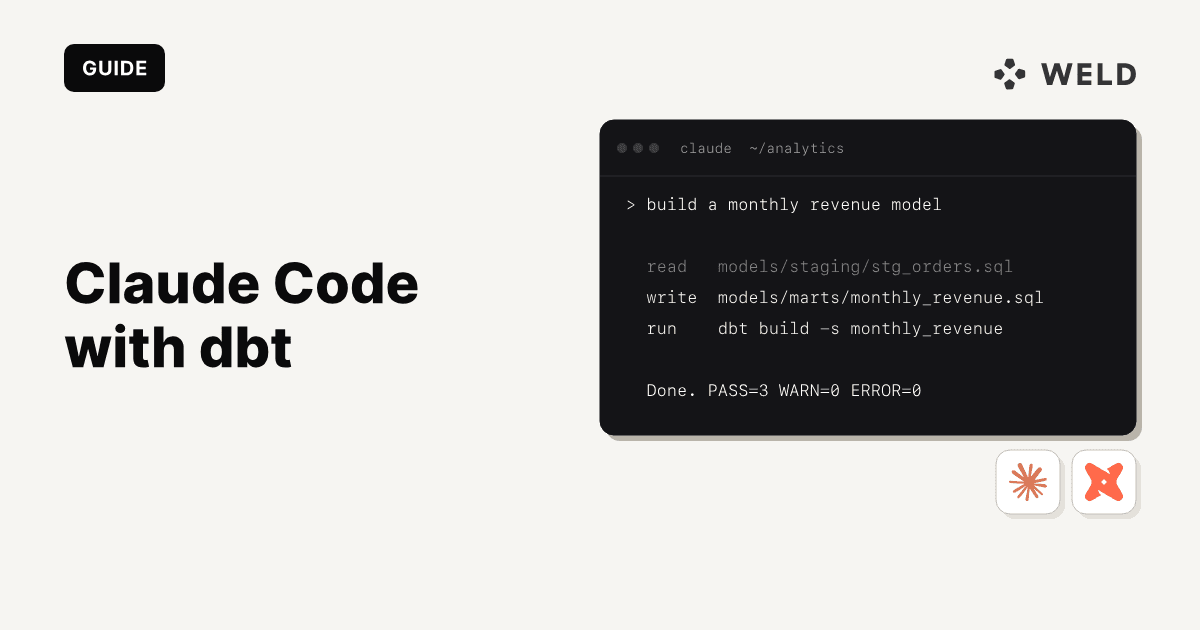
Claude Code works as both a standalone terminal CLI and a VS Code extension. It's particularly strong at multi-file, multi-step agentic workflows, can run dbt build, read the error, fix the code, and re-run in a loop.
For a full walkthrough of Claude Code with dbt (including CLAUDE.md setup, MCP configuration, and agentic prompt templates), see our companion post: How to Use Claude Code with dbt.
Other LLMs
Any LLM with VS Code integration works for dbt. This could be Cursor, Cody, Continue, etc. The key is to give it project context via an instructions file (.github/copilot-instructions.md, CLAUDE.md, .cursorrules, or equivalent) so it follows your SQL style and dbt conventions.
Connect the dbt MCP Server
The Model Context Protocol (MCP) enables LLMs to access structured dbt metadata, including compiled models, lineage, test results, and documentation, instead of relying only on raw project files.
Set Up MCP in VS Code
Add to your .vscode/mcp.json:
1{
2  "servers": {
3    "dbt": {
4      "command": "uvx",
5      "args": [
6        "dbt-mcp"
7      ],
8      "env": {
9        "DBT_HOST": "YOUR-ACCESS-URL"
10      }
11    }
12  }
13}
This works with GitHub Copilot (via the VS Code MCP integration) and Claude Code. Other LLM tools that support MCP can use their own configuration format.
What MCP Adds
- Compiled SQL -> resolved Jinja, not raw templates
- Column-level lineage -> which columns flow where
- Test results and run history -> from your dbt Cloud environment
- Documentation -> model and column descriptions
Note: If you get a
spawn uvx ENOENTerror, replace"uvx"with the full path (runwhich uvxto find it). On WSL, use WSL-specific VS Code settings.
Agentic Workflows: Tasks + LLM
VS Code Tasks for dbt
Create .vscode/tasks.json to make common dbt commands one-click:
1{
2  "version": "2.0.0",
3  "tasks": [
4    {
5      "label": "dbt: build changed models",
6      "type": "shell",
7      "command": "dbtf build --select state:modified+",
8      "problemMatcher": []
9    },
10    {
11      "label": "dbt: test changed models",
12      "type": "shell",
13      "command": "dbtf test --select state:modified",
14      "problemMatcher": []
15    },
16    {
17      "label": "dbt: compile current model",
18      "type": "shell",
19      "command": "dbtf compile --select ${fileBasenameNoExtension}",
20      "problemMatcher": []
21    }
22  ]
23}
The Build-Fix Loop

The most powerful pattern: use your LLM to iterate on build failures.
- Run the "dbt: build changed models" task
- If it fails: paste the error into your LLM chat and ask for a fix
- Apply the fix, re-run the task
- When green: commit and open a PR
With Claude Code, this process can be fully automated. It runs the command, reads the error, fixes the file, and reruns everything without you having to copy and paste anything. With Copilot, you still need to paste the error but it quickly suggests possible fixes.
Connect Weld for Data Ingestion
dbt handles transformation, but your models need data to transform. Weld connects to your data sources (APIs, databases, SaaS tools) and syncs raw data into your warehouse making it ready for dbt to pick up.

How Weld + dbt Work Together
- Weld syncs raw data from 300+ connectors into your warehouse
- dbt reads from those raw tables and transforms them into staging models, marts, and metrics
- Weld can trigger dbt jobs after syncs complete, and handle reverse ETL to push transformed data back to downstream tools
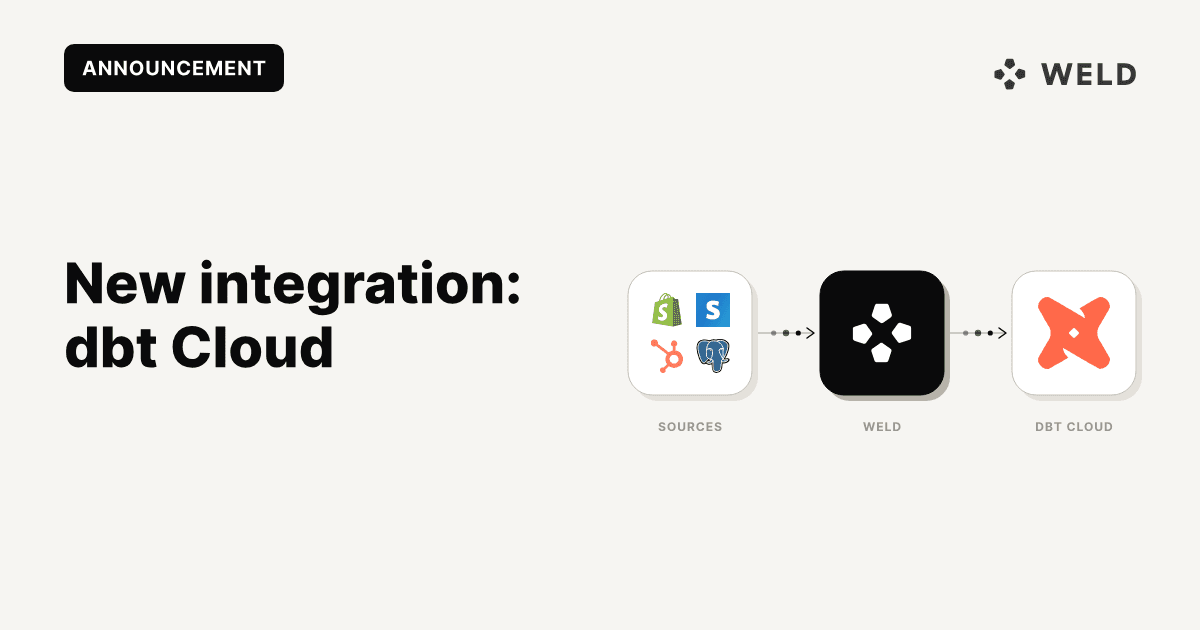
Using Weld with dbt Cloud
Weld integrates with dbt Cloud directly via webhooks:
- Set up the dbt connector in Weld: go to Settings → Transform → select dbt and connect with your service account token
- Create an orchestration workflow: add your data source syncs, then attach a dbt webhook that triggers after ingestion completes
- Now your dbt jobs run automatically after every Weld sync
For the full setup guide, see the Weld dbt Cloud documentation.
Using Weld with dbt Core
With dbt Core, Weld and dbt operate independently on the same warehouse:
- Weld handles ingestion: syncing data from your sources into raw schemas
- dbt Core handles transformations: reading from those same raw schemas
No direct connection is needed since both tools point at the same warehouse. For details, see the Weld dbt Core documentation.
Troubleshooting
"dbt language server is not running in this workspace" Open the project as a VS Code workspace (Add Folder to Workspace → Save Workspace As). The LSP requires a proper workspace folder.
"Unsupported dbt version" / wrong dbt path Check the dbt Path setting in VS Code, it must point to a valid Fusion executable. Reinstall Fusion if needed.
YAML keys flagged as invalid errors Other extensions (like YAML by Red Hat) can conflict with dbt's custom YAML schema. Disable or configure the conflicting extension in your dbt workspace.
Schema changes not showing in autocomplete The extension caches warehouse schema for performance. Clear the cache via the dbt extension menu (Clear Cache).
spawn uvx ENOENT when starting MCP
Use the full path to uvx in your config. Run which uvx (macOS/Linux) or where uvx (Windows) to find it.
FAQ
Does the official dbt VS Code extension work with dbt Core?
No. The official extension from dbt Labs is only compatible with dbt Fusion engine. If you use dbt Core, you'll need a third-party extension like dbt Power User (not officially supported by dbt Labs).
Is dbt Fusion free?
The dbt Fusion engine and extension are free for up to 15 users. You need to register your email within 14 days of installation.
Which LLM works best for dbt in VS Code?
GitHub Copilot is the most integrated option (inline completions + chat). Claude Code excels at multi-step agentic tasks (build-fix loops, bulk generation). Both work well, but the key is providing project context via an instructions file.
What warehouses are supported?
The dbt extension supports BigQuery, Snowflake, Databricks, Redshift, and others. Features like "compare changes" are available on BigQuery, Databricks, Redshift, and Snowflake. Weld supports all major warehouses you can see the full connector list.
How do I trigger dbt jobs after a Weld sync?
In Weld, go to Orchestration → Create a workflow → add a webhook → select dbt as the external system → choose the dbt job to trigger. The webhook fires after your selected sync jobs complete.