
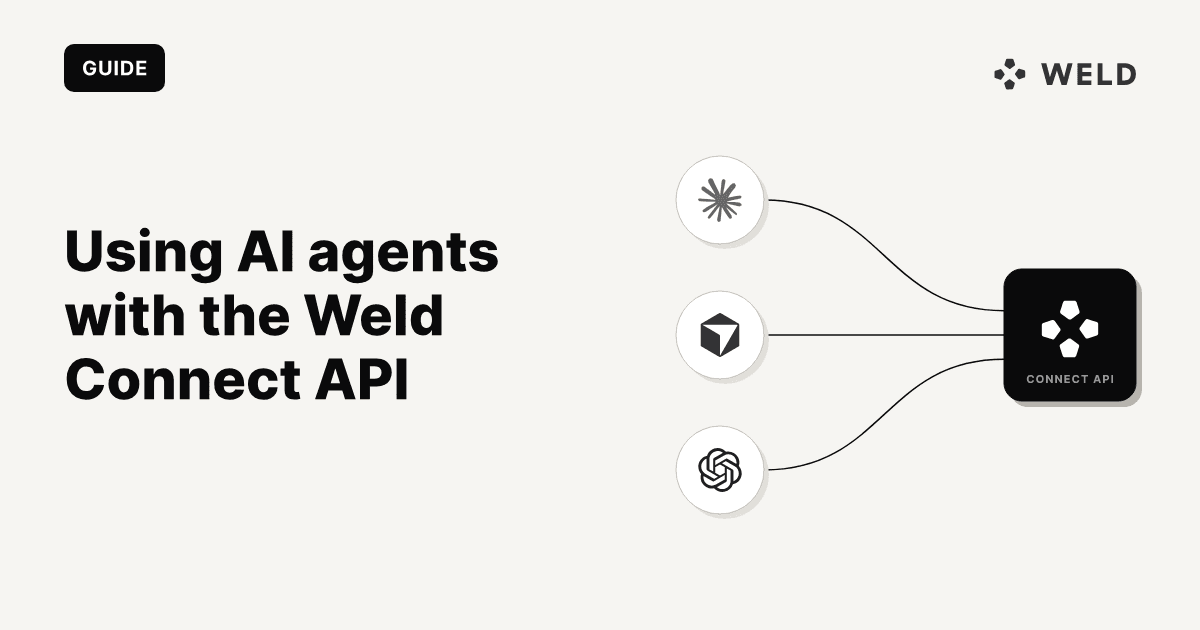
The Weld Connect API lets you manage your entire data stack programmatically: create connections, configure syncs, build and publish data models, all from code.
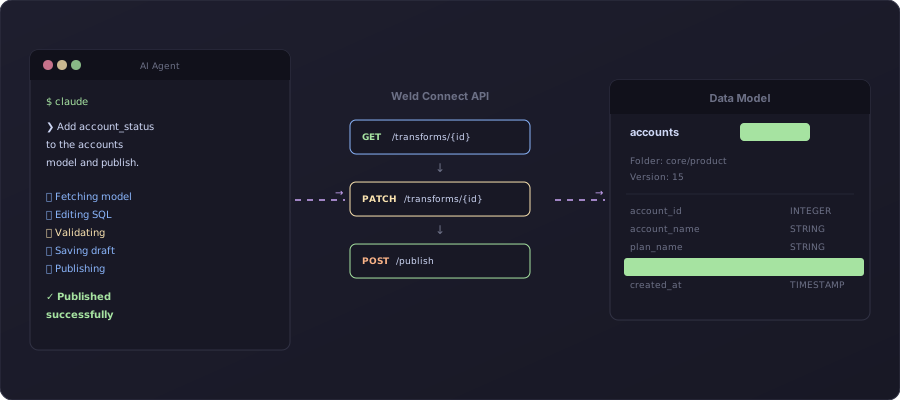
Pair that with an AI coding agent and you get a workflow where you describe what you want in plain English and the agent handles the API calls, SQL writing, and validation for you.
This guide covers how to set it up and what you can do with it.
TL;DR
AI coding agents can use the Weld Connect API to:
- Fetch and edit SQL models
- Validate changes with warehouse dry-runs
- Publish transforms
- Create syncs and connections
- Mirror models to Git for review and backup
We walk through setup with Claude Code, Cursor, GitHub Copilot, and OpenAI Codex, then show real workflows and a full end-to-end example.
What is the Weld Connect API?
Weld Connect is a REST API that gives you programmatic access to everything you'd normally do in the Weld UI:
- Connections: Create and manage data source connections (CRMs, ad platforms, databases, etc.)
- ELT Syncs: Configure what data to sync, how often, and to which warehouse
- Transforms: Create, edit, and publish SQL data models that run in your warehouse
- Orchestration: Control scheduling, trigger syncs, and chain operations together
Instead of clicking through the UI, you (or an agent) make HTTP calls.
What is an LLM agent?
An LLM agent is a coding tool powered by AI that can:
- Read and write files on your machine
- Run shell commands and scripts
- Make HTTP requests
- Iterate based on errors (fix and retry)
In this guide we'll primarily use Claude Code, a CLI agent from Anthropic that runs directly in your terminal. It's a natural fit for API-driven workflows since it can run shell commands, make HTTP requests, and iterate on errors without leaving the terminal.
Other tools that work with the Weld Connect API:
| Tool | Type | Setup guide |
|---|---|---|
| Cursor | VS Code fork with built-in agent mode | Cursor docs |
| GitHub Copilot | Agent mode in VS Code | Copilot agent docs |
| OpenAI Codex | CLI agent from OpenAI | Codex README |
Why combine them?
With an agent, you say:
"Add a
signup_sourcecolumn to the accounts model that maps UTM parameters to clean channel names."
The agent fetches the model via API, writes the SQL, validates it against your warehouse, pushes the update, publishes, and confirms.
This is especially powerful when you need to:
- Edit multiple models at once
- Refactor shared logic across many models
- Quickly iterate on SQL without context-switching
- Set up new connections and syncs programmatically
Setup: what you need
The Weld Connect API is available on all Weld plans. Setup takes about 5 minutes.
Note: Start with read-only warehouse access and non-production models. Do not give an agent broad production permissions until you have tested the workflow.
1. Get your Weld API key
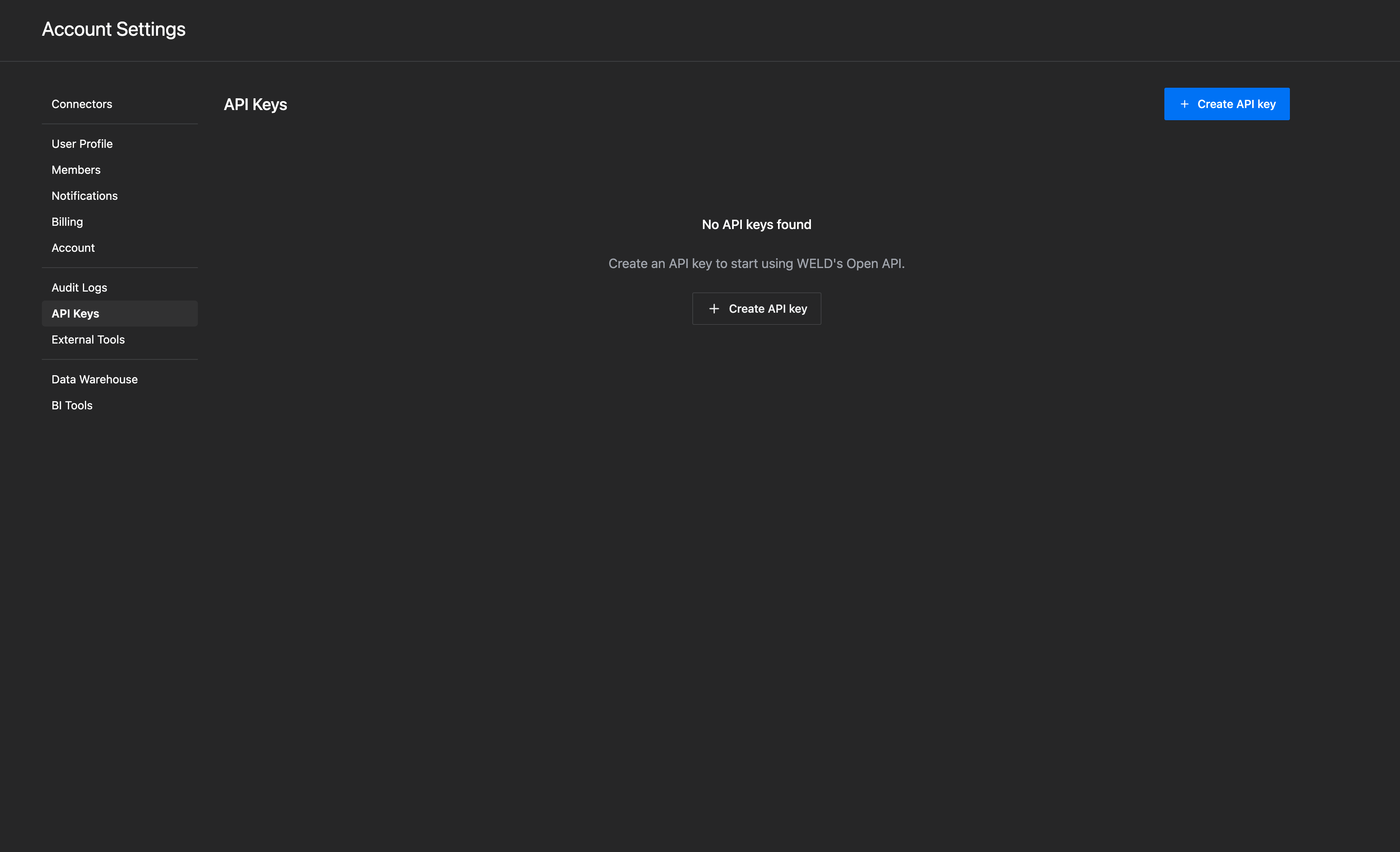
Go to Settings → API in your Weld account and create a key. This is your authentication token for all API calls.
Store it securely:
mkdir -p ~/.weld
echo "your-api-key-here" > ~/.weld/api_key
chmod 600 ~/.weld/api_key
2. Install an agent
We recommend starting with Claude Code. Install the CLI globally:
npm install -g @anthropic-ai/claude-code
Then run claude in your terminal to authenticate and start a session. It will open a browser window to log in with your Anthropic account.
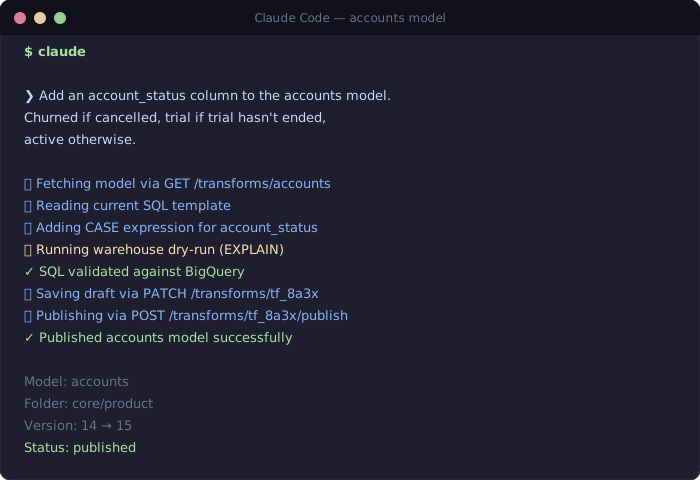
You can also use Claude Code directly in VS Code by installing the Claude Code extension. It runs the same agent inside a VS Code terminal panel.
Other agent options
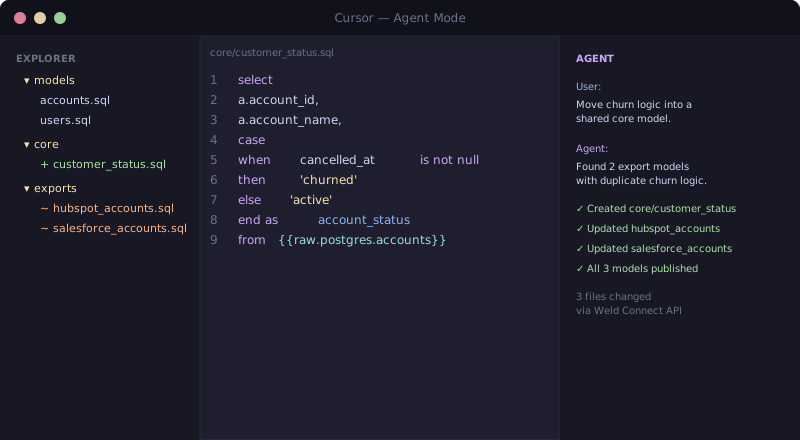
Cursor
Download from cursor.sh. Open your project folder in Cursor, then press Cmd+I (Mac) or Ctrl+I (Windows/Linux) to open the agent panel.
GitHub Copilot (VS Code)
Install the GitHub Copilot extension in VS Code. Open the chat panel and switch to Agent mode to let it run commands and make API calls.
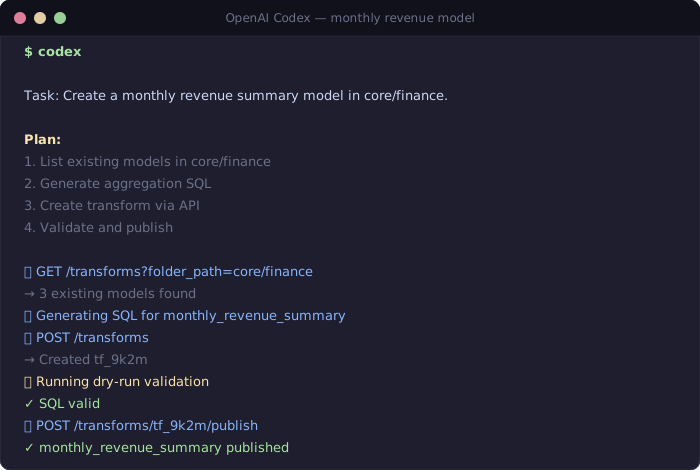
OpenAI Codex
npm install -g @openai/codex
Run codex in your terminal. Requires an OpenAI API key.
3. Warehouse read access (optional but recommended)
If you want the agent to validate SQL before publishing (highly recommended), give it read access to your warehouse:
- BigQuery: A service account with
bigquery.jobUserandbigquery.metadataViewerroles - Snowflake: A role with
USAGEon your database and schema - Redshift/Postgres: A read-only user on the relevant schemas
This lets the agent dry-run queries to catch errors before they hit production.
4. Set up a working folder
Create a simple project folder for your agent scripts and model files:
mkdir weld-models && cd weld-models
That's it. You're ready to go.
The Transforms API: managing data models
The Weld Connect API covers connections, syncs, and transforms. This section covers the Transforms endpoints, which is where most teams start:
Available endpoints
| What you want to do | API call |
|---|---|
| List all your models | GET /transforms |
| Get a specific model | GET /transforms/{id} |
| Find a model by name | GET /transforms?name=accounts |
| List models in a folder | GET /transforms?folder_path=core/product |
| Create a new model | POST /transforms |
| Update a model's SQL | PATCH /transforms/{id} |
| Publish a model | POST /transforms/{id}/publish |
| View version history | GET /transforms/{id}/versions |
| Create many models at once | POST /transforms/bulk |
| List available template references | GET /transforms/available_references |
| Delete a model | DELETE /transforms/{id} |
All endpoints use https://connect.weld.app as the base URL and authenticate with an x-api-key header.
The basic workflow
The typical flow for editing a model:
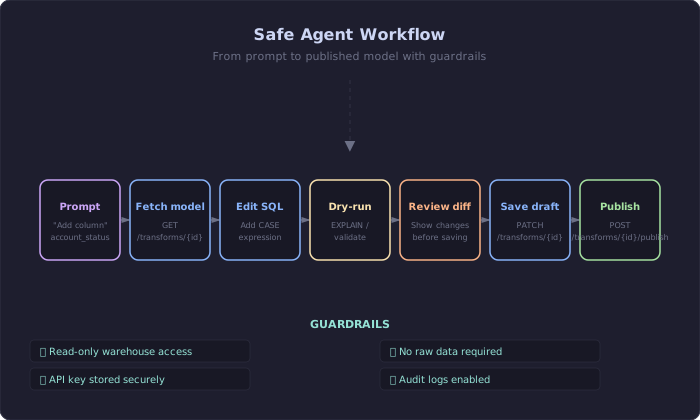
1fetch → edit → validate → review diff → save draft → publish → verify
2
Here's what that looks like in practice:
Fetch a model:
curl -H "x-api-key: YOUR_KEY" \
  https://connect.weld.app/transforms/TRANSFORM_ID
This returns the model's SQL, name, folder, materialization type, and metadata.
Update and publish:
# Save the updated SQL as a draft
curl -X PATCH -H "x-api-key: YOUR_KEY" \
  -H "Content-Type: application/json" \
  -d '{"sql_template": "SELECT id, name, email FROM {{raw.postgres.users}}"}' \
  https://connect.weld.app/transforms/TRANSFORM_ID

# Publish the draft to your warehouse
curl -X POST -H "x-api-key: YOUR_KEY" \
  https://connect.weld.app/transforms/TRANSFORM_ID/publish
Verify it worked:
curl -H "x-api-key: YOUR_KEY" \
  https://connect.weld.app/transforms/TRANSFORM_ID/versions | jq '.[0]'
SQL example: adding a column
Say you have a model that lists accounts, and you want to add a derived status column:
1select
2    a.account_id
3  , a.account_name
4  , a.plan_name
5  , a.created_at
6  , case
7        when a.cancelled_at is not null then 'churned'
8        when a.trial_ends_at > current_date then 'trial'
9        else 'active'
10    end as account_status
11from
12    {{raw.postgres.accounts}} a
With an agent, you'd just say: "Add an account_status column to the accounts model. Churned if cancelled, trial if trial hasn't ended, active otherwise." The agent writes the SQL, validates it, and pushes it.
Template references
Weld models reference other models and raw tables using {{folder.subfolder.table}} syntax:
{{raw.postgres.users}}a raw table from your Postgres source{{core.product.accounts}}another Weld model in the core/product folder{{staging.stripe.subscriptions}}a staging model
The API requires these tags in sql_template. They get resolved to real warehouse table names when the model runs.
The Connections & Syncs API: automating data ingestion
Beyond transforms, the API lets you automate the entire ingestion layer.
Connection endpoints
| What you want to do | API call |
|---|---|
| Initiate a new connection (OAuth or credentials) | POST /openapi/connection_bridges |
| Create a connection | POST /connections |
| Get connection settings (available accounts, schemas) | GET /connections/{id}/settings |
ELT sync endpoints
| What you want to do | API call |
|---|---|
| List all syncs | GET /elt_syncs |
| Get a specific sync | GET /elt_syncs/{id} |
| Create an ELT sync | POST /elt_syncs |
| Update sync config | PATCH /elt_syncs/{id} |
| Get sync status | GET /elt_syncs/{id}/status |
| List available data streams | GET /elt_syncs/{id}/available_source_streams |
| Add source streams (tables) to a sync | POST /elt_syncs/{id}/source_streams |
| Enable sync scheduling | POST /elt_syncs/{id}/enable |
What this means in practice
Instead of manually setting up a new data source in the UI, an agent (or a script) can:
- Create a connection to a data source (e.g., your CRM, ad platform, database)
- Fetch the available settings (which accounts, tables, or streams to sync)
- Create a sync with your chosen configuration
- Select which source streams (tables) to include
- Enable the schedule (hourly, daily, etc.)
- Monitor sync status
This is especially useful for:
- Agencies that onboard new clients regularly (script the whole setup)
- Platforms that provision data pipelines per customer
- Teams that want to spin up new connectors without leaving their terminal
Connection creation docs → · Creating an ELT sync →
Example: set up a new data source with an agent
Tell the agent: "Connect our Stripe account and sync invoices and subscriptions daily."
The agent will:
- Create a connection via
POST /openapi/connection_bridges - Complete the OAuth flow (or submit credentials)
- Fetch available settings via
GET /connections/{id}/settings - Create the ELT sync via
POST /elt_syncs - List available streams via
GET /elt_syncs/{id}/available_source_streams - Add invoices and subscriptions via
POST /elt_syncs/{id}/source_streams - Enable scheduling via
POST /elt_syncs/{id}/enable
Example workflows
Here are common things teams do with an agent and the Weld API:
"Add a column to a model"
Tell the agent: "Add a days_since_last_login column to the users model."
The agent will:
- Fetch the model via
GET /transforms/{id} - Add the column to the SQL
- Validate the SQL against your warehouse (dry-run)
- Save via
PATCH /transforms/{id} - Publish via
POST /transforms/{id}/publish
"Create a new model from scratch"
Tell the agent: "Create a monthly revenue summary model in core/finance that aggregates subscriptions by month."
The agent will:
- Write the SQL with appropriate template refs
- Create via
POST /transformswith folder, name, materialization, and SQL - Publish
"Refactor across multiple models"
Tell the agent: "Move the churn calculation logic from exports/hubspot_accounts and exports/salesforce_accounts into a shared core model, then update both exports to reference it."
The agent will:
- Fetch both export models
- Extract the shared logic into a new model in core/
- Create the new model via
POST /transforms - Update both exports to reference it via
PATCH /transforms/{id} - Publish all three models
"Bulk update all models in a folder"
Tell the agent: "Add a _synced_at timestamp column to every model in exports/."
The agent lists models with GET /transforms?folder_path=exports, then patches and publishes each one.
Full example: adding account_status
Here's a complete end-to-end walkthrough, from prompt to published model.
Your prompt:
"Add an account_status column to the accounts model. Churned if cancelled, trial if trial hasn't ended, active otherwise."
Step 1: Find the model
curl -H "x-api-key: $WELD_API_KEY" \
  "https://connect.weld.app/transforms?name=accounts"
Response includes the transform ID (tf_8a3x) and current SQL.
Step 2: Fetch the current SQL
curl -H "x-api-key: $WELD_API_KEY" \
  https://connect.weld.app/transforms/tf_8a3x
Step 3: Edit the SQL
The agent adds the CASE expression:
1select
2    a.account_id
3  , a.account_name
4  , a.plan_name
5  , a.created_at
6  , case
7        when a.cancelled_at is not null then 'churned'
8        when a.trial_ends_at > current_date then 'trial'
9        else 'active'
10    end as account_status
11from
12    {{raw.postgres.accounts}} a
Step 4: Dry-run to validate
The agent replaces {{raw.postgres.accounts}} with the real table name and runs:
1EXPLAIN SELECT ... FROM project.dataset.accounts a
2
If the query parses, the SQL is valid.
Step 5: Review the diff
The agent shows you what changed before saving:
1  select
2      a.account_id,
3      a.account_name,
4      a.plan_name,
5      a.created_at,
6+     case
7+         when a.cancelled_at is not null then 'churned'
8+         when a.trial_ends_at > current_date then 'trial'
9+         else 'active'
10+     end as account_status
11  from {{raw.postgres.accounts}} a
12
Step 6: Save draft
curl -X PATCH -H "x-api-key: $WELD_API_KEY" \
  -H "Content-Type: application/json" \
  -d '{"sql_template": "..."}' \
  https://connect.weld.app/transforms/tf_8a3x
Step 7: Publish
curl -X POST -H "x-api-key: $WELD_API_KEY" \
  https://connect.weld.app/transforms/tf_8a3x/publish
Step 8: Verify
curl -H "x-api-key: $WELD_API_KEY" \
  https://connect.weld.app/transforms/tf_8a3x/versions | jq '.[0]'
The latest version shows the updated SQL and a published status.
Validating SQL before publishing
With this setup you can validate SQL before it touches Weld.
Most data warehouses support a "dry-run" or EXPLAIN mode that checks SQL validity without executing it:
- BigQuery:
dry_run=Trueparameter. Validates syntax, resolves all references, estimates cost. - Snowflake:
EXPLAIN SELECT ...parses and validates without running. - Redshift/Postgres:
EXPLAIN SELECT ...same idea.
The agent resolves Weld's {{template.tags}} to real table names, runs a dry-run, and only pushes to Weld if validation passes.
This catches typos, missing columns, broken references, and type mismatches before they hit production.
Agent instruction file
To make your agent behave consistently, create a CLAUDE.md (or equivalent config file) in your project folder with rules and context:
1# Weld Agent Instructions
2
3Use the Weld Connect API at https://connect.weld.app.
4Authenticate with the API key stored in ~/.weld/api_key.
5
6## Rules
7
8- Never print or log API keys.
9- Always fetch the current transform before editing.
10- Validate SQL with a warehouse dry-run before saving.
11- Show a diff and ask for confirmation before publishing.
12- Use PATCH to save a draft first, then publish only after confirmation.
13
14## Common endpoints
15
16- GET /transforms (list all models)
17- GET /transforms/{id} (get a specific model)
18- PATCH /transforms/{id} (update SQL draft)
19- POST /transforms/{id}/publish (publish to warehouse)
20- GET /transforms/{id}/versions (version history)
21
22## Template syntax
23
24Weld models use {{folder.subfolder.table}} to reference
25other models and raw tables. Always preserve these tags
26in sql_template fields.
27
This works with Claude Code (CLAUDE.md), Cursor (.cursorrules), and GitHub Copilot (.github/copilot-instructions.md). Adjust the filename for your tool.
Mirroring models to Git
A useful pattern: sync all your Weld models to a GitHub repo nightly. This gives you:
- Version history and blame
- Code review for model changes
- Fast local search (grep across all models)
- Backup and recovery
You can set this up as a simple GitHub Action that calls GET /transforms and writes each model's SQL to a file. The Weld Connect docs have examples.
Security and privacy
A few things to keep in mind:
- API keys are secrets. Store them in
~/.weld/or a secrets manager, never in code. - Agents only see what you give them. They don't scan your warehouse in the background.
- Prefer dry-runs over real queries. Most SQL development doesn't need actual row data.
- Scope warehouse access narrowly. Give the agent read access to specific schemas, not everything.
- Audit via your warehouse logs. Every query the agent runs shows up in BigQuery audit logs, Snowflake QUERY_HISTORY, etc.
Using agents with dbt and Weld
If you use dbt for your data transformations, AI agents work well here too. Weld supports both dbt Cloud and dbt Core as orchestration options, so you can use agents to write and manage your dbt models while Weld handles the ingestion and orchestration.
An agent can:
- Write and edit dbt models (SQL + YAML) in your local project
- Run
dbt compileanddbt testto validate changes - Push to Git and trigger runs via dbt Cloud or Weld's orchestration
- Export and import models via the API to migrate between Weld and dbt projects
We've written a detailed guide on this: How to Use Claude Code with dbt. It covers setting up an agent to work with your dbt project, writing models, running tests, and managing the full workflow.
For more on how dbt integrates with Weld:
- dbt Cloud integration
- dbt Cloud orchestration in Weld
- dbt Core orchestration in Weld
- dbt in VS Code: Extensions, LLMs & Agentic Workflows
What's next
Once you're comfortable with the basics:
- Explore the full API reference: all endpoints, parameters, and response schemas. API Reference →
- Read the Weld Connect overview: covers connections, syncs, and transforms in detail. Weld Connect docs →
- Try it today: pick one low-risk model, ask an agent to add a derived column, require a SQL diff and dry-run, then publish through the API.