
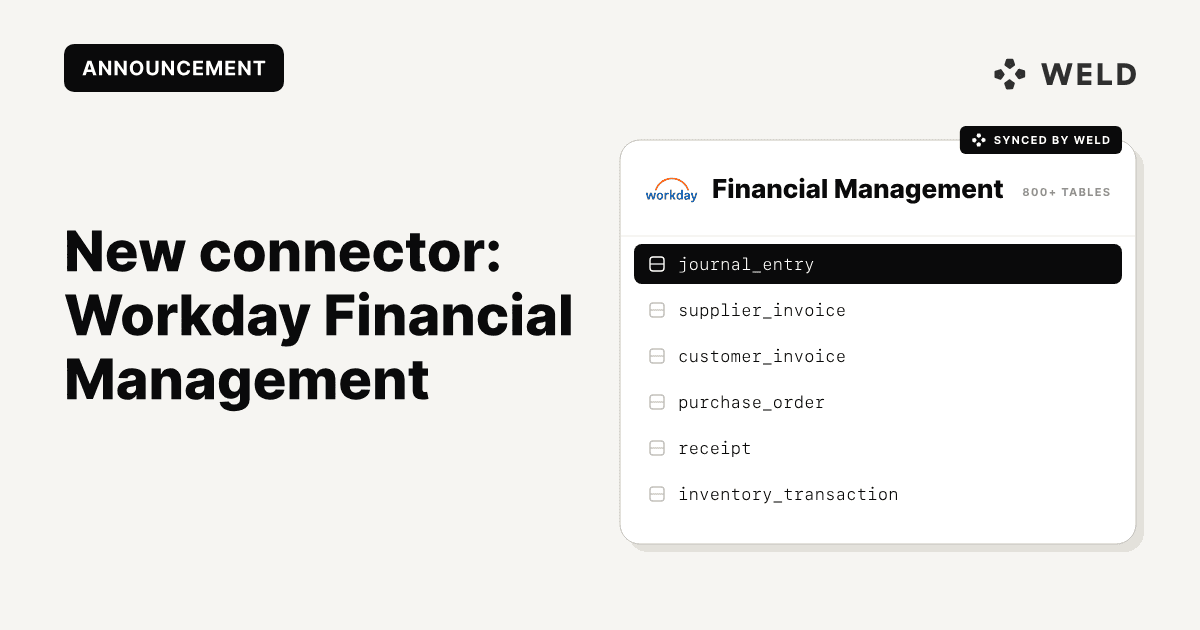
Workday Financial Management is now available as a Weld source. Weld syncs 85 Workday objects into your data warehouse on the schedule you set: the general ledger, supplier and customer invoices, contracts, purchase orders, revenue recognition, inventory and the reference data that ties them together.
That means your Workday finance data stops living only inside Workday and starts sitting next to your CRM, billing, budgeting and product data, where you can query all of it together.
What you can do with it
Getting data out of Workday usually means a custom report, an export and a spreadsheet, rebuilt every month. With Workday in your warehouse you can:
- Report on the ledger. Build trial balances and P&L views from journal entries, ledgers and account sets, cut by company, cost centre or any worktag.
- Manage payables. Follow supplier invoices, adjustments, refunds and payments, and see what is due to whom.
- Track receivables and revenue. Combine customer invoices, payments and contracts with revenue recognition schedules, and join them to the CRM and billing data you already sync with Weld.
- Watch committed spend. See what has been requested, ordered and received but not yet invoiced, by supplier or cost centre, and compare it with budget.
- Follow inventory. Report on stock movements, shipments, returns and stock requests next to your sales data.
What gets synced
The connector covers 85 Workday objects. Each one lands as a parent table plus a child table for every repeated element in it, such as lines, splits and worktags, so the full connector comes to more than 800 tables. You pick the ones you need.
- Accounting: journal entries, journal sources, ledgers, account sets, companies, cost centres, organizations, custom worktags, currencies and currency conversion rates
- Payables: suppliers, supplier classifications, supplier contracts and amendments, supplier invoices, invoice adjustments, requests and schedules, supplier refunds and payments
- Receivables: customers, customer contracts, amendments and renewal terms, customer invoices and adjustments, customer payments, billing schedules and consolidated invoices
- Procurement: requisitions, requests for quote with their responses and awards, purchase orders, acknowledgements and schedules, receipts and receipt adjustments, supplier catalogs and items
- Revenue: revenue categories and hierarchies, revenue recognition schedules, revenue allocation configuration, sales items and price lists
- Inventory: inventory transactions, shipments, stock requests, picking lists, return orders, par locations, item lots and goods delivery tickets
Transaction tables such as journal entries, purchase orders, receipts, suppliers and cost centres sync incrementally, so after the first load Weld only fetches what changed. Most reference objects, which Workday cannot filter by when they last changed, reload in full on each sync.
Below is the schema for purchase orders and receipts, the part of the connector you can explore interactively today:
Where your Workday data lands
Weld syncs Workday into the warehouse or database you already use:
- Cloud data warehouses: Snowflake, Google BigQuery, Amazon Redshift, Databricks, Azure Synapse Analytics and ClickHouse
- Databases: PostgreSQL, Microsoft SQL Server and MySQL
- Data lakes: Amazon S3 and Apache Iceberg
No warehouse yet? Weld can host one for you with Managed BigQuery, so you can start querying Workday data on day one.
An example: open goods lines by supplier
Once the data is synced, a question like "what have we ordered that has not been fully received yet" is one query:
1select
2    po.supplier_descriptor as supplier
3  , po.document_number
4  , line.item_description
5  , line.receiving_status_descriptor as receiving_status
6  , line.due_date
7  , line.extended_amount
8from
9    {{raw.workday_financial_management.purchase_order}} as po
10    join {{raw.workday_financial_management.purchase_order_goods_line}} as line on line.purchase_order_id = po.id
11where
12    line.receiving_status_descriptor != 'Fully Received'
13order by
14    line.due_date
Replace workday_financial_management with the schema name you chose for your connection, and check the status labels your tenant uses.
How to set it up
1. In Workday, create an integration system user and a security group that gives it Get access to the domains for the data you want to sync. Activate the pending security policy changes, or the permissions will not take effect.
2. Register an API client for integrations with a non-expiring refresh token, and generate a refresh token for the integration system user. If your organisation cannot register API clients, you can connect with the integration system user's name and password instead.
3. Find your Workday services hostname and tenant name in your Workday Web Services URL.
4. In Weld, add a new connection, choose Workday Financial Management, enter the details from the steps above, and pick the tables for your first sync.
The Workday Financial Management documentation walks through each Workday task step by step.
FAQ
Which warehouses can I sync Workday Financial Management to?
Snowflake, Google BigQuery, Amazon Redshift, Databricks, Azure Synapse Analytics, ClickHouse, PostgreSQL, Microsoft SQL Server, MySQL, Amazon S3 and Apache Iceberg, or a Managed BigQuery warehouse hosted by Weld.
What data does the Workday Financial Management connector sync?
85 Workday objects across accounting, payables, receivables, procurement, revenue and inventory, with their lines and nested details as child tables: more than 800 tables in all. File attachments are not synced.
How does Weld authenticate with Workday?
With OAuth through an API client for integrations, which is the recommended option, or with an integration system user and password.
Does the connector sync incrementally?
Transaction tables such as journal entries, purchase orders, receipts, suppliers and cost centres do. Most reference objects reload in full on each sync, because Workday cannot filter them by when they last changed.
What happens to records deleted or cancelled in Workday?
In tables that sync incrementally, they keep their last synced state in your warehouse. Run a ReSync of the table if you need the destination to match Workday exactly.