
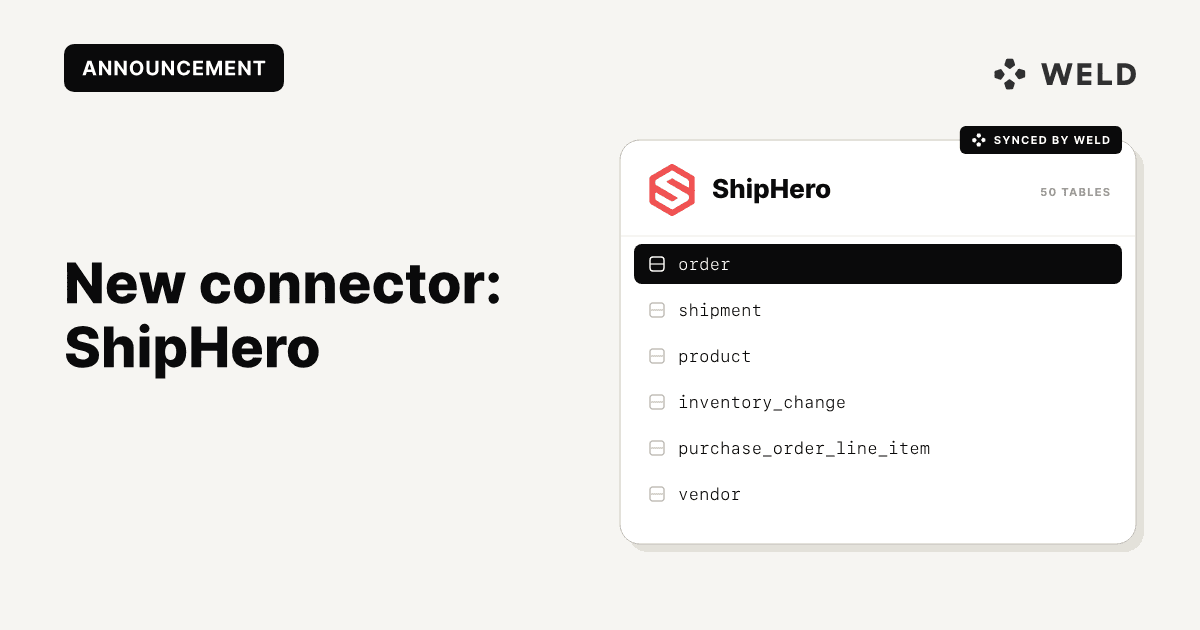
We’re very happy to announce the launch of our newest connector: ShipHero! With Weld, you can now sync your Warehouse Management System with your data warehouse. This connector is perfect for expanding e-commerce and 3PL's intending to track sales trends, and performance metrics
Why connect Shiphero to your data warehouse?
ShipHero is great at showing you what is currently happening with your warehouses, shipping and employees. Syncing ShipHero and your data warehouse will allow you to accurately identify the bottlenecks of your business. This also allows you to benchmark margins before and after implementing new strategies or initiatives.
With ShipHero in your warehouse, you can audit:
- Labor and Productivity metrics
- Inventory health metrics
- Shipping and Cost Efficiency
- ... and much more!
Connector features
| Feature | Supported |
|---|---|
| Column Hashing | ✅ Field-level |
| Blocking | ✅ Field-level |
| Incremental Sync | ✅ |
| Custom Data | ❌ |
| History | ✅ |
| ReSync (full reload) | ❌ |
| Templates | ✅ |
| Reverse ETL | ✅ Bulkload |
📁 What data can i get from ShipHero?
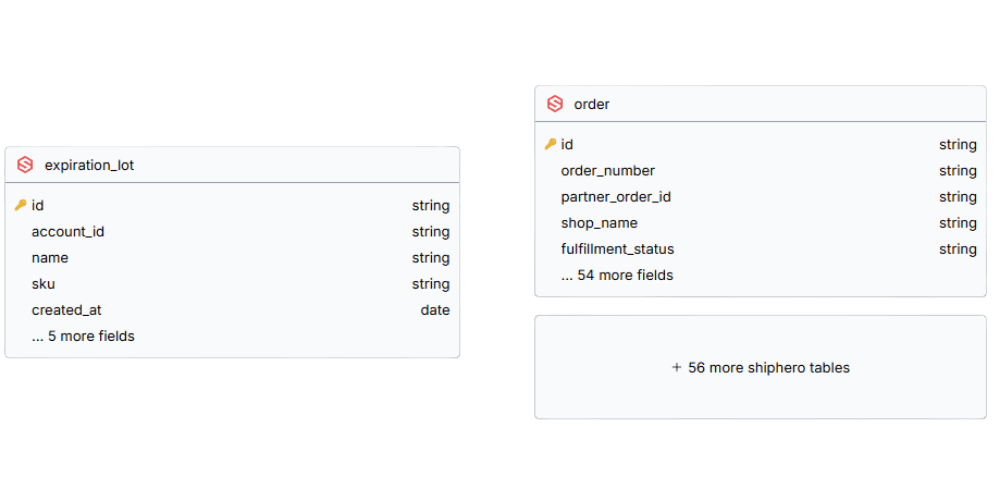
productvendorlocationorderwholesale_orderpurchase_orderwarehouse_productexpiration_lotreturnpick_per_daypack_per_dayshipment
Schema
How to set it up
Before you can set up the connector, you will need to obtain API access and Refresh Token. For
more information, See ShipHero's documentation
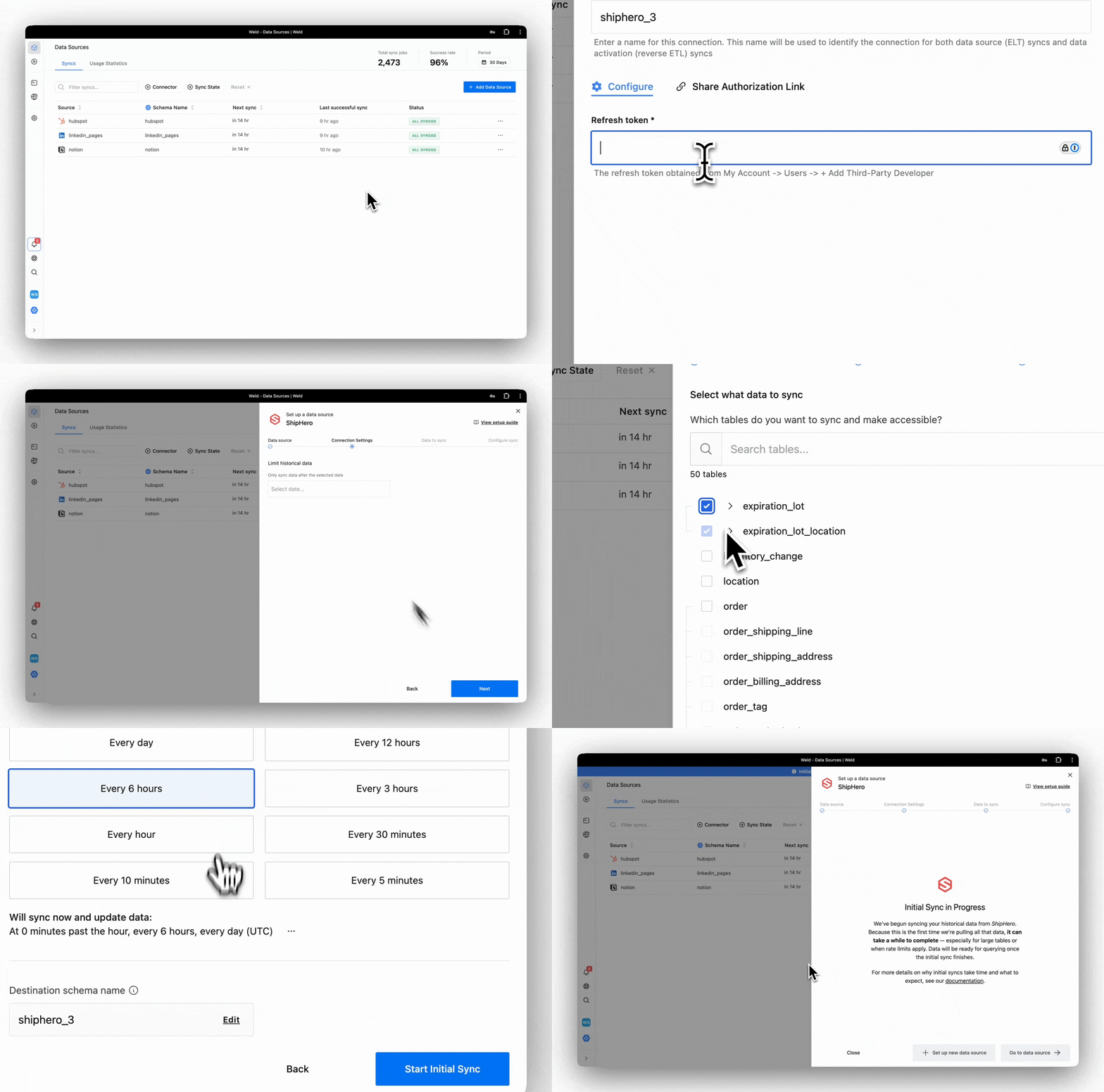
Step 1 - Data Source
- In the connector setup form, enter the destination schema name of your choice.
- Enter the refresh token that you have obtained and click Connect
Step 2 - Connection Settings
- Enable limit historical data, which allows you to only sync data after the selected date
Step 3 - Data To sync
- Select the pre-built reports you wish to include in the sync. You can view the schema, remove columns or hash sensitive information.
Step 4 - Configure sync
- Select how often you would like the data to sync
- Provide unique destination schema name.
Weld will take over from here and commence syncing data from your Shiphero account
How does Weld work?
After setting up the ShipHero connector, Weld extracts data from Shiphero on a set schedule, then syncs it directly into your data warehouse.
How can i use my ShipHero Data?
- Get insight into how effective the pickers are and what you can improve.
- Identify dead stock.
- Calculate true cost of shipment with the total shipping cost and estimated labor time.
Get started
Ready to get started?
Set up the Shiphero connector in Weld today!