
We're rolling out Viewer and Editor roles with scoped permissions, so you can give every team member exactly the access they need.
Three Roles
| Role | Scope | What they can do |
|---|---|---|
| Admin | Full access: billing, user management, all configuration | |
| Editor | Data Sources | Create, configure, and manage ELT syncs |
| Reverse ETL | Set up and manage reverse sync destinations | |
| Transformations | Create and edit SQL/dbt models | |
| Viewer | Read-only across the entire workspace |
Admins choose which scopes each Editor can modify. Any scope left unchecked becomes read-only for that Editor.
Viewer Role
Viewers get read-only access to everything in the workspace. They can:
- Monitor sync statuses and history
- View data source configurations and connection health
- Browse SQL models and transformation logic
- Check usage dashboards and plan details
They cannot modify connectors, edit models, trigger syncs, or change any settings. This makes the Viewer role ideal for managers, stakeholders, and anyone who needs visibility without risk.
Editor Role with Scoped Permissions
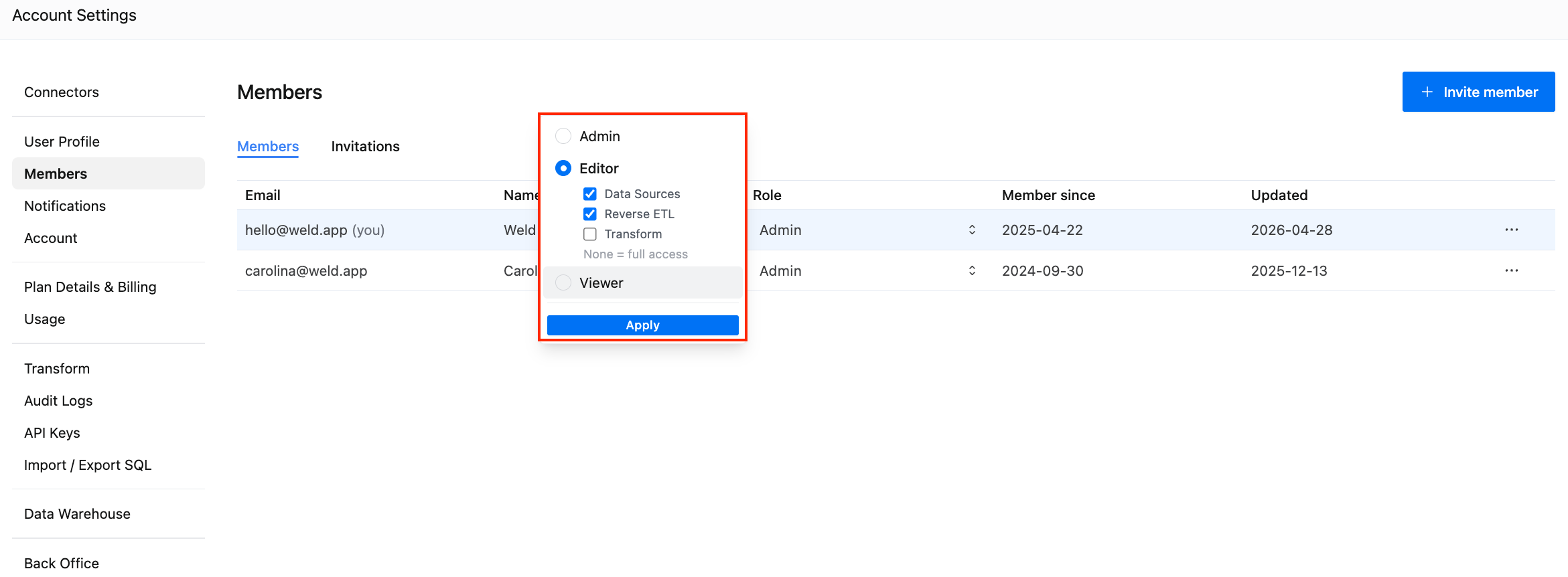
The Editor role is where things get interesting. Admins can toggle which areas an Editor has write access to:
- Data Sources: create, configure, and manage ELT syncs
- Reverse ETL: set up and manage reverse sync destinations
- Transform: create and edit SQL/dbt models
Any area left unchecked becomes read-only for that Editor. If no areas are selected, the Editor gets full write access (matching the previous default behavior).
This means you can, for example, give an analyst write access to Transformations while keeping ELT sync configuration locked down, or let an ops team manage Reverse ETL without touching the data modeling layer.
How to Set It Up
- Go to Account Settings → Members
- Click the role dropdown next to any team member
- Choose Admin, Editor, or Viewer
- For Editors, toggle the specific areas they should have write access to
- Click Apply
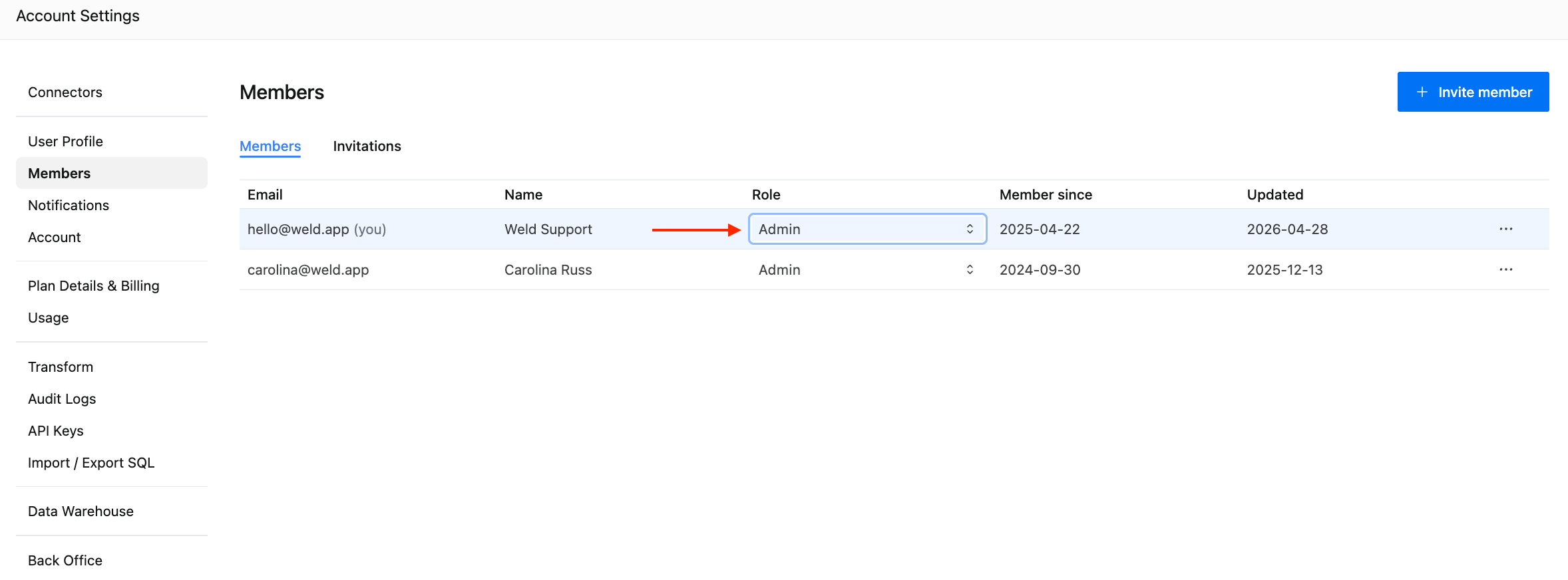
Changes take effect immediately. No need for the user to log out or refresh.
Common Setups
Here are a few role configurations we see teams using:
"Dashboard-only stakeholders": Assign the Viewer role to executives or business users who want to monitor data freshness and sync health.
"Analyst with guardrails": Assign Editor with only Transform enabled. The analyst can build and publish SQL models but can't accidentally modify source connections.
"Ops engineer": Assign Editor with Data Sources and Reverse ETL enabled. They manage the full sync lifecycle without touching the transformation layer.
"Full contributor": Assign Editor with no scopes selected (defaults to full access). Same as the previous behavior for non-admin team members.
Keep External Users Out of the App Entirely
Not everyone needs a workspace login. If you just need a client or external team member to authenticate a connector (like Facebook Ads, HubSpot, or Google Ads), you can use Authentication Links instead. Generate a secure link, send it to the person who owns the account, and they authorize the connection without ever logging into Weld.
Combined with the new roles, this gives you a clean access model: Auth Links for external authentication, Viewer for read-only stakeholders, and scoped Editors for your team.
Get Started
Granular access control is available now on all plans. Head to Account Settings → Members to start assigning roles.