
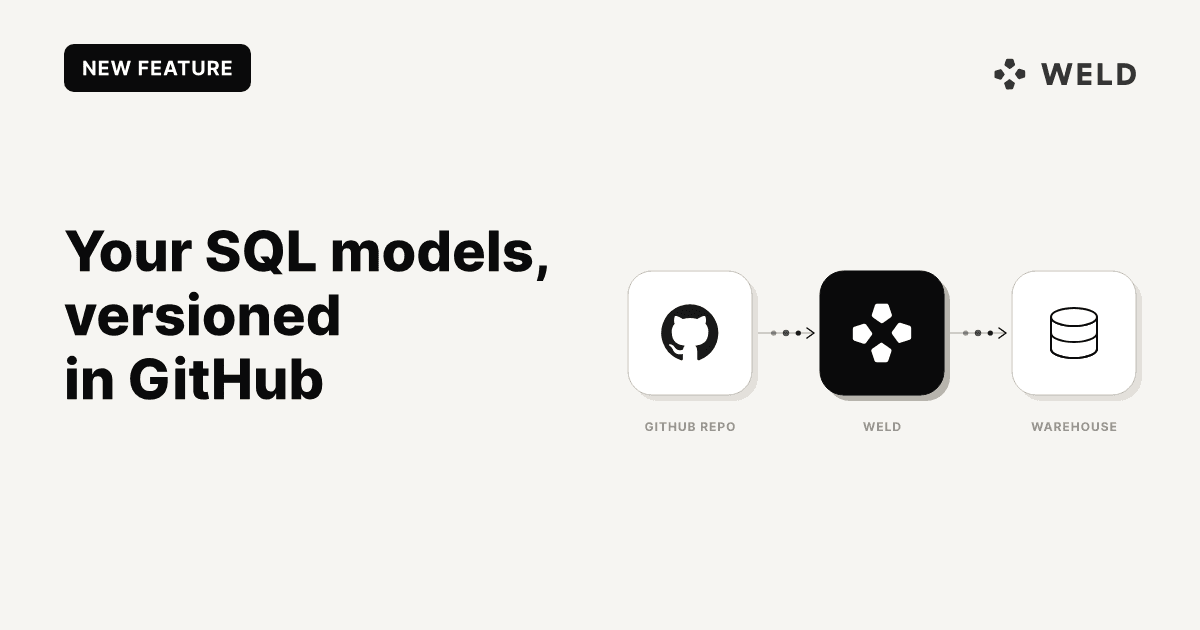
Your Weld SQL models can now live in a GitHub repository. Connect a repo, push .sql files to a branch, and Weld keeps your models in step with it on every push.
That gives your data models the workflow the rest of your code already has: version history, pull requests, code review and rollback for every change. It also means anything that can open a pull request can change a model, whether that is a teammate in VS Code or an agent like Claude Code or Cursor. Weld keeps doing the rest on top of the models it receives: scheduling, orchestration, lineage, alerting and reverse ETL.
GitHub Sync is available now. Switch it on from Transform settings in Weld.
Here is one change end to end: a SQL edit pushed to the repo, the sync it triggers in Weld, what that sync changed, and the model it updated.
Why put your models in Git
Every change gets reviewed. A new metric or a fix to a join goes through the same pull request as any other code change, so someone reads the SQL before it reaches the dashboards that depend on it.
You can see who changed what, and undo it. The commit history is the history of your data model. When a number moves, you can find the commit that moved it and revert it.
Agents and developers work where they already are. Models are plain .sql files, so you can write them in your own editor, with Copilot autocomplete or an AI agent, and ship them with git push. No copying SQL in and out of a browser tab.
One place to edit. Once GitHub Sync is on, the repository is the only place models are created, edited or deleted. The model editor in Weld becomes read-only for models, so the repo and the warehouse can't drift apart because someone made a quick fix in the UI.
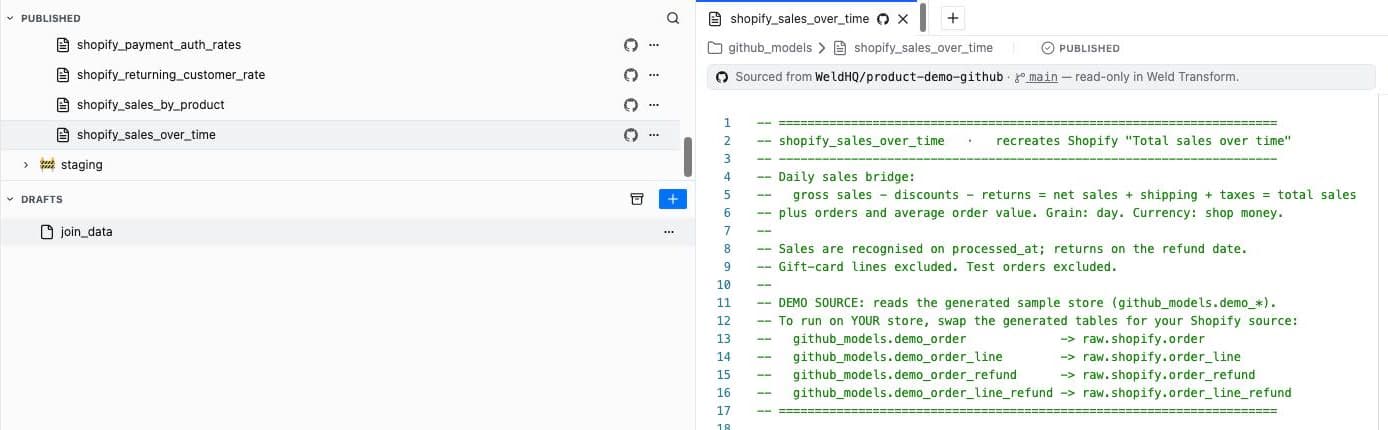
In the editor, every tracked model carries a GitHub icon, and an open model shows the repository and branch it comes from.
How it works
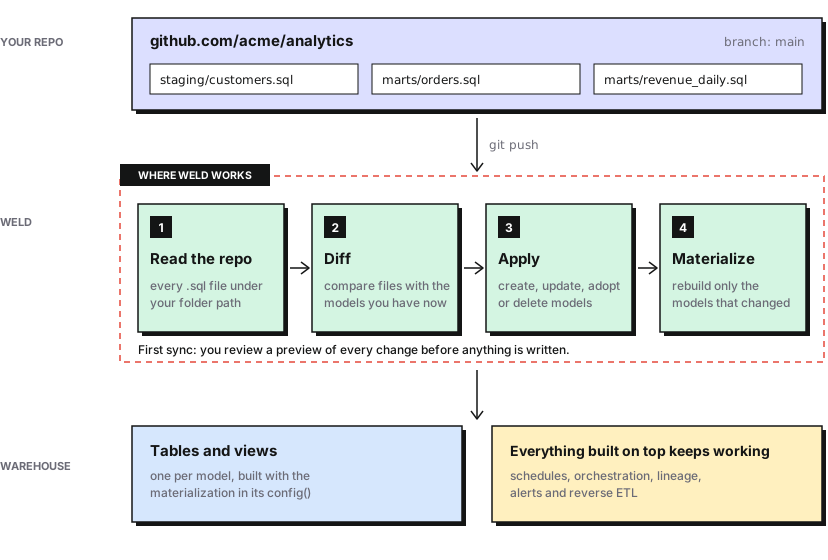
On every push to the branch you connect, Weld reads your repository, compares it with your current models and applies the difference:
- A new
.sqlfile becomes a new model. - A changed file updates the matching model.
- A removed file deletes the matching model.
Only the models that changed are re-materialized in your warehouse, so a one-line fix doesn't rebuild everything.
Your existing models come with you
If you already have models in Weld, GitHub Sync doesn't duplicate them. When a file in the repo matches an existing model by name and folder, Weld adopts that model instead of creating a new one. The model keeps its identity, and everything that points at it keeps working: schedules, tests, dashboards and reverse ETL syncs. That makes it safe to put a live workspace under version control.
Materialization lives in the file
Each model sets how it is built with a config macro at the top of the file. Without one, the model is a view.
1{{
2  config(
3    materialized='table',
4    schedule='0 */3 * * *'
5  )
6}}
7
8select
9  order_date,
10  sum(total_price) as revenue
11from {{raw.shopify.order}}
12group by 1
13
materialized is 'table' or 'view'. schedule is 'daily', 'hourly' or a cron expression, and applies to tables.
Every push, in the sync history
The GitHub page in your account settings shows the connected repository and branch, a Sync now button, and the history of every sync: whether it succeeded, what triggered it, the commit, and how many models it created, updated, deleted or left unchanged.
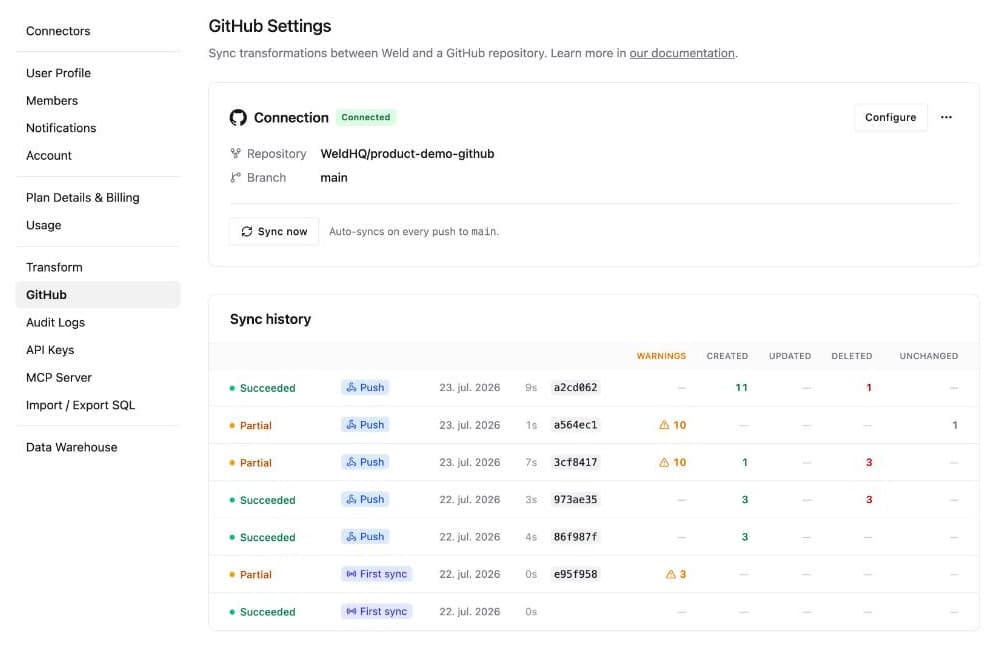
When a model fails to build in the warehouse, the sync is marked Partial and lists exactly which models are affected, so one broken model doesn't leave you guessing about the rest. Click any sync to see what it did, file by file: the models it deleted, the ones it created, and the files it couldn't build, with the reason for each.
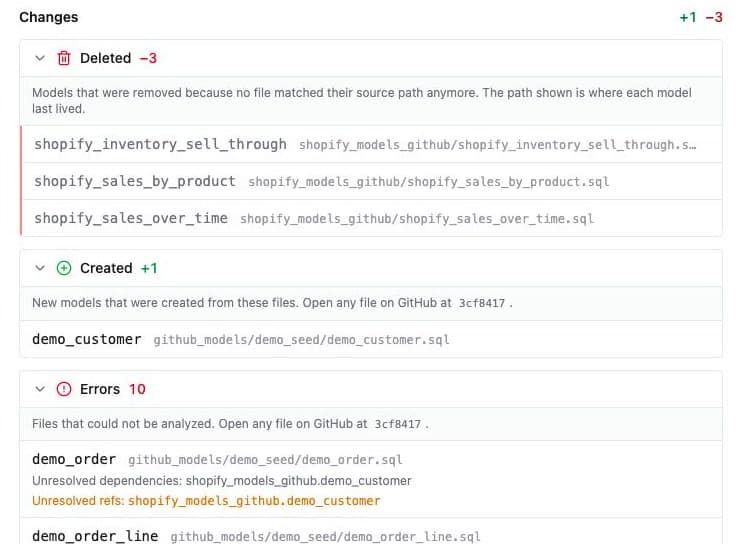
From the sync's detail view you can:
- Retry failed models, re-running only the ones that failed instead of the whole sync.
- Rebuild out-of-date models, reconciling every model whose warehouse object has drifted from its query in one click, without a new commit.
Every sync also validates for downstream and stale breakage before the change reaches production, and warns you when a model asks for a materialization type that isn't supported.
Set it up in three steps
The full guide is in the GitHub Sync documentation. In short:
- Turn it on. Open Transform settings in Weld and enable GitHub Sync.
- Install the Weld GitHub App. Click Install GitHub App and authorize Weld for GitHub on your organization. Choose Only select repositories and pick the one repository you want to sync. Each Weld workspace connects to one repository.
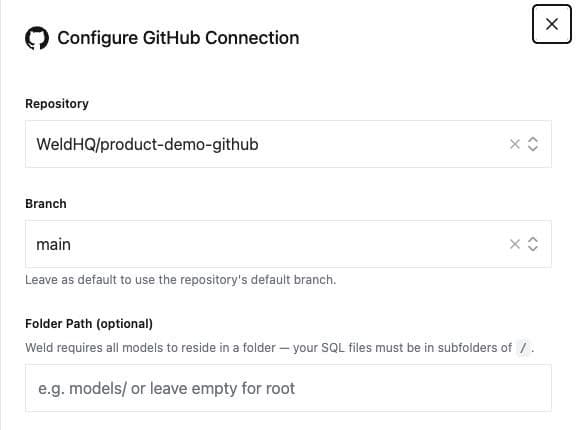
- Connect the repository. Back in Weld, click Connect repository and pick the repository, the branch to track (it defaults to the repository's default branch) and, optionally, the folder Weld should read from.
Models need to sit in a folder, so put your .sql files in subfolders of the path you choose, for example marts/revenue_daily.sql. Files at the root are skipped.
The first sync is a preview
The first time you sync, Weld shows every change it is about to make before it writes anything: the models it will create, update, delete and adopt. Read it carefully, especially deletions and materialization changes, then confirm. After that, every push applies on its own, and you can follow each one in the sync history.
What's changed since we first shipped it
GitHub Sync first arrived in May. Since then:
- Self-healing syncs (July). Partial syncs, validation on every sync, retrying failed models and rebuilding out-of-date ones, as described above.
- Orchestration stays attached (August). A sync no longer touches which orchestration workflow a model belongs to, so models keep building in orchestration order after every push.
- Model clean-up respects the repo (October). In the Model clean-up list, a model tracked by a file in the repo shows a GitHub icon and the file to delete, instead of a delete button that would fail. Only the repo can remove it.
- Views keep up with their models (October). On Snowflake, Postgres, SQL Server, ClickHouse and MotherDuck,
SELECT *views are rebuilt automatically when the model they read changes, including changes that arrive from a GitHub sync.
The full details are in the release notes.
See it in the product
Want to look before you connect a repo? The product tour walks through Weld end to end, including a model sourced from GitHub in Transform and the GitHub sync history.
FAQ
Does GitHub Sync work with my existing Weld models?
Yes. When a .sql file matches an existing model by name and folder, Weld adopts that model rather than creating a copy, so its schedules, dashboards and reverse ETL syncs keep working.
Can I still edit models in the Weld UI?
No. With GitHub Sync on, models are read-only in Weld and the repository is the only place to create, edit or delete them. That keeps the repo and your warehouse in agreement.
What access does the Weld GitHub App need?
Read access to metadata and read and write access to code, on the repositories you grant it. We recommend granting only the one repository you sync.
Does every push rebuild all my models?
No. Weld only re-materializes the models whose files changed in the push.
Can AI agents change my models?
Yes. Because models are plain .sql files in Git, an agent like Claude Code or Cursor can edit them and open a pull request like any developer. Once the change is merged to the branch you sync, Weld picks it up.